Example "Create Planar movers with group and move based on coordinates (MoveX, MoveY)"
Using this guide, you will create a TwinCAT project that contains two Planar movers and one Planar group. Both movers are added to the group and moved.
Creating a Planar mover
- See Configuration.
- 1. Create two Planar movers.
- 2. Put “Parameter (Init)” into simulation mode (
TRUE). The parameter is hidden and only becomes visible if the "Show Hidden Parameters" checkbox is activated. - 3. Change the start position of the second mover to x = 200.
Creating a Planar group
- 4. Add the Planar group via Groups > Add New Item…, see Configuration.
Creating a PLC
- See preliminary steps under Creating a PLC.
- 1. Create two movers ("MC_PlanarMover") and a Planar group "MC_PlanarGroup" via MAIN.
- These represent the movers and the group in the MC Configuration.
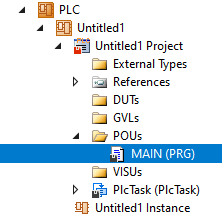
- 2. Create a state variable for a state machine as shown below, plus two auxiliary positions for the MoveToPosition commands of the movers.
PROGRAM MAIN
VAR
    mover_one, mover_two : MC_PlanarMover;
    group : MC_PlanarGroup;
    state : UDINT;
    target_x : LREAL := 200;
target_y : LREAL := 200;
END_VAR- 3. Then program a sequence in MAIN.
- This program code activates the group and both movers. Both movers are then added to the group.
CASE state OF
  0:
    mover_one.Enable(0);
    mover_two.Enable(0);
    state := 1;
  1:
    IF mover_one.MCTOPLC.STD.State = MC_PLANAR_STATE.Enabled
    AND mover_two.MCTOPLC.STD.State = MC_PLANAR_STATE.Enabled THEN
      state := 2;
    END_IF
  2:
     group.Enable(0);
     state := 3;
  3:
    IF group.MCTOPLC_STD.State = MC_PLANAR_STATE.Enabled THEN
      state := 4;
    END_IF
  4:
    mover_one.AddToGroup(0, group);
    mover_two.AddToGroup(0, group);
    state := 5;
  5:
    IF mover_one.MCTOPLC.STD.GroupOID = group.MCTOPLC_STD.GroupOID
    AND mover_two.MCTOPLC.STD.GroupOID = group.MCTOPLC_STD.GroupOID THEN
      state := 6;
    END_IF
  6:
    mover_one.MoveY(targetPosition := target_x, refSys := 0); // New default value syntax
    mover_two.MoveX(targetPosition := target_y, refSys := 0); // New default value syntax
    state := 7;
END_CASE
Sending the command
- 4. To send the command you must trigger the movers and the group cyclically using the update methods:
mover_one.Update();
mover_two.Update();
group.Update();
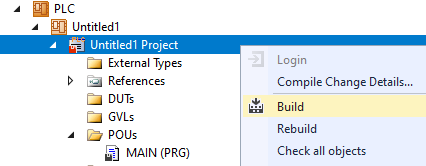
Building the PLC creates symbols of the "PLC mover" and the "PLC group", which can then be linked to the mover or group instance in the MC project.
- 5. To build, use the path PLC > Untitled1 > Untitled1 Project > Build.
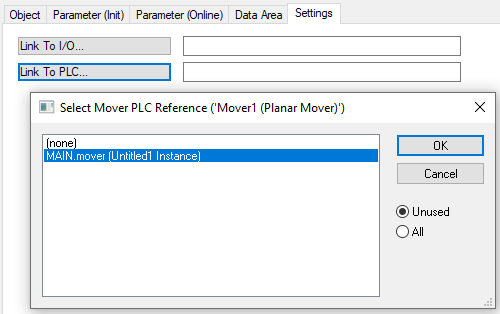
- Subsequently, the Planar movers in the “MC Project” can be linked with the Link To PLC... button on the Settings tab.
- 6. Double-click Mover 1 first, then Mover 2.
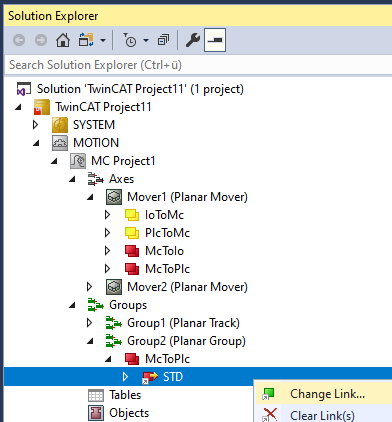
- The group must be linked separately via the following dialog boxes.
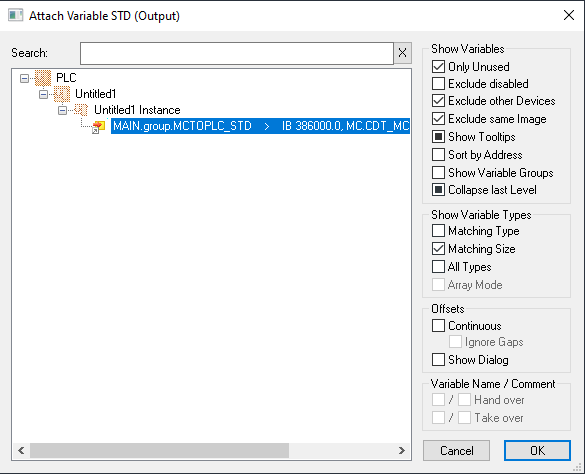
Activating and starting the project
- 1. Activate the configuration via the button in the menu bar
 .
. - 2. Set the TwinCAT system to the "Run" state via the button
 .
. - 3. Log in the PLC via the button in the menu bar
 .
. - 4. Start the PLC via the Play button in the menu bar.
After logging into the PLC and starting, you will see that the movers are both in the target positions at the end of the state machine (state=7). Mover 1 has moved to x = 0 and y = 240. Mover 2 drove to the starting point and was temporarily blocked by Mover 1 during the journey.
Since the dynamic limits of the movers are quite high by default, the change of positions after logging in may be difficult to follow with the naked eye. For the dynamic limits, see Planar mover.
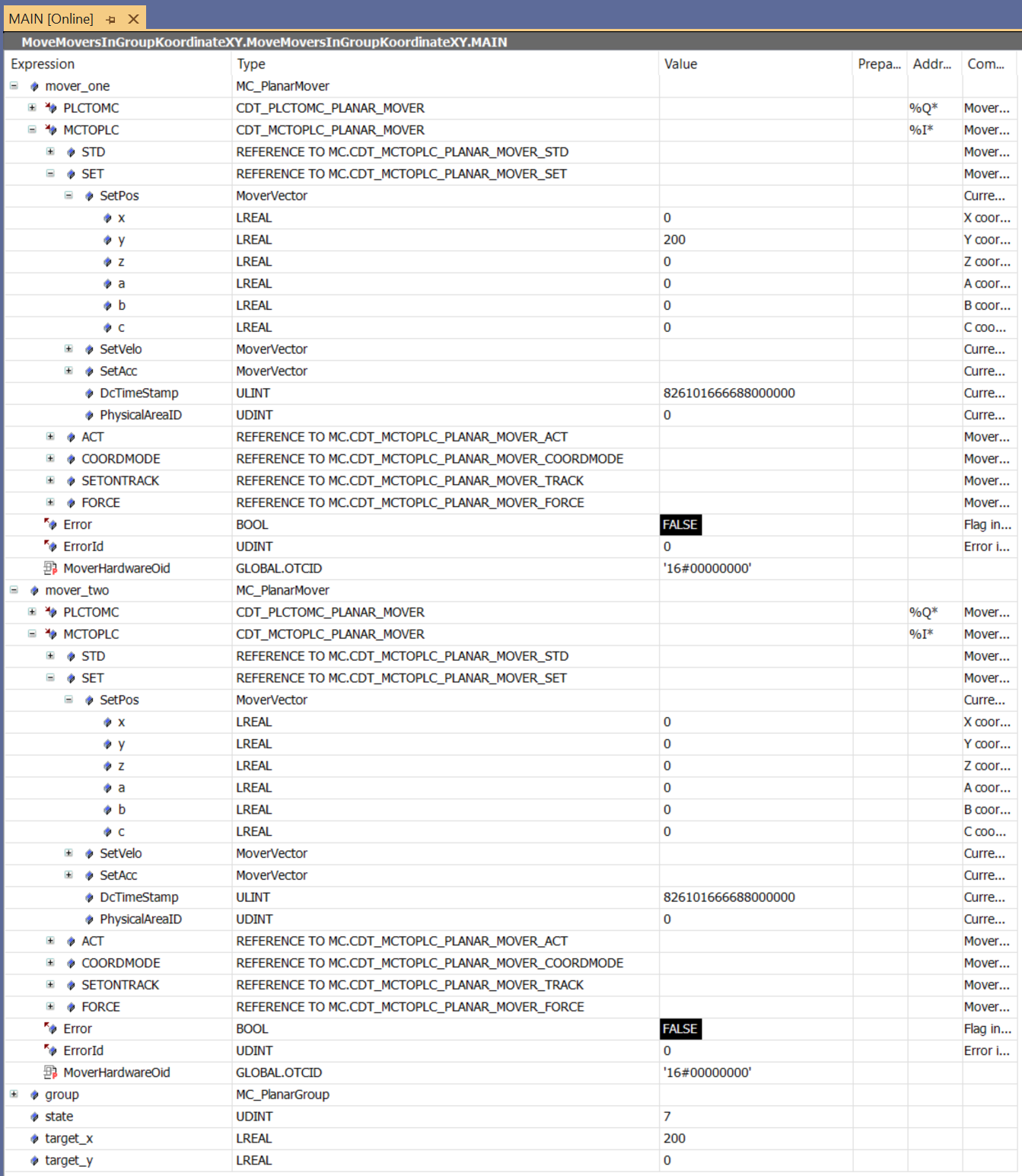
Coordinate-based movements in X, Y and C coordinates are not rejected if other objects are in the way, but the movement is executed until the minimum set 2D gap of the mover is reached. The same applies to the corresponding relative and velocity commands (e.g. MoveRelativeX or MoveVelocityY). The 2D collision avoidance during these movements is dynamic and the "Gap 2D" parameter is set as an initial parameter on the mover, see Configuration.