Configuration
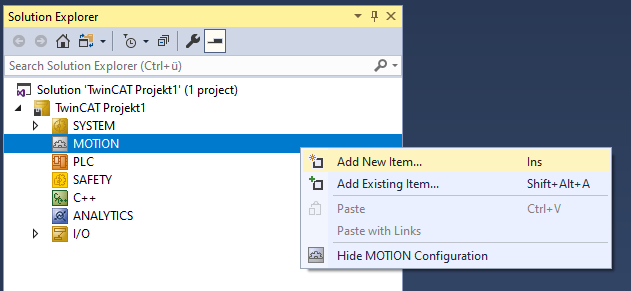
- In order to create a Planar mover, an MC Configuration must first be created.
- 1. Select MOTION > Add New Item….
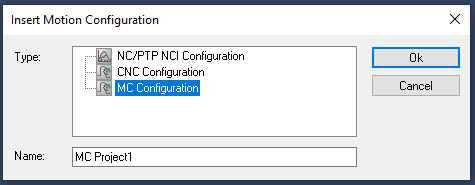
- 2. In the following dialog box, select MC Configuration and confirm with OK.
- You have created an MC Project.
- 3. Select MC Project > Axes > Add New Item….
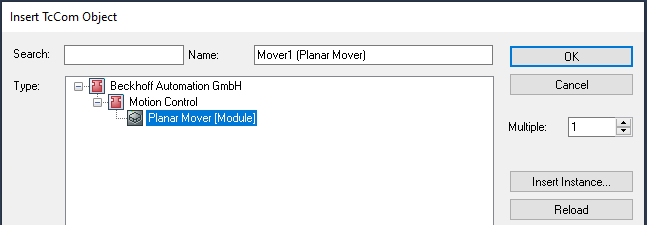
- 4. In the following dialog box, create one (or more) Planar movers and confirm with OK.
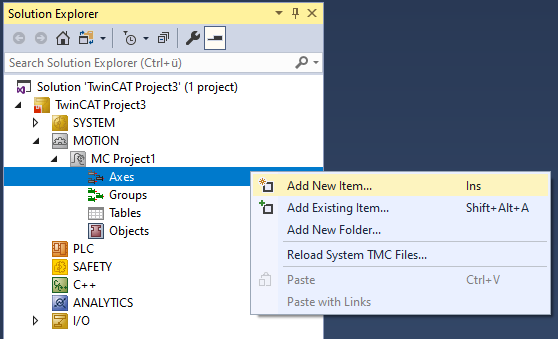
- The Planar mover is now created and can be parameterized.
Open detailed description
- Select the Planar mover in the tree and double-click it.
Purposes of the individual tabs
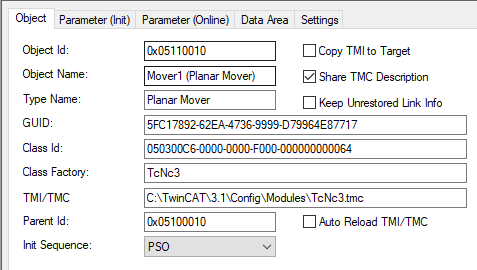
Object: General information (name, type, ID and so on) is shown here.
Parameter (Init): Specifies initial parameters that the user can change in order to affect the behavior of the mover.
 | Parameter (Init) should be put into simulation mode ( |
The initial parameters are initially set so that the Planar mover (ready linked) can be moved with the hardware. If the user wants to proceed without hardware, the hidden "Simulation Mode" parameter must be set to TRUE. In simulation mode, the “Initial Position” and “PartOID” parameters, which are also hidden, should be set. If the real mover does not have standard dimensions, the "Mover width" and "Mover height" parameters must be adjusted.
Starting with version V4.0.6: The "Minimum/Maximum Position" parameters are used to define limits for all axes that must not be exceeded during independent coordinate movements (e.g., MoveX or MoveC commands).
Starting with version V4.0.6: The "Absolute CRotation threshold" parameter is used to specify, for the C axis, when the mover switches to CRotation command mode. For a value of +45°, the mover never switches to CRotation command mode.
For all target positions of C-movements, the "C coordinate modulus" and "C coordinate modulo tolerance window" parameters the latter for modulo positioning define the conversion to the absolute target position. For details see Modulo positioning.
AdoptTrackOrientation is also a C-movement and is accordingly influenced by "C coordinate modulus" and "C coordinate modulo tolerance window". For details, see AdoptTrackOrientation.
The "PartOID", "Simulation Mode", and "Initial Position" parameters are all hidden and in their own "Simulation" grouping.
Other parameters are the "Maximum Dynamic(s)" and the "Default Dynamic(s)". In addition, there are "monitoring" parameters that activate or parameterize position monitoring of the real mover.
The "Maximum dynamic path XY" and "Default dynamic path XY" parameters apply tangentially to the mover's direction of movement. For example, they apply tangentially to the track in the OnTrack command mode.
The coordinate-based default and maximum dynamics apply to the corresponding coordinate-based motion commands, see Example "Create Planar movers and move based on coordinates (MoveX, MoveY)" and Example: "Creating and moving a Planar mover with auxiliary axes".
The "Maximum dynamic X" and "Maximum dynamic Y" parameters also apply to the OnTrack command mode. Only the acceleration parameter A has an effect here. It is used to set the maximum radial acceleration in curves when the "AccelerationLimitedVelocity" option is enabled in "DynamicsReductionMode" and the mover is moving on a track. For details, see Limits and options of the motion commands.
The "Timeout for state machine" parameter specifies the maximum time the mover remains in Enabling, Disabling or Resetting, see "Timeouts of the transition states" in Planar objects state diagram.
From version V3.4.45: The "Gap 2D" parameter specifies the minimum distance that a mover maintains to other objects when moving with dynamic 2D collision avoidance.
The parameters "Minimum/Maximum Position", "Absolute CRotation threshold", "Default/Maximum Dynamic(s)", "C coordinate modulus", "C coordinate modulo tolerance window" and all "Monitoring" parameters (position monitoring/timeout/gap) can be changed in the Enabled state of the mover. Previously, this was only possible in Disabled.
The hidden initial parameter "TraceLevel" influences how much information is logged (see Logging/Tracing).
Init Parameters
|
Name |
Value |
Unit |
Type |
PTCID |
Comment |
|---|---|---|---|---|---|
|
General | |||||
|
Mover width |
155.0 |
mm |
LREAL |
#x050300B2 |
Width that is used for internal collision checks, can be set for disabled mover. |
|
Mover height |
155.0 |
mm |
LREAL |
#x050300B3 |
Height that is used for internal collision checks, can be set for disabled mover. |
|
Minimal position |
(.x := #Ignore, .y := #Ignore, .z := -1.0, .a := -6.0, .b := -6.0, .c := #Ignore) |
mm, ° |
MoverVector |
#x05093021 |
If set to "#Ignore", no limit is active. Otherwise the soft limit is enforced in independent coordinate mode. |
|
Maximal position |
(.x := #Ignore, .y := #Ignore, .z := 10.0, .a := 6.0, .b := 6.0, .c := #Ignore) |
mm, ° |
MoverVector |
#x05093023 |
If set to "#Ignore", no limit is active. Otherwise the soft limit is enforced in independent coordinate mode. |
|
Absolute CRotation threshold |
45.0 |
|°| |
LREAL |
#x0503023E |
CRotation command mode is active, when the absolute c coordinate setpoint modulo 90° exceeds (or will exceed) this value. |
|
C coordinate modulus |
360.0 |
° |
LREAL |
#x05030107 |
C coordinate modulus. |
|
C coordinate modulo tolerance window |
0.0 |
° |
LREAL |
#x05030108 |
C coordinate modulo tolerance window. |
|
Maximum Dynamics | |||||
|
Maximum dynamic path XY |
(.V := 2000.0, .A := 20000.0, .D := 20000.0, .J := 200000.0) |
mm per s, s², or s³ |
DynamicLimits1D |
#x050300B8 |
Maximum dynamic of the mover in the XY plane along its path. |
|
Maximum dynamic X |
(.V := 2000.0, .A := 20000.0, .D := 20000.0, .J := 200000.0) |
mm per s, s², or s³ |
DynamicLimits1D |
#x05030188 |
Maximum dynamic of the X coordinate of the mover. Only A can be changed (V, D, J must be 1e302). |
|
Maximum dynamic Y |
(.V := 2000.0, .A := 20000.0, .D := 20000.0, .J := 200000.0) |
mm per s, s², or s³ |
DynamicLimits1D |
#x05030189 |
Maximum dynamic of the Y coordinate of the mover. Only A can be changed (V, D, J must be 1e302). |
|
Maximum dynamic C |
(.V := 7000.0, .A := 7000.0, .D := 7000.0, .J := 35000.0) |
° per s, s², or s³ |
DynamicLimits1D |
#x050300B9 |
Maximum dynamic of the C rotation of the mover. |
|
Maximum dynamic Z |
(.V := 10.0, .A := 100.0, .D := 100.0, .J := 1000.0) |
mm per s, s², or s³ |
DynamicLimits1D |
#x050300BA |
Maximum dynamic of the Z coordinate of the mover. |
|
Maximum dynamic A |
(.V := 10.0, .A := 100.0, .D := 100.0, .J := 1000.0) |
° per s, s², or s³ |
DynamicLimits1D |
#x050300CA |
Maximum dynamic of the A rotation of the mover. |
|
Maximum dynamic B |
(.V := 10.0, .A := 100.0, .D := 100.0, .J := 1000.0) |
° per s, s², or s³ |
DynamicLimits1D |
#x050300CB |
Maximum dynamic of the B rotation of the mover. |
|
Default Dynamics | |||||
|
Default dynamic path XY |
(.V := 100.0, .A := 200.0, .D := 200.0, .J := 1000.0) |
mm per s, s², or s³ |
DynamicLimits1D |
#x050300CC |
Default dynamic of the mover in the XY plane along its path. |
|
Default dynamic X |
(.V := 100.0, .A := 200.0, .D := 200.0, .J := 1000.0) |
mm per s, s², or s³ |
DynamicLimits1D |
#x050301D6 |
Default dynamic of the X coordinate of the mover. |
|
Default dynamic Y |
(.V := 100.0, .A := 200.0, .D := 200.0, .J := 1000.0) |
mm per s, s², or s³ |
DynamicLimits1D |
#x050301D7 |
Default dynamic of the Y coordinate of the mover. |
|
Default dynamic C |
(.V := 5.0, .A := 20.0, .D := 20.0, .J := 100.0) |
° per s, s², or s³ |
DynamicLimits1D |
#x050300CD |
Default dynamic of the C rotation of the mover. |
|
Default dynamic Z |
(.V := 5.0, .A := 20.0, .D := 20.0, .J := 100.0) |
mm per s, s², or s³ |
DynamicLimits1D |
#x050300CE |
Default dynamic of the Z coordinate of the mover. |
|
Default dynamic A |
(.V := 5.0, .A := 20.0, .D := 20.0, .J := 100.0) |
° per s, s², or s³ |
DynamicLimits1D |
#x050300CF |
Default dynamic of the A rotation of the mover. |
|
Default dynamic B |
(.V := 5.0, .A := 20.0, .D := 20.0, .J := 100.0) |
° per s, s², or s³ |
DynamicLimits1D |
#x050300D0 |
Default dynamic of the B rotation of the mover. |
|
Monitoring | |||||
|
Position Lag Monitoring Enabled |
TRUE |
|
BOOL |
#x0503011A |
|
|
Maximum Position Lag Value |
(.x := 5.0, .y := 5.0, .z := 1.0, .a := 1.0, .b := 1.0, .c := 1.5) |
mm, ° |
MoverVector |
#x050300BE |
The maximum of the allowed lag for each coordinate. Must be in [0.0,100.0] for each coordinate. |
|
Maximum Position Lag Filter Time |
(.x := 0.02, .y := 0.02, .z := 0.02, .a := 0.02, .b := 0.02, .c := 0.02) |
s |
MoverVector |
#x050300BF |
The maximum of the allowed time for a lag distance violation of each coordinate. Must be in [0.0,10.0] for each coordinate. |
|
Timeout for state machine |
5 |
s |
LREAL |
#x0503D004 |
Timeout for enable, disable, and reset commands of the user in seconds. |
|
Gap 2D |
1 |
mm |
LREAL |
#x050301DD |
Gap the mover tries to keep from other objects in dynamic 2D collision avoidance. |
Parameter (Online): Shows the state of the mover during the runtime of the object. The current preset position ("SetPos") and actual position ("ActPos") are displayed along with the state information.
The "External setpoint generation" parameter indicates whether the mover follows (absolute or relative) external setpoints of the user.
The "CoordinateSystemOID" parameter specifies the coordinate system in which SetPos and ActPos are specified and the coordinate system in which the mover is located.
Starting with version V4.0.6: The parameters in the “Monitoring” category provide detailed information on following error monitoring for all six coordinates.
Starting with version V3.4.60: The parameters “On track information,” “Forward blocking neighbors,” “Backward blocking neighbors,” and “Track trail information” provide specific information about the mover’s current state on the track.
Starting with version V3.4.45: The "Blocking object ids" parameter specifies 0–3 other Planar objects that block this mover in dynamic 2D collision avoidance. Blocking can occur in the three directions of movement—X, Y, and C—during free travel.
Online Parameters
|
Name |
Unit |
Type |
PTCID |
Comment |
|---|---|---|---|---|
|
General | ||||
|
SetPos |
mm, ° |
MoverVector |
#x050300D2 |
Mover position, read only. |
|
CoordinateSystemOID |
|
OTCID |
#x05030126 |
The coordinate system the mover is on, set and act position are given in this system. |
|
Hardware mover OTCID |
|
OTCID |
#x0503012D |
The object ID of the hardware mover connected to this mover (zero if in simulation mode). |
|
GroupOID |
|
OTCID |
#x050300C3 |
Object id of the PlanarGroup the mover is in, read only. |
|
State |
|
MC_PLANAR_STATE |
#x050300B6 |
State, read only. |
|
Command mode |
|
MC_PLANAR_MOVER_COMMAND_MODE |
#x050300B7 |
Command mode, read only. |
|
ActPos |
|
MoverVector |
#x050300C1 |
Mover hardware position, read only. |
|
External setpoint generation mode |
|
MC_EXTERNAL_SET_POSITION_MODE |
#x050300DB |
Indicates which external setpoint generation mode is active. |
|
Monitoring | ||||
|
Position Lag |
mm, ° |
MoverVector |
#x050301A8 |
This read only online parameter contains the position lag values. |
|
Position Lag Error |
|
MoverVectorBool |
#x050301AB |
This read only online parameter contains the position lag errors. |
|
Minimum Position Lag |
mm, ° |
MoverVector |
#x050301A1 |
This read only online parameter contains the detected minimum position lag values. |
|
Maximum Position Lag |
mm, ° |
MoverVector |
#x050301A2 |
This read only online parameter contains the detected maximum position lag values. |
|
Trigger Minimum/Maximum Position Lag Reset |
|
|
#x050301A3 |
Download parameter to reset stored minimum and maximum position lag values. |
|
Command mode on track | ||||
|
Mover SetPos on track |
|
CDT_MCTOPLC_PLANAR_MOVER_TRACK |
#x050300C2 |
Mover state on track, read only. |
|
On track information |
|
MC_MOVER_ON_TRACK_INFORMATION |
#x05030180 |
General information about the move on the track (target position, gap, etc.). |
|
Forward blocking neighbors |
|
array [1..1] of
|
#x0503012E |
OIDs of neighbors in front of this mover blocking it in standstill on the track. |
|
Backward blocking neighbors |
|
array [1..1] of
|
#x0503012F |
OIDs of neighbors behind this mover blocking it in standstill on the track. |
|
Track trail information |
|
array [1..Unbounded] of
|
#x0503013E |
OIDs of all tracks in this movers track trail. |
|
Miscellaneous | ||||
|
Blocking object ids |
|
array [1..3] of
|
#x050301E3 |
OIDs of all objects blocking this mover in 2D gap control |
Data Area: Shows memory areas via which the mover is linked to other objects and exchanges information.
Data Areas
IoToMc
Area No:
4
Type:
InputDst
Symbols
|
Name |
Type |
PTCID |
|---|---|---|
|
STD |
Pointer To CDT_HWTOMC_MOVER |
#x00000000 |
PlcToMc
Area No:
0
Type:
InputDst
Symbols
|
Name |
Type |
PTCID |
|---|---|---|
|
STD |
Pointer To CDT_PLCTOMC_PLANAR_MOVER_STD |
#x0503C006 |
McToIo
Area No:
5
Type:
OutputSrc
Symbols
|
Name |
Type |
PTCID |
|---|---|---|
|
STD |
Pointer To CDT_MCTOHW_MOVER |
#x00000000 |
McToPlc
Area No:
1
Type:
OutputSrc
Symbols
|
Name |
Type |
PTCID |
|---|---|---|
|
STD |
Pointer To CDT_MCTOPLC_PLANAR_MOVER_STD |
#x0503C007 |
|
SET |
Pointer To CDT_MCTOPLC_PLANAR_MOVER_SET |
#x0503C008 |
|
ACT |
Pointer To CDT_MCTOPLC_PLANAR_MOVER_ACT |
#x0503C009 |
|
COORDMODE |
Pointer To CDT_MCTOPLC_PLANAR_MOVER_COORDMODE |
#x0503C00A |
|
SETONTRACK |
Pointer To CDT_MCTOPLC_PLANAR_MOVER_TRACK |
#x0503C003 |
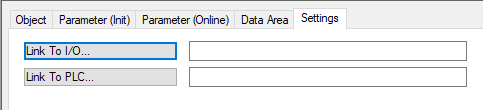
Settings: The user can establish links here. With the two "Link To ..." buttons, the Planar mover can be linked to the movers in the PLC and the XPlanar driver.