Open the IO link configuration tool
- Prerequisite: an IO-Link master has been added in the Solution Explorer under the “I/O” entry.
- 1. Double-click on the IO-Link master.
- A device editor for the IO-Link master opens.
- 2. Click on the “IO-Link” tab.
- The IO-Link configuration tool opens.
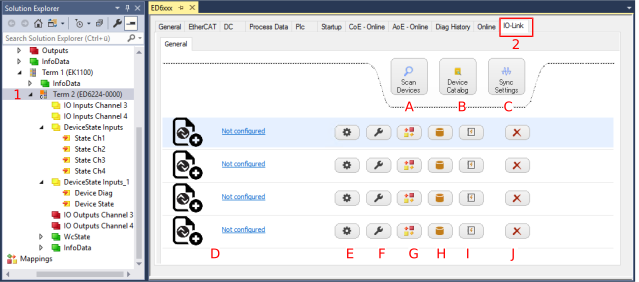 Fig.19: IO-Link configuration tool
A: „Scan Devices“ | Automatic scanning for connected devices |
B: “Device Catalog” | Searching for and integrating device description (IODD), perform port assignment manually and configure IO-Link devices manually |
C: “Sync Settings” | Setting EtherCAT synchronization |
Devices assigned to the ports are displayed with product image and name | |
E: “Settings” | Viewing and changing the settings of the IO-Link device |
F: “Properties” | Viewing and changing the parameters of the IO-Link device |
G: “Process Data” | Process data of the IO-Link device |
H: “Data Storage” | Displaying data stored in the parameter server |
I: “Event log” | Displaying errors and warning messages |
Removing IO-Link devices from port n |