Add ShotScope to an existing project
If you have an existing project and would like to add ShotScope, you can follow these steps to integrate ShotScope into your project.
 | Have you already created a plastic application template? If you have created a new Plastic Application project with a version >= v12.16.0, ShotScope may already be included in your project. See for injection molding or blow mold) where the ShotScope is used in your project. |
| ShotScope depends on the targeting system Please note that ShotScope can only be active on a single TwinCAT HMI server. The standard configuration is intended for use after publication. If you still wish to run ShotScope on your engineering server, your PLC system must be enabled locally, or the AMS Net ID of your engineering system must be set in FB_ShotScopeHmi. |
- To create a project, the Project templates must already have been installed as workloads and/or packages via the TwinCAT Package Manager.
- The steps for establishing a connection to the PLC can only be performed when the target system is active. You should therefore already have a PLC target system with ShotScope enabled and have established the ADS connection to the TwinCAT HMI project.
- 1. Open the NuGet Manager for your TwinCAT HMI project.
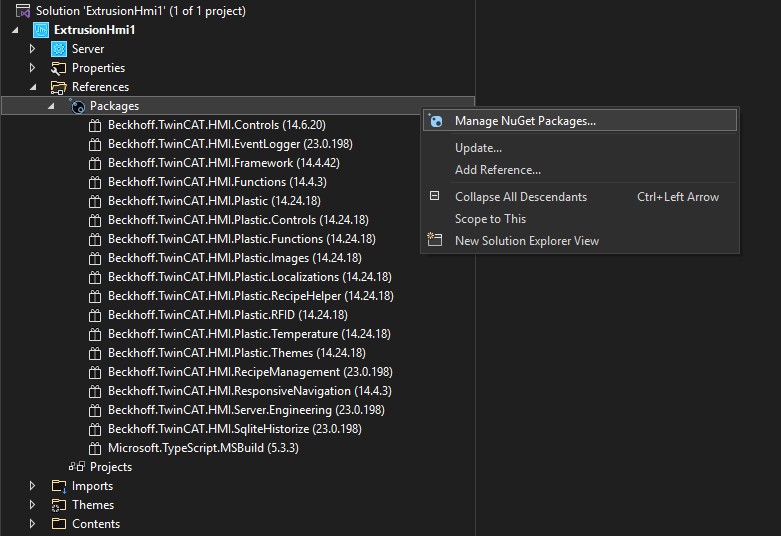
- 2. In the search bar, search for TwinCAT HMI.Plastic ( 1) and select the
Beckhoff.TwinCAT.HMI.Plastic.Injectionpackage (2). Next, click Install (3) and confirm the next two dialog boxes.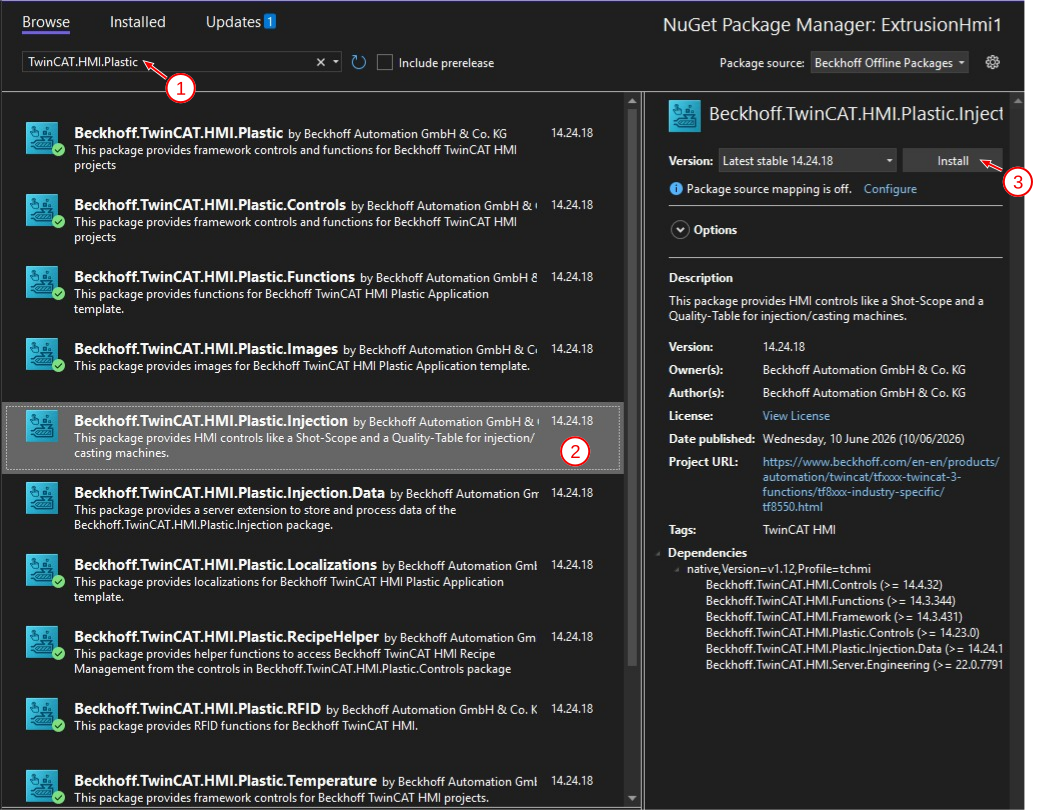
- From now on, your project will automatically include the TcInjectionData server extension, which is also required for ShotScope.
- 3. Add a new item to your project.
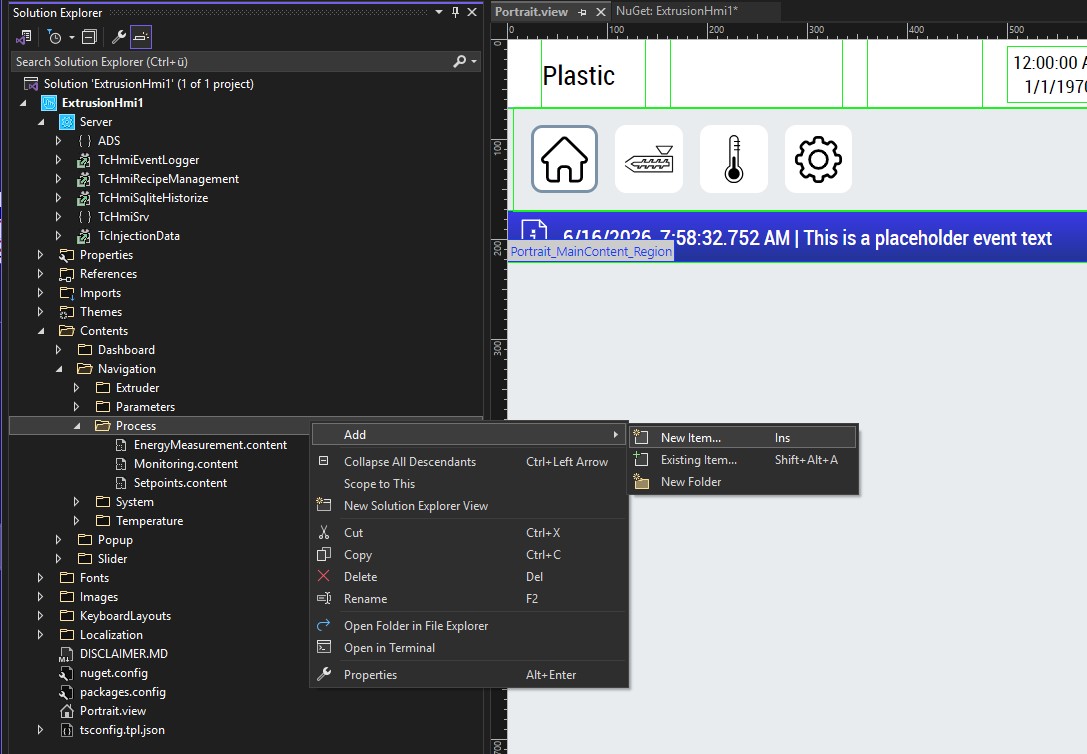
- 4. Enter a name for a new
.contentfile.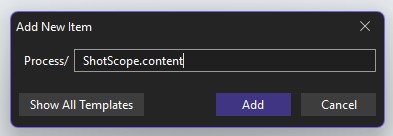
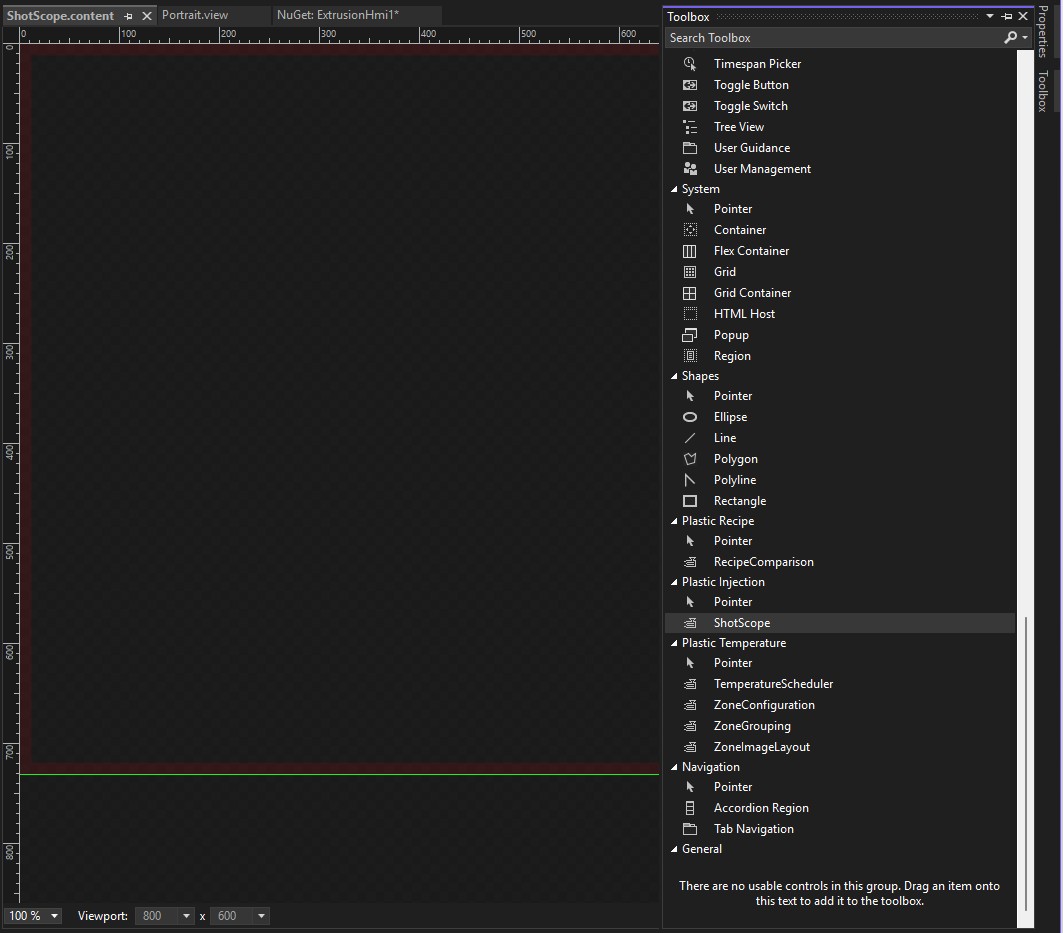
- 5. Add the ShotScope Control to the new content.
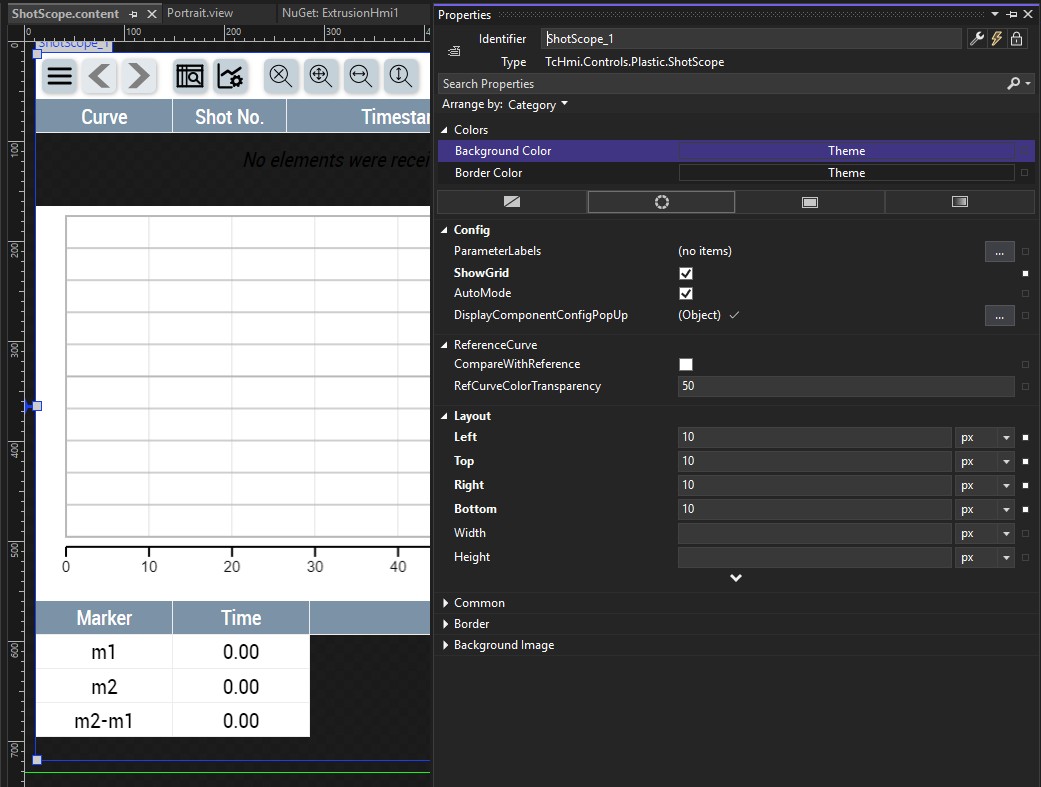
- 6. Align the control with the content according to the desired representation.
- 7. Add the new content to your navigation. To do this, select your Configurator (4) and open NavigationConfig (5). Select a main category (here, Process (6)) and its sub elements (7). Next, select the column (8) and then its sub elements (9) again. Add a new entry (10) and assign a name (11), page (12), and image (13).
The procedure for this step may vary if you are not using the Plastic Application as the basis for your project or if you want to place the content in a different location in your navigation.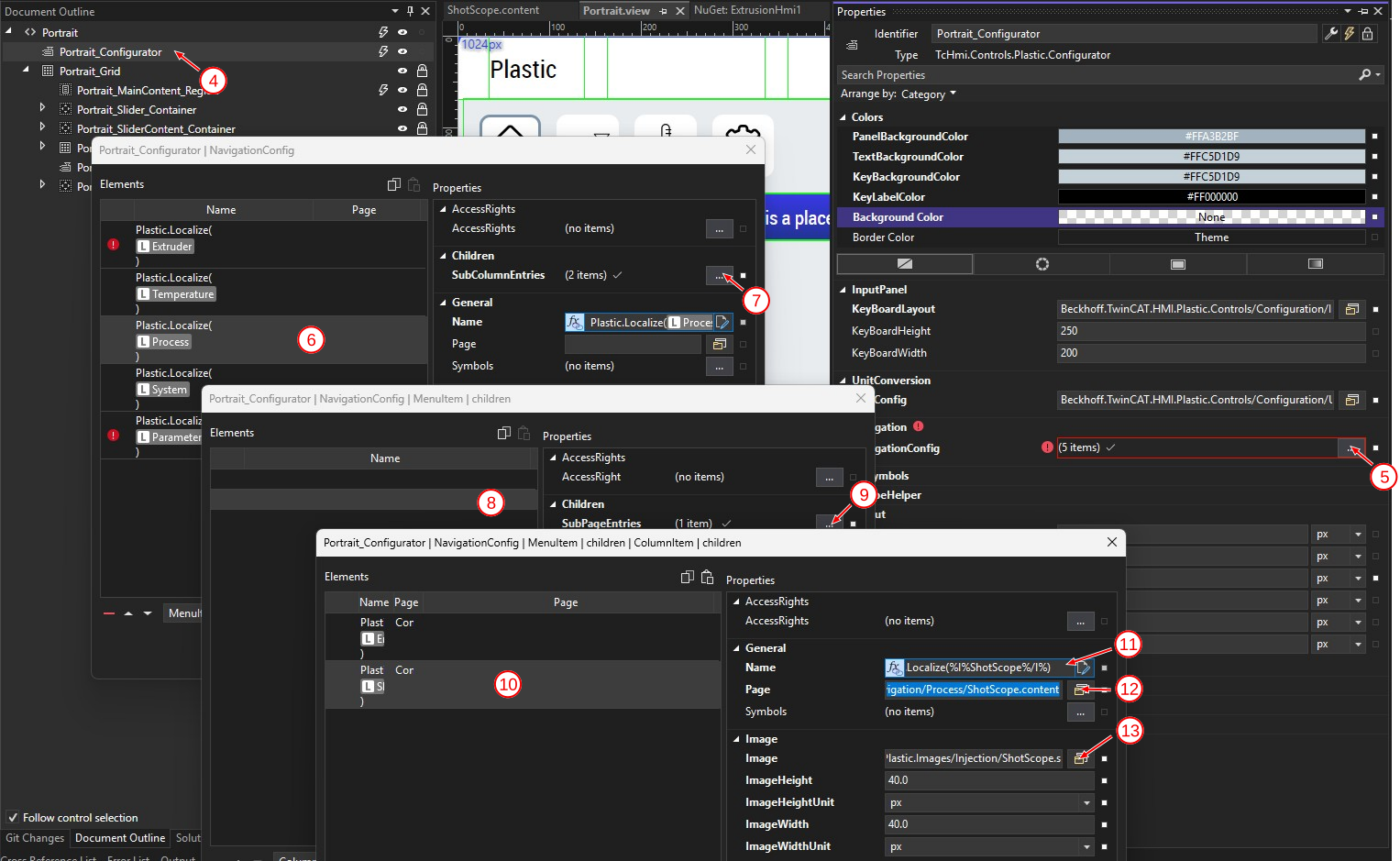
- You have successfully added ShotScope as a new page to your project.
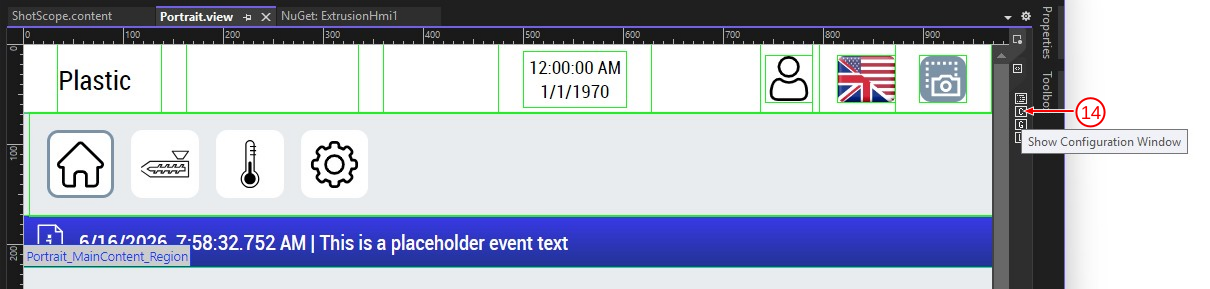
- 8. Open any content, and then the TwinCAT HMI Configuration Window (14).
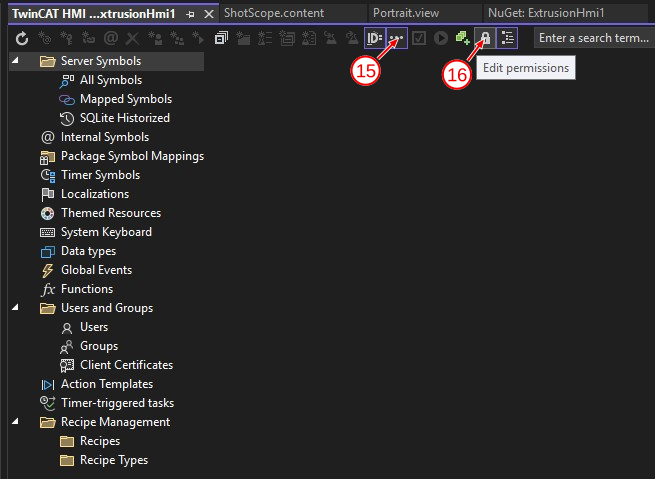
- 9. Enable advanced mode (15), and then open the window for Edit Permissions (16).
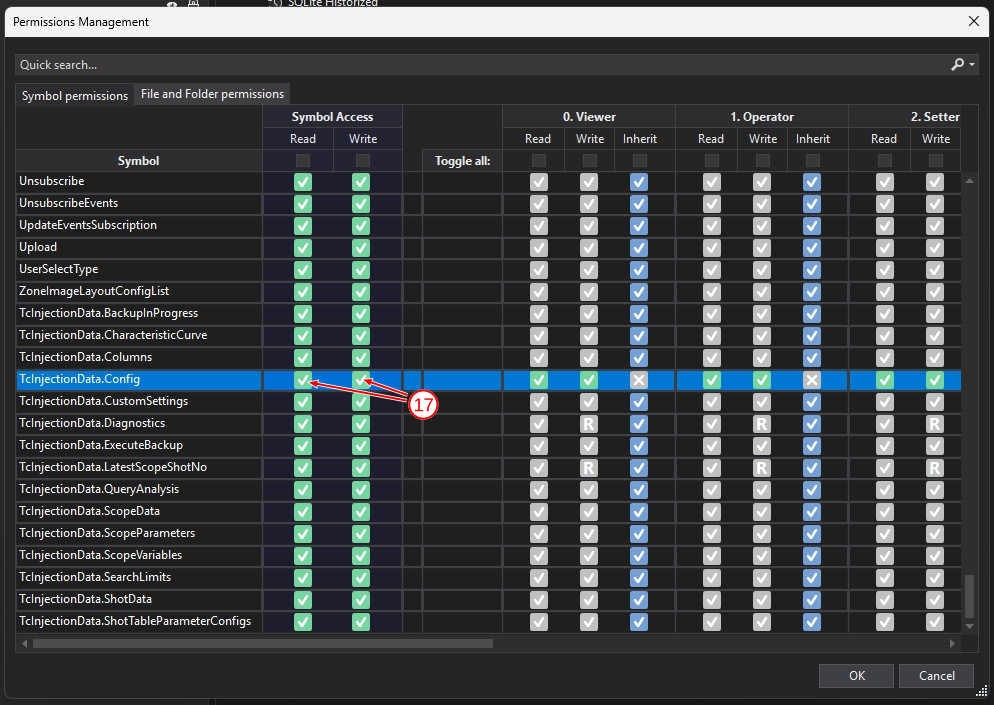
- 10. Grant full access (read and write) for Symbol Access (17) and to all users who should have at least read access to ShotScope (typically, every user). Confirm the dialog with OK.
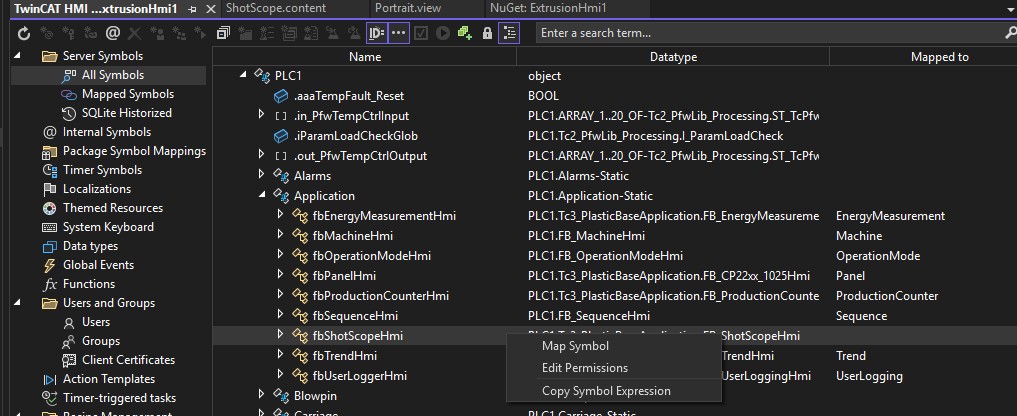
- 11. You will then be back in the TwinCAT HMI Configuration window. In this window, select the All Symbols entry in the left-hand tree and navigate to your PLC symbol for FB_ShotScopeHmi.
- 12. Recommended: Rename the mapping for the new symbol, for example, to
ShotScope.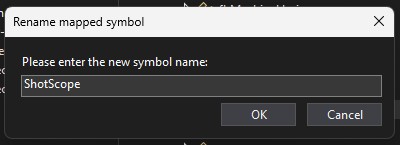
- 13. In the project tree, under Server, select the TcInjectionData entry.
- 14. For the ShotScopeSymbol entry, select the mapping symbol you created earlier.
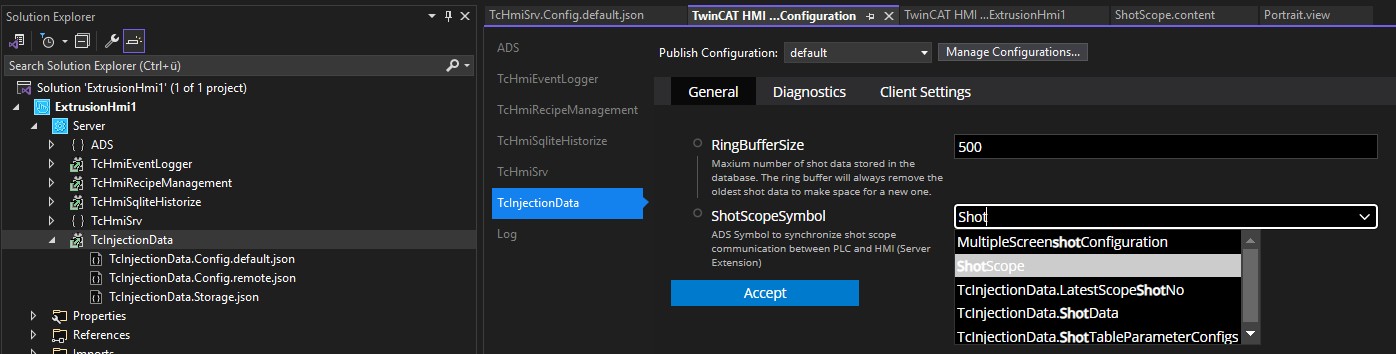
- You have successfully added the ShotScope to your HMI project and established a connection between it and the PLC.
| ShotScope depends on the targeting system Please note that ShotScope can only be active on a single TwinCAT HMI server. The standard configuration is intended for use after publication. If you still wish to run ShotScope on your engineering server, your PLC target system must be enabled locally, or the AMS Net ID of your engineering system must be set in FB_ShotScopeHmi. |