Jumbo Frames
Standard Ethernet frames support a maximum payload (Maximum Transmission Unit MTU) of 1500 bytes. Jumbo frames enable the transmission of significantly larger payloads per packet (typically up to 9000 bytes) and lead to significant performance improvements when transmitting large amounts of data such as image data or at higher data rates.
The benefits are:
- Increased efficiency: Ratio of payload to protocol overhead improves significantly.
- Less packet effort: Fewer packets per image reduce the CPU load when processing the packets.
For the use of jumbo frames in camera communication, the "TwinCAT-Intel® PCI™ Ethernet adapter (Gigabit) V2" driver (TcI2xx) or the "TwinCAT-Intel® PCI™ Ethernet adapter (10 Gigabit)" driver (TcIXgbe) is required, which supports jumbo packets with 4088 and 9014 bytes. The driver only works with compatible Intel® controllers (e.g. I210, I219 and I226), a complete list can be found under Supported network controllers.
Notice | |
Full jumbo frame support in the network The entire network route from the camera to the IPC, including all switches and network interface cards, must support Jumbo Frames and be actively configured for them. Network components without jumbo frame support can discard larger packets, which leads to undefined communication behavior. In many cases, the behavior is such that the image transmission fails, but other communication works. |
Configuring the network adapter
- To install the TwinCAT RT-Ethernet driver, follow the steps in the chapter Installation of the TwinCAT real-time Ethernet driver.
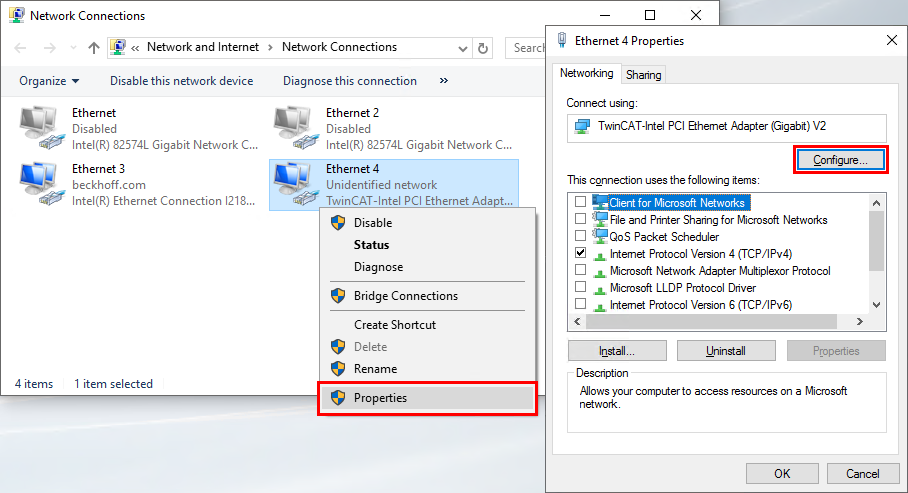
- 1. Once the driver has been installed, open the "network connection" in the IPC's Windows (e.g. via Windows key + R and the command ncpa.cpl)
- 2. Right-click on the desired network adapter and select Properties.
- 3. In the new window, click the Configure... button
- 4. In the Advanced tab, set the Jumbo Packet to 9014 bytes. This setting only fixes the maximum packet size that the adapter can receive. Smaller data packets continue to be processed without any problems, as this value only defines the upper limit.
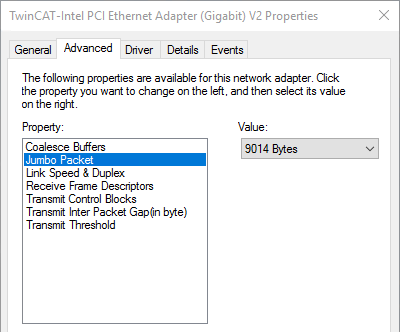
- The network adapter is now set up to use jumbo frames with the selected packet size.
Configuration of the camera object
To configure the packet size (MaxPacketSize) of a GigE Vision camera in TwinCAT Vision, proceed as follows:
- 1. Open the Configuration Assistant of the desired GigE Vision camera in the TwinCAT project.
- 2. In the configuration tree under TcCOM Parameters > GVSP Module > MaxPacketSize, enter 9000 bytes (14 bytes are reserved for the standard Ethernet header). This simply fixes the maximum possible package size. The system then automatically queries which value can actually be used. Either the maximum that the camera supports or the 9000 bytes entered if the camera allows larger values.
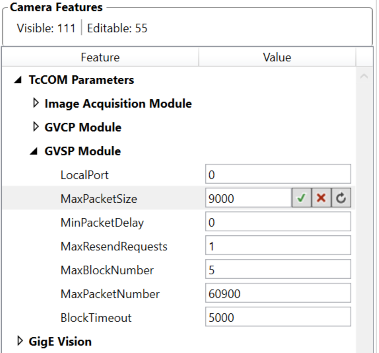
- 3. Click on
 Reload Devices to reload the configuration.
 - 4. Check in the configuration tree under GigE Vision > GevSCPSPacketSize whether the value has been transferred correctly or which maximum value has been determined. In this case, the camera supports a maximum packet size of 8004 bytes.
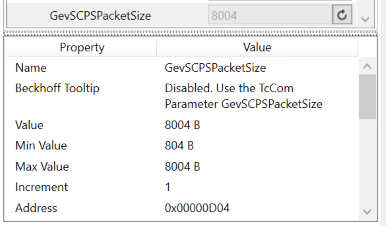
- The camera is now set up to use jumbo frames with the configured
MaxPacketSize.