Create a new context
- A TwinCAT project with an MC project has been created;
see Creating an MC project.
A Motion project can consist of 1 to n task contexts. You can add an additional context to a Motion project by following the steps below.
- 1. In the Context tab of the Motion project, click Add.
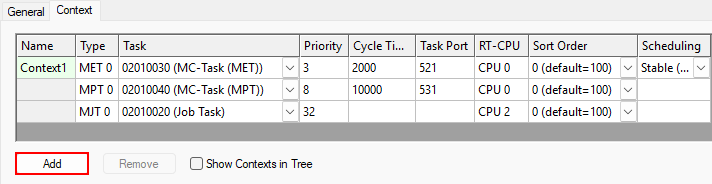
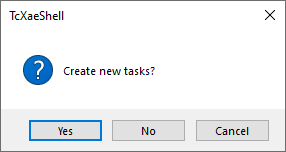
- You are then prompted to specify whether tasks should be created for the new context. Each context requires its own MET and MPT task.
- 2. If no tasks have been created for the new context yet, click the Yes button to have TwinCAT create the tasks.
- A new context is created.
- When new tasks have been created, they are assigned directly to the context.
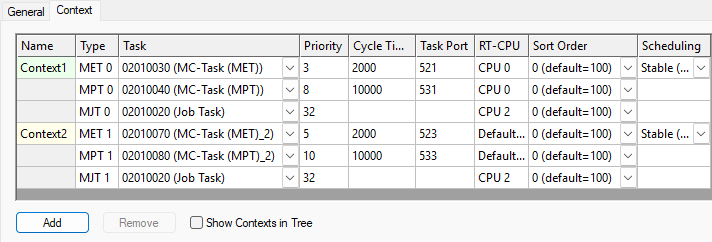
- 3. Assign tasks to the new context if no tasks have been created yet.
- 4. The tasks must be configured according to the intended use of the context and assigned to the appropriate CPU core.
- 5. In addition, axes must be assigned to the context; see Assign axes to a context.