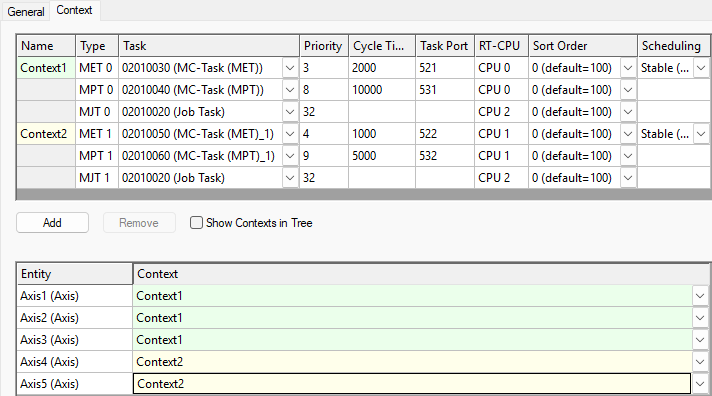
Each axis must be assigned to a task context. By default, every Motion project contains one context, and all axes are assigned to this first context.
If a Motion project contains more than one context, its axes can be explicitly assigned to different contexts. This setting can be applied to a single axis or to multiple axes simultaneously.
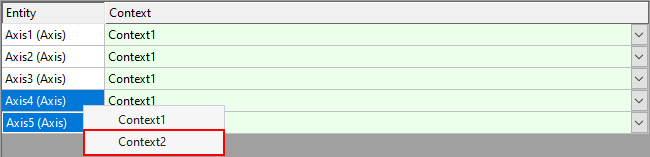
Option 1: Context tab - Multiple selection and right-click
1. In the axis list on the Context tab, select the axes that you want to assign to a different context.
2. Right-click the selection.
A context menu with the available contexts appears.
3. Select the required context.
All selected axes have been assigned to the selected context.
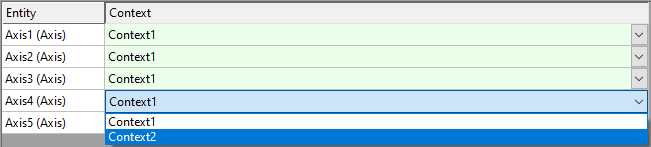
Option 2: Context tab - Individual selection using the combo box
1. In the axis list on the Context tab, double-click the context assigned to the axis that you want to change.
The combo box opens with a list of the available contexts.
2. Select the required context.
The axis has been assigned to the selected context. If multiple axes are to be assigned to the context, the process must be repeated for all axes.