Additional information
Additional information for the audit trail can be entered on a symbol. The audit trail uses the options object on the mapped symbol for this. This value is used for the dialog to describe the symbol.
If additional information is saved in the Audit Trail (mapping data), this can also be displayed in the AuditTrail Grid.
Example JSON with language switching:
{
  "TCHMI": {
    "ALIAS": "%l%TestZahl%/l%",
    "DESCRIPTION": "Test number description"
  }
}
Adding an icon option in Visual Studio / TcXaeShell
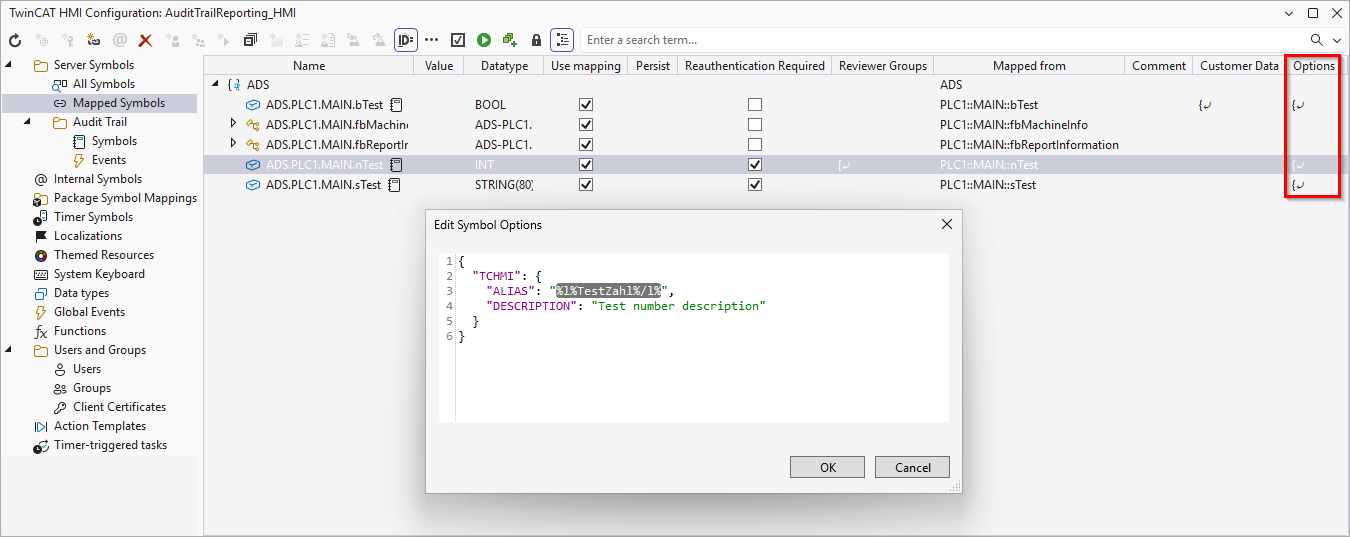
- 1. Open the TwinCAT HMI Configuration window.
- 2. Go to the Server Symbols / Mapped Symbols tab.
- 3. Choose the icon where you want to add/change the options
- 4. Edit the options by right-clicking on Edit Options.
- A pop-up opens to edit the options. (JSON Format)
- 5. Confirm your change by clicking on OK
- The options on the symbol have been successfully edited.
Adding a symbol via the server configuration page
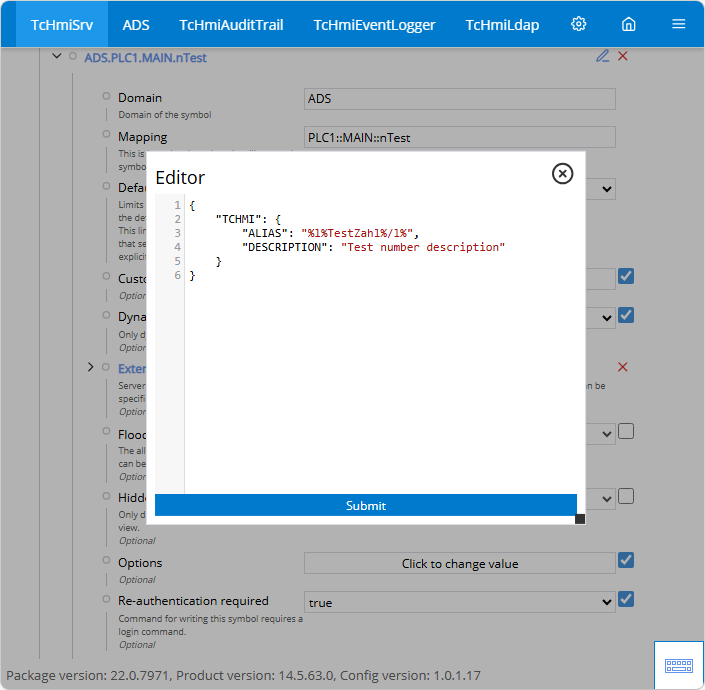
- 1. Open the server configuration page.
- 2. Go to the TcHmiSrv / Mapped symbols tab.
- 3. Switch to the Advanced view.
Click on the three dashes in the top right corner of the Config page.
Activate Show advanced settings. - 4. Click on the corresponding symbol under Symbol mappings.
- 5. Activate the options to change the value.
- 6. Click on Click to change the value to open the editing window.
- A pop-up opens to edit the options. (JSON Format)
- 7. Confirm your change by clicking on Submit.
- The options on the symbol have been successfully edited.