Creating and handling Profibus devices
This article describes how Profibus master and slave devices are created and handled using the TwinCAT Automation Interface. It covers the following key topics:
- Creating and adding a Profibus master
- Searching for and configuring a suitable device (EL6731, FC310x, etc.)
- Creating and adding a Profibus slave
- Searching for and configuring a suitable slave device (EL6731-0010, etc.)
- Changing the fieldbus address
Creating and adding a Profibus master
- 1. To create a Profibus master device, open a new or existing TwinCAT configuration
- 2. Scan all devices. (These actions can also be carried out via the Automation Interface)
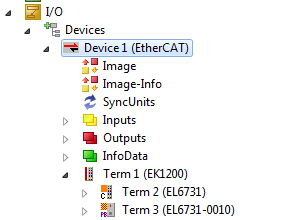
- 3. Create a system manager object and navigate to the devices
Code snippet (C#):
project = solution.Projects.Item(1);
sysman = (ItcSysManager)project.Object;
ITcSmTreeItem io = (ITcSmTreeItem)sysman.LookupTreeItem("TIID");
Code snippet (PowerShell):
$project = $sln.Projects.Items(1)
$sysman = $project.Object
$io = $sysman.LookupTreeItem("TIID")
Use the ITcSmTreeItem:CreateChild method to add a Profibus master.
Code snippet (C#):
ITcSmTreeItem5 profi_master = (ITcSmTreeItem5)io.CreateChild("Device 2 (EL6731)", 86, "", null); Code snippet (PowerShell):
$profi_master = $io.CreateChild("Device 2 (EL6731) ", "86", "", $null) For other Profibus masters, enter the correct ItemSubtype listed here. This will add the new device as shown in the screenshot:
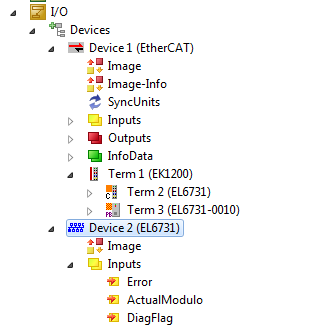
Searching for and requesting a Profibus master device in the list:
The newly added Profibus master must be configured, which is normally done in TwinCAT by pressing the search button and choosing the correct device from the list.
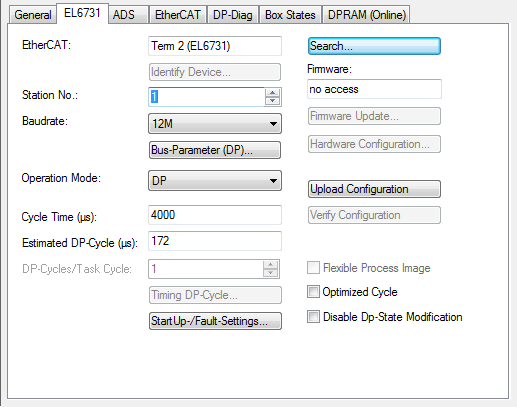
This can be done via the Automation Interface:
Code snippet (C#):
string availableMaster = profi_master.ResourcesCount;
profi_master.ClaimResources(1);
Code snippet (PowerShell):
$availableMaster = $profi_master.ResourcesCount
$profi_master.ClaimResources(1)
ITcSmTreeItem5:ResourcesCount shows the number of compatible Profibus master devices, and ITcSmTreeItem5:ClaimResources takes the index of the CANopen device that is to be configured as the master.
Creating and adding a Profibus slave
A Profibus slave can be added to the current configuration as follows:
Code snippet (C#):
ITcSmTreeItem5 profi_slave = (ITcSmTreeItem5)io.CreateChild("Device 3 (EL6731-0010)", 97, null); Code snippet (PowerShell):
$profi_slave = $io.CreateChild("Device 3 (EL6731-0010)", "97", "", $null) Searching for and requesting a Profibus slave
As in the case of Profibus masters, the number of Profibus slaves can be published using the following code:
Code snippet (C#):
string availableSlaves = profi_slave.ResourcesCount;
profi_slave.ClaimResource(1);
Code snippet (PowerShell):
$availableSlaves = $profi_slave.ResourcesCount
$profi_slave.ClaimResources(1)
The last line in the code designates the EL6731-0010 device as a Profibus slave, similar to the dialog box that appears in the TwinCAT user interface.
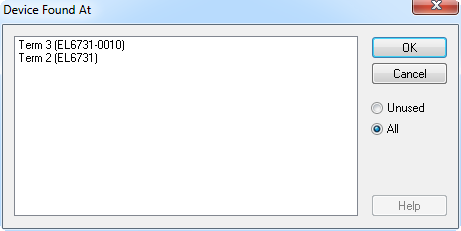
Changing the fieldbus address
To change the fieldbus address (station no.) of a Profibus box in a configuration, a TwinCAT System Manager instance must be created and the configuration opened. The LookupTreeItem method of the ITcSysManager interface returns an ITcSmTreeItem interface pointer implemented by the Tree Item referenced by its pathname. This interface contains a ConsumeXml method of the Tree Item.
Procedure
The procedure for creating the ITcSysManager interface (the 'sysMan' instance here) is described in the chapter Accessing TwinCAT configurations. This interface has a LookupTreeItem method that returns an ITcSmTreeItem pointer to a Tree Item specified by its path name. To change the fieldbus address (station no.) of a Profibus box "TIID^Device 1 (FC310x)^Box 1 (BK3100)" in 44, the following code can be used:
Code snippet (C#):
ItcSmTreeItem item = sysMan.LookupTreeItem("TIID^Device 1 (FC310x)^Box 1 (BK3100)");
item.ConsumeXml("44");
Code snippet (PowerShell):
$item = $sysMan.LookupTreeItem("TIID^Device 1 (FC310x)^Box 1 (BK3100)")
$item.ConsumeXml("44")