TextOptions
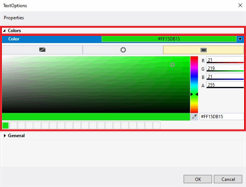
- ►Expand Colors
The adjustment range is displayed.
Further information can be found in chapter Colors.
- ►Define color via the adjustment range
General
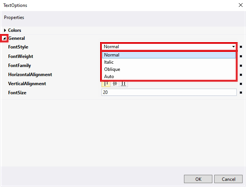
- ►Expand General
- ►Select the font style from the drop-down menu Fontstyle
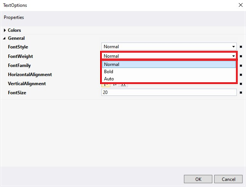
- ►Select the font weight from the drop-down menu FontWeight
- ►Enter the font family in the input field FontFamily
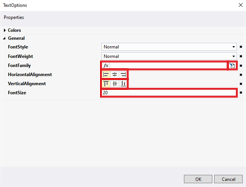
OR
- ►Click on the button to open the Multiline editor
- ►Select text alignment at HorizontalAlignment and VerticalAlignment
- ►Enter a value in the input field FontSize
- ►Confirm with OK
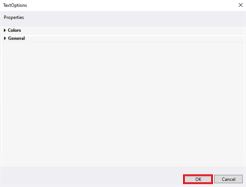
The dialog box TextOptions closes.
The table shows the default parameter settings for the TextOptions properties:
Property | Explanation | Default setting |
|---|---|---|
| ||
| Text color | Solid Color |
• None | No color | – |
• Theme | Graphic | – |
• Solid Color | Solid color, RGBA | #FF000000 |
| ||
| Font | Normal |
• Normal | Normal | – |
• Italic | Italic font | – |
• Oblique | Oblique font | – |
• Auto | Automatic | – |
| Font weight | Normal |
• Normal | Normal | – |
• Bold | Bold | – |
• Auto | Automatic | – |
| Font family | – |
| Horizontal text alignment | Left-justified |
• | Left aligned | – |
• | Centered | – |
• | Right aligned | – |
| Vertical text alignment | Bottom |
• | Top | – |
• | Centered | – |
• | Bottom | – |
| Font size | 20 |
 Colors
 Left-justified
 Centered
 Right-justified
 Top
Top Middle
 Bottom