Restoring a backup
 | Use suitable backups for recovery A backup can only be restored to devices of the same series, e.g. CX51x0, CX20x3, C6015 etc., otherwise incompatibilities may occur if the backup is restored to a device of a different series. |
You can restore a backup with the aid of the TwinCAT/BSD installer stick. To do this, the industrial PC must be booted from the TwinCAT/BSD installer stick.
The TwinCAT/BSD installer searches the BHF partition on the USB flash drive for valid backup files. A backup consists of one or more files with the extension *.tcbkp00. Since this is a FAT32 partition, the maximum size of a single file is 4 GB. If a backup exceeds this size, it is automatically split into several sequentially numbered files:
mybackup.tcbkp00
mybackup.tcbkp01
mybackup.tcbkp02
...
All files included in a backup must be located in the same folder.
To restore an existing backup – for example, from an archive – create a folder with any name on the BHF partition and place the backup file(s) there. The folder structure would look something like this:
BHF
├── INSTALLER
└── mybackup
├── mybackup.tcbkp00
└── mybackup.tcbkp01
For more information on the USB drive’s partition and folder structure, visit: Partitions and folder structure.
Requirements:
- TwinCAT/BSD installer stick (see: Create bootable USB stick).
Proceed as follows:
- 1. Connect the TwinCAT/BSD installer stick to the industrial PC.
- 2. Boot the industrial PC from the TwinCAT/BSD installer stick.
Open the boot menu with [F7] if the industrial PC does not boot automatically from the USB stick.
- 3. Select the UEFI entry for the USB stick and confirm with [Enter]. The industrial PC boots from the USB stick, launching the Beckhoff TwinCAT/BSD installer.
Select the Restore option. - 4. Select the backup to be restored to the industrial PC.
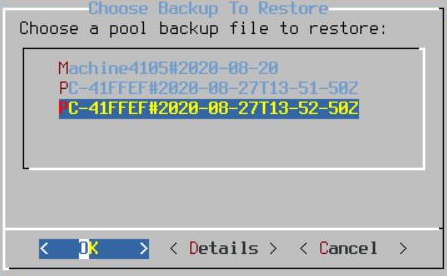
- Restart the industrial PC after recovery. The industrial PC is now in the same state it was in at the time of the backup.