Commissioning RFID (simplified)
Integration of RFID into an existing TwinCAT HMI project
- Installation of the NuGet package Beckhoff.TwinCAT.HMI.Plastic.RFID
- Opening the live view (required server symbols are created automatically)
- Optional: Adjustment of the default values of the automatically created
RFIDConfigserver symbol 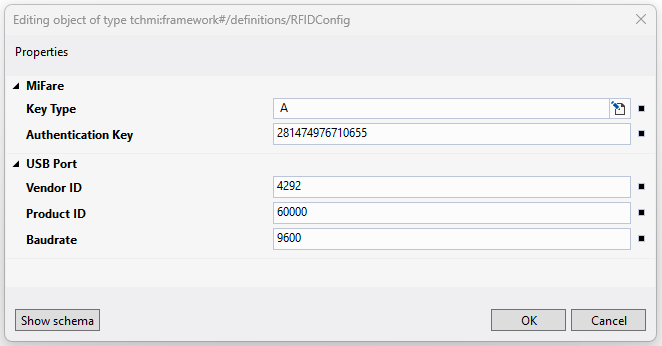
- Optional: Adjustment of the default value of the automatically created
EnableRFIDAutoLoginserver symbol 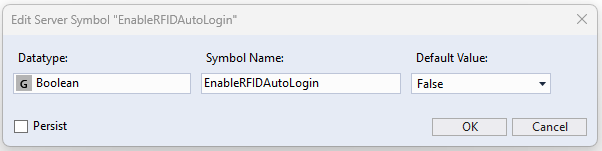
- Optional: Adjustment of the default value of the automatically created
RFIDAutoLoginIntervalIdserver symbol 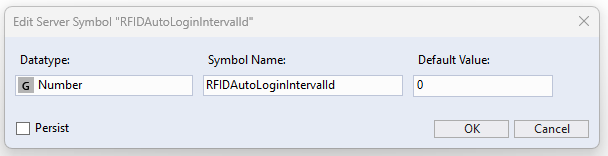
- Check the Auto-Login box for the user with the lowest user rights

- Importing the RFID page (
RFID.content) into the existing project and integrating it into the navigation
Using the RFID page
- Click on the button to connect the COM port and connect the desired port in the pop-up window that appears
- Write the desired user name and password in the text fields, then hold the RFID card in front of the RFID reader and click on the button to write (auto-login must be switched off for this)
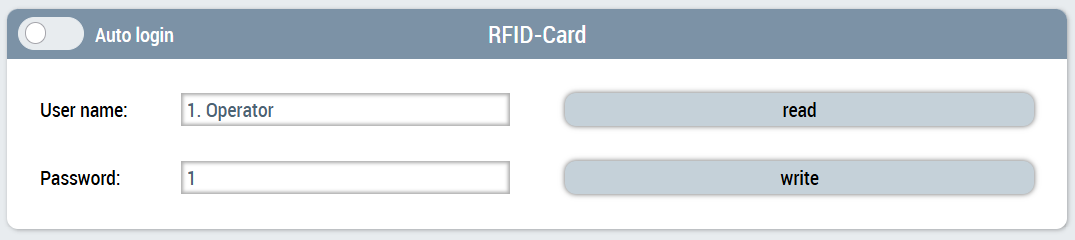
- By clicking on the read button, the information can be read from the card and displayed in the corresponding text fields when the card is presented (auto-login must be switched off for this)
- By switching on the auto-login, the corresponding user is logged in immediately if an RFID card with valid values is presented
 | Create user in TcHmiUserManagement Writing a user name and password to an RFID tag does not create a new user. The corresponding user must be created via TcHmiUserManagement. This is done either during engineering using the TwinCAT HMI configuration window or via the UserManagement control on the administration page. |
| Available since version 12.14.1 |
See also