IP configuration & network protocols
It is recommended to restrict the use of the network adapter to the TwinCAT Ethernet protocol and to assign a persistent IP address to the camera and the adapter. If several protocols have access to a network adapter, they can also send packets and thereby cause interference with camera communication. The setting for this can be found in the Windows properties of the network adapter.
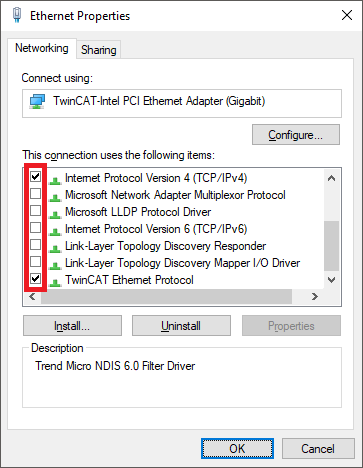
Internet Protocol version 4 (IPv4) is only required if DHCP is to be used for the camera connection. When setting up a camera for the first time, the automatic assignment of a link-local address (LLA) can be helpful. In all other cases, or after completing the initial camera configuration, you can also disable the IPv4 protocol and manually configure the persistent IP address in TwinCAT's IP stack as described below.
Notice | |
Disabling other network protocols If possible, deactivate all network protocols except the TwinCAT Ethernet Protocol on all Ethernet adapters used for camera communication. Otherwise, this may cause disruptions and delays in communication with GigE Vision cameras. |
Set persistent IP address in the TwinCAT RT-Ethernet adapter
To manually set a persistent IP address for the network adapter in TwinCAT, proceed as follows:
If the IPC is not to automatically assign an IP address to the network adapter, but you want to manually assign a persistent IP address to the network adapter, you can do so in TwinCAT as follows:
- 1. Open the IP-Stack of the RT-Ethernet adapter in the I/O configuration.
- 2. Select the Parameter (Init) tab and display further parameters by clicking the Plus (+) in front of
TcIoIpSettings. - 3. Specify the parameters
.IpAddressand.SubnetMask. - 4. Set the parameter
.ManualSettingstoTRUE. - 5. They must be loaded or activated for the settings to take effect. Depending on the application, this can be achieved in TwinCAT via a Reload Devices, Activate configuration or a Restart TwinCAT (Config).
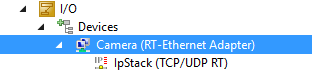
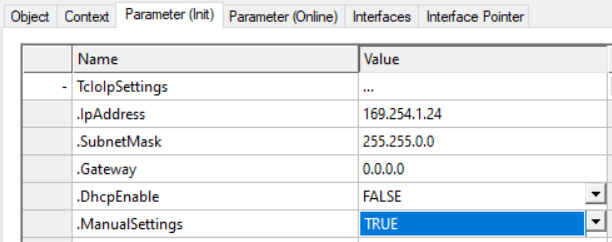
The same setting is automatically assigned if you assign a manual IP address when creating a camera object.
Notice | |
Persistent IP addresses To prevent the IP address of the network adapter from changing, specify a persistent IP address in the IP-Stack of the TwinCAT project. |