Installation
Depending on the TwinCAT version and operating system used, this TwinCAT 3 Function can be installed in different ways, which are described in more detail below.
 | Update installation An update installation always uninstalls the previous installation.
|
TwinCAT 3 Package Manager: Installation (TwinCAT 3.1 Build 4026)
If you are using TwinCAT 3.1 Build 4026 (and higher) on the Microsoft Windows operating system, install this function via the TwinCAT Package Manager (TcPkg). Detailed instructions on installing products can be found in the chapter Managing TwinCAT Software in the TwinCAT 3.1 Build 4026 installation instructions.
Notice | |
Unprepared TwinCAT restart can cause data loss The installation of this function may result in a TwinCAT restart.
|
TwinCAT Package Manager UI
Install the following workload via the TcPkg User Interface (UI) to use the product:
- TF6250 | TwinCAT 3 Modbus TCP
TwinCAT Package Manager CLI
You can use the TcPkg Command Line Interface (CLI) to display the available workloads on the system:
tcpkg list -t workloadUse the following command to install the engineering workload:
tcpkg install TF6250.ModbusTCP.XAETo install the runtime workload, use the following command:
tcpkg install TF6250.ModbusTCP.XARTwinCAT 3 setup: Installation (TwinCAT 3.1 Build 4024 and earlier)
If you are using TwinCAT 3.1 Build 4024 on the Microsoft Windows operating system, install this function via a setup package, which you can download from the Beckhoff website at https://www.beckhoff.com/download.
Depending on the system on which you need the function, the installation can be done on either the engineering or runtime side. The following screenshot is an example of the Setup interface.
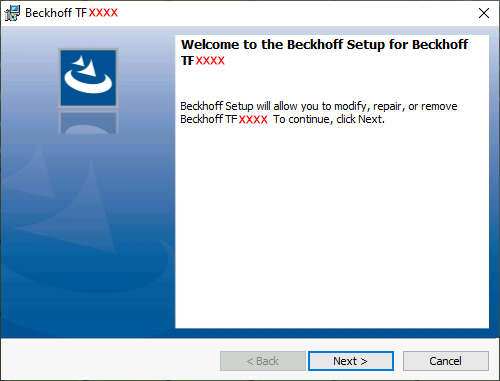
To complete the installation process, follow the instructions in the Setup dialog.
Notice | |
Unprepared TwinCAT restart can cause data loss The installation of this function may result in a TwinCAT restart.
|
Windows CE: Installation
If you are using Microsoft Windows CE as your operating system, install this function via the respective CAB files, which you can download as separate files from the Beckhoff website at https://www.beckhoff.com/download.
After the download, the CAB files can be transferred to the Windows CE device via file transfer and executed there. The CAB files then install and register the function on the respective system.
Always use the appropriate CAB file for your system. Specifically, this means:
- CE-ARMV4I: Arm®-based devices, e.g. CX8190, CX9020
- CE-X86: x86-based devices, e.g. CX51xx, CX52xx, CX20xx
The CAB file can be transferred to the device either via the CF/SD card or the FTP server integrated in Windows CE.
| Device restart In order to use the function, the device must be restarted once the function has been installed. |
TwinCAT/BSD: Installation
The TwinCAT 3 Function TF6250 - Modbus TCP is available as a package TF6250-Modbus-TCP for TwinCAT/BSD in the package repository. The package can be installed via the command:
doas pkg install TF6250-Modbus-TCP
Further information about the Package Server can be found in the TwinCAT/BSD manual.
The installation places the TwinCAT Modbus TCP Server and a configuration example TcModbusSrv.xml.sample in the following directory:
ls /usr/local/etc/TwinCAT/Functions/TF6250-Modbus-TCP/FreeBSD/Server/After a system reboot or a restart of TwinCAT, the Modbus TCP server starts with its default configuration.
The following command creates a copy of TcModbusSrv.xml.sample as TcModbusSrv.xml:
cd /usr/local/etc/TwinCAT/Functions/TF6250-Modbus-TCP/FreeBSD/Server
doas cp TcModbusSrv.xml.sample TcModbusSrv.xml
The newly created file TcModbusSrv.xml can be used to customize the server's configuration.
For information about the configuration, see the "Configuration" chapter.
Various text editors are available in TwinCAT/BSD for editing the configuration file.
Alternatively, you can use remote access to replace the TcModbusSrv.xml file with an existing configuration file.
To ensure that the TwinCAT Modbus server applies the configurations from the TcModbusSrv.xml file, the TwinCAT system must be stopped and restarted. This can be achieved via the following command:
doas service TcSystemService restartBeckhoff RT Linux®: Installation
The TwinCAT 3 Function TF6250 - Modbus TCP is available as a package tf6250-modbus-tcp for Beckhoff RT Linux® in the package repository. The package can be installed via the command:
sudo apt install tf6250-modbus-tcp
. For more information about the Package Server, see the Beckhoff RT Linux® documentation.
The installation places the TwinCAT Modbus TCP Server and a configuration example TcModbusSrv.xml.sample in the following directory:
ls /etc/TwinCAT/Functions/TF6250-Modbus-TCP/ServerAfter a system reboot or a restart of TwinCAT, the Modbus TCP server starts with its default configuration.
The following command creates a copy of TcModbusSrv.xml.sample as TcModbusSrv.xml:
cd /etc/TwinCAT/Functions/TF6250-Modbus-TCP/Server
sudo cp TcModbusSrv.xml.sample TcModbusSrv.xml
The newly created file TcModbusSrv.xml can be used to customize the server's configuration.
For information about the configuration, see the "Configuration" chapter.
Various text editors are available in Beckhoff RT Linux® for editing the configuration file.
Alternatively, you can use remote access to replace the TcModbusSrv.xml file with an existing configuration file.
To ensure that the configurations from the TcModbusSrv.xml file are applied by the TwinCAT Modbus server, the TwinCAT system must be stopped and restarted. This can be achieved via the following command:
sudo systemctl restart TcSystemServiceUm