Link axis objects to a PLC
Adding the Tc3_Mc3Ptp PLC library
- A FluidPower axis object has been created and the position controller has been optimized;
see Set control parameters for position control - A PLC project has been created;
see Creating the project and selecting the PLC device
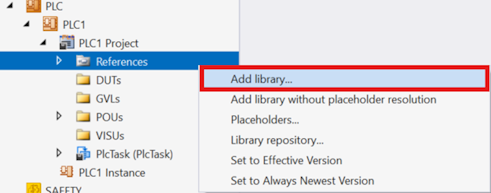
- 1. Right-click the References node > Add library...
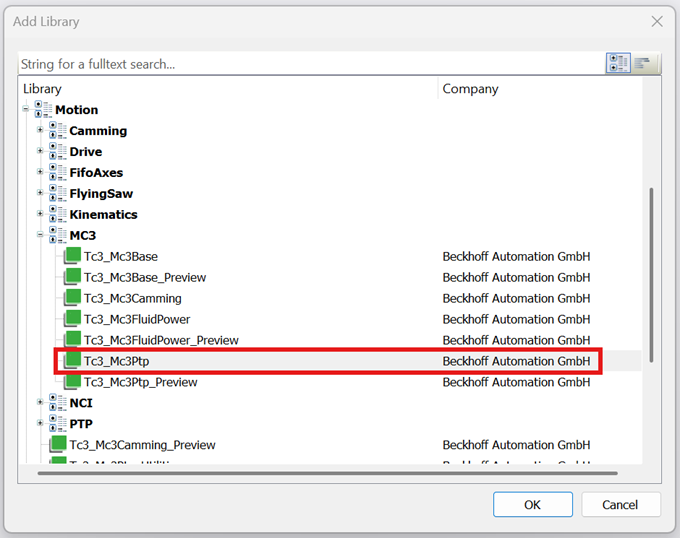
- 2. In the Add Library dialog under Motion→MC3, make the choice of the Tc3_Mc3Ptp library and click OK.
Create an instance of AXIS_REF
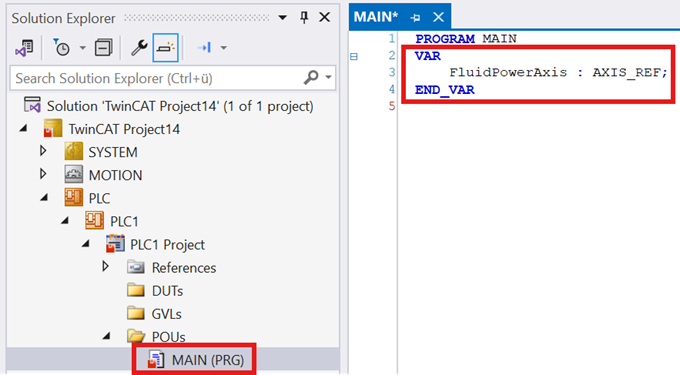
- 3. Double-click on MAIN and create an instance of Tc3_Mc3Ptp.AXIS_REF
- 4. Create the PLC project
→ The instance ofTc3_Mc3Ptp.AXIS_REFwill appear under PLC Instances in Solution Explorer.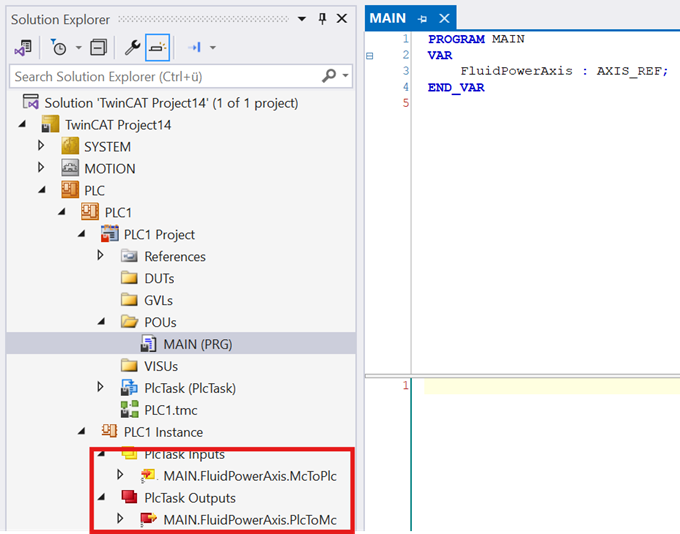
Connect the FluidPower axis to the PLC
- 5. Double-click the FluidPower Axis object
- 6. Opening the Settings tab
- 7. Click on the Link to PLC link…
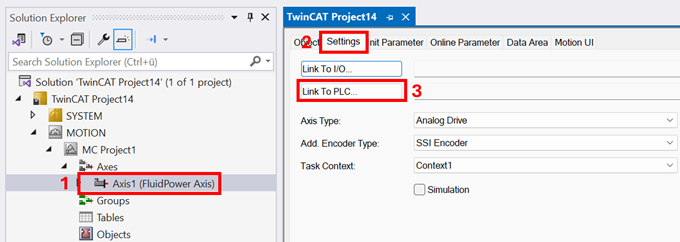
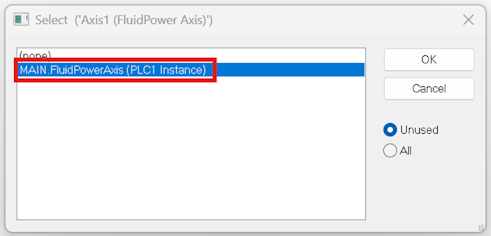
- 8. In Selection dialog box, select the instance of AXIS_REF and click OK to confirm
Activating a TwinCAT project
- Activate the TwinCAT project
The next step involves moving the FluidPower axis using a PLC;
see Programming a PLC using function blocks