Version control
Multiple versions of the TwinCAT MC3 packages can be installed on your engineering system at the same time. This is especially the case if your machines are deployed in the field with different software versions. The following sections explain how to work with different versions.
Alternatively, the version can be set using the Motion Versioning extension.
Requirements
- A TwinCAT project with an MC project has been created;
see Creating an MC Project. - Optionally, an axis may already have been created within the MC project. If you are not yet familiar with creating an axis within the MC project,
please refer to the chapter Creating an Axis Object.
Add an axis to the MC project in a specific version
- 1. Right-click Axes > Add New Item...
- 2. In the Insert TcCOM Object dialog box, under Type, select the axis type and the version of the desired object.
- 3. To do this, expand the desired object by clicking the +.
- All installed versions are displayed.
- The default setting uses the latest (highest) installed version of the object. In this case, the view does not need to be expanded.
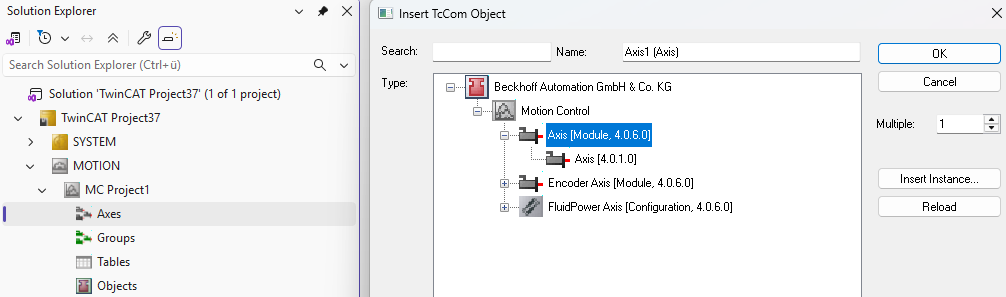
- 4. Finally, under Multiple, enter the desired number. Then click OK to confirm your entries.
- The object has been created and is located under the Axes node.
Set the version for motion objects in existing projects
 | Different versions of hierarchical objects Different versions between child objects and their parent object can cause errors when activating the project.
|
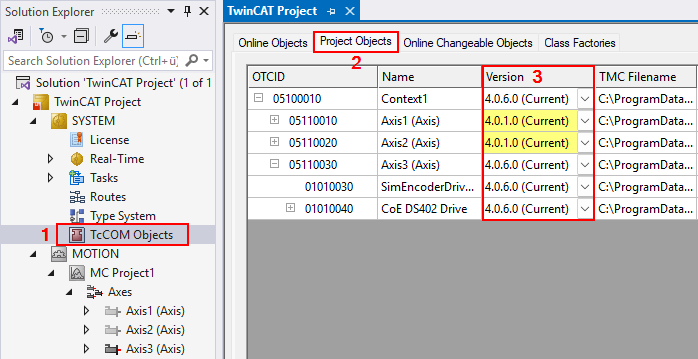
- 1. Select the SYSTEM > TcCOM Objects node (1).
- 2. Go to the Project Objects tab (2).
- All of the project's TcCOM objects are listed there. Among other things, an MC3 axis or a cam plate object in MC3 corresponds to a TcCOM object.
- 3. In the Version column, select the desired version of an object.
- The currently loaded and active version of an object is identified as x.x.x.x (Current), as opposed to the selected version x.x.x.x (3).
- Versions of an object for which a newer version is installed on the development system are highlighted in yellow.
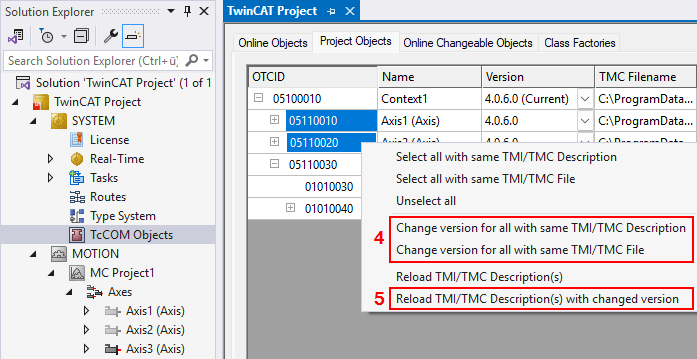
- 4. You can apply a modified version to multiple objects. Select Change version for all with same TMI/TMC Description to apply the version of one axis to all other axes (objects of the same type). With the Change version for all with same TMI/TMC File option, you apply the version to all objects from the same TMC file, for example, to axes and their subordinate drive/encoder objects (4).
- 5. Finally, a modified version of an object must be activated. To do this, reload the object with the updated version and the associated TMC object description. Select Reload TMI/TMC Description(s) with changed version (5).