Motion Versioning
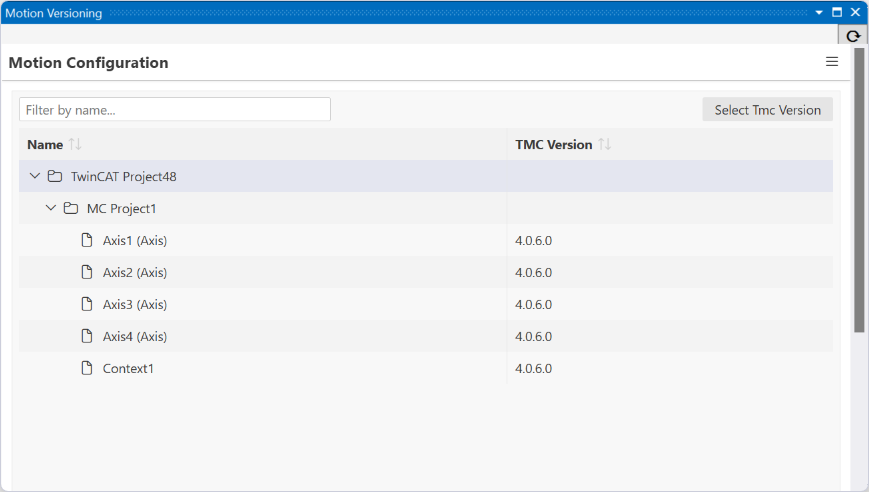
The Motion Configuration view is used to manage and provide an overview of all motion projects and their components within a TwinCAT project. It displays the hierarchical structure of the configured axes, cam plates, and contexts, and allows you to manage the associated TMC versions.
There are two controls:
- Select TMC Version: Button in the upper-right corner to select or change the version of the selected items. It becomes active when one or more items are selected in the tree structure.
- Filter by name: Text field in the upper-left corner for filtering the tree structure by name. Entering a search term hides all nonmatching entries.
Tree structure (project tree)
The project tree, along with all associated motion objects, is displayed in a table.
Column | Description |
|---|---|
Name | Hierarchical name of the element (sortable) |
TMC version | Assigned version of the element (sortable) The TMC Version column shows the version of the TwinCAT Motion component used to configure the respective element. You can change the version using Select TMC Version if necessary, for example after an update. |
Procedure for changing the version
Option 1 (recommended approach): Changing the versions for all components
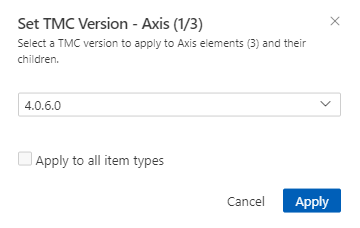
To update the version of all child components at once, select the top-level element in the hierarchy (e.g., MC Project). Next, use the Select TMC Version option in the pop-up window to select the desired target version for each component.
If the Apply to all item types checkbox is selected, the new version is automatically applied to all subordinate elements (axes, cam plates, contexts) when you click Apply to confirm. This is particularly advantageous because not every component has to be reconfigured individually. This makes it quick and easy to ensure that all components of a project are consistently updated to the same version, especially after an update.
If the Apply to all item types checkbox is not selected, the version number must be chosen and confirmed for each object of the same type (e.g., for all axes).
Option 2: Changing the versions for individual components
It is technically possible to change the version for individual components separately. To do this, select the desired element (e.g., a single axis) in the tree structure and use Select TMC Version to assign a new version to only that element.
 | Preventing project startup: Avoiding multiple versions within an MC project Using different versions within an MC project - that is, different versions for axes, cam plates, and contexts - is expressly not recommended. All components of an MC project should always use the same version. Different versions may prevent the project from starting. |