Tables
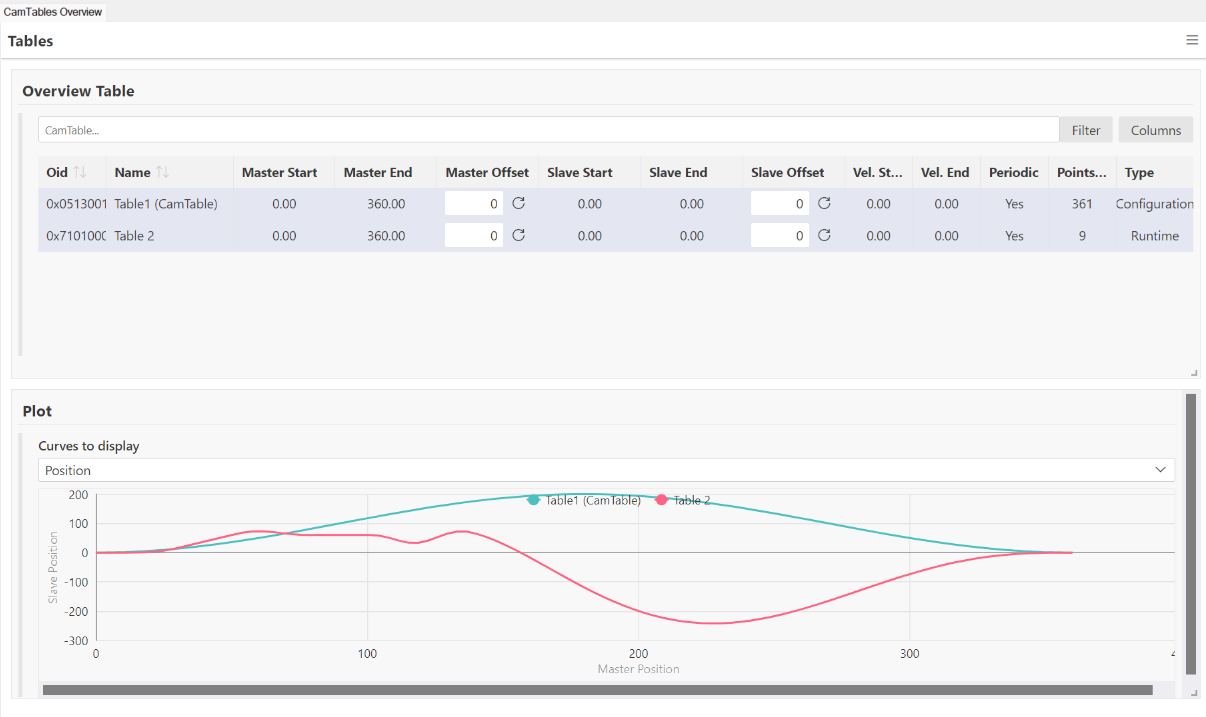
Under Tables, you'll find an overview of all available cam plates. If you click on a table in the upper part of the user interface to select it, its representation will be displayed in the lower half.
Filter
Use the filter to display the tables according to the following two options:
- Configuration CamTables,
- Runtime CamTables.
“Configuration CamTables” describes the cam plates that are created as cam objects in the system tree. “Runtime CamTables” are tables that are not created as objects in the system tree but are generated by the PLC at runtime.
Menu 
You can open the menu in the upper-right corner.
The menu offers various actions and settings:
Selection | Description |
|---|---|
Reconnect | This reestablishes the connection between the UI and the object to be displayed and reloads the data. |
Settings | This opens the settings. |
Save Layout | Saves the current UI layout. You must enter a custom name. The saved layout can only be used in the current project. |
Apply Layout | Applies an existing layout to the current view. The “default” layout is set by default. Additional layouts that have been saved using “Save Layout” are also available here. |
Layout Manager | Opens the Layout Manager. |
Theme | You can choose from the following themes for the color scheme:
|