Dynamic networks
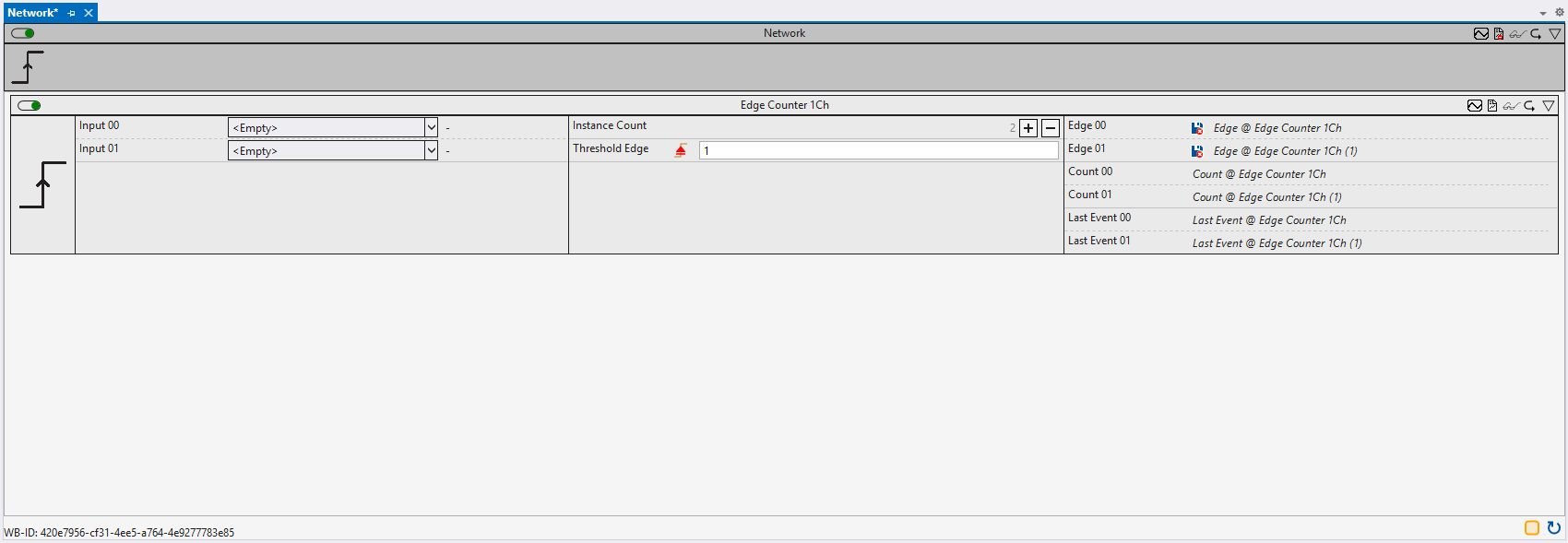
Dynamic networks offer extended functions for the scalability of the analysis chain. For this purpose, a dynamic network always contains a parameter with the title “Instance Count”. This makes it possible to duplicate the current network configuration in order to apply the same analysis function blocks to several inputs.

There are two ways to create dynamic networks:
1. Via the context menu in the Solution Explorer:
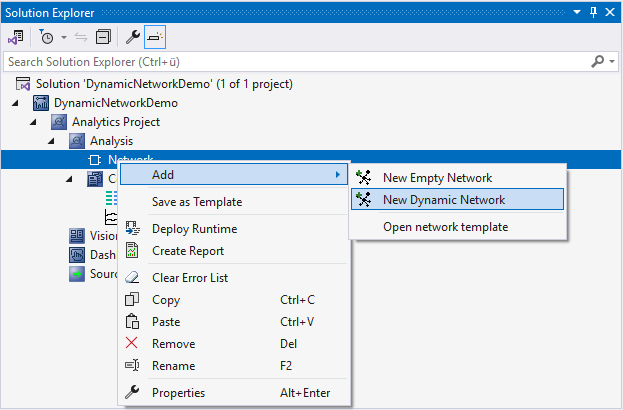
An empty dynamic network is created that can be freely configured.
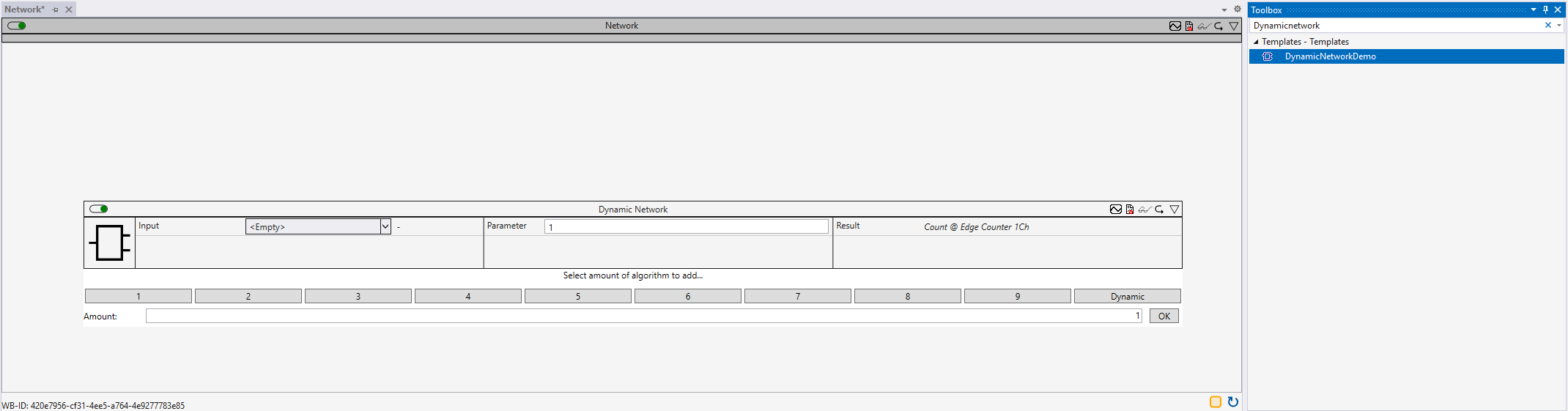
2. From a saved network template from the toolbox:
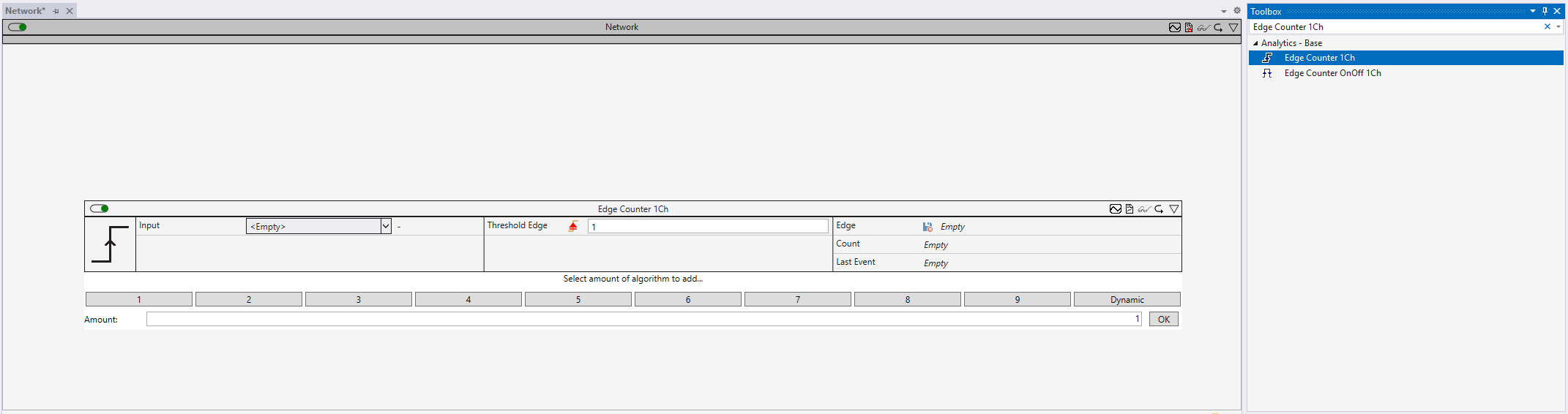
Choose the desired network template in the toolbox. Hold down the Ctrl key while dragging the template into the editor. A preview of the selected network appears. Click on the Dynamic button to add a dynamic instance of the template.
Editing dynamic networks
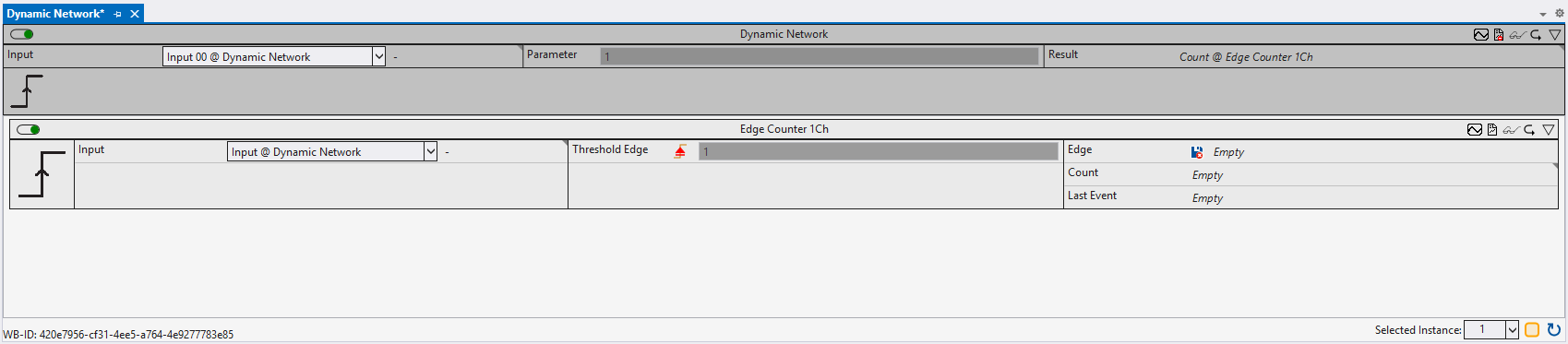
Dynamic networks can be opened and edited in the editor just like “normal” networks (with the exception of dynamic networks of closed templates). As a special feature, only one instance of the dynamic network is displayed in the editor at a time. All changes made (e.g. the addition or deletion of algorithms) are automatically applied to all instances, thus guaranteeing the same processing of all input data. To inspect the data flow during the analysis, an instance can be selected at the bottom right of the open editor. The values displayed at the inputs and outputs of the algorithms always refer to the selected instance.
Inputs and outputs of dynamic networks
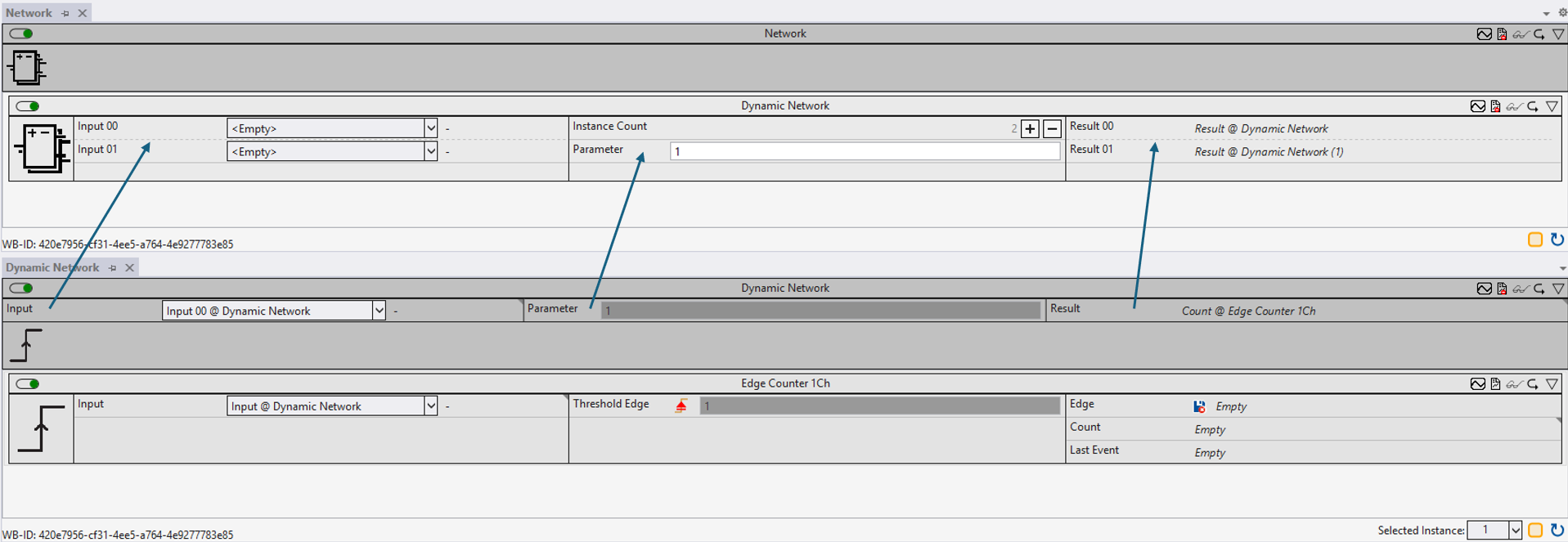
Inputs and outputs of the analysis chain can also be defined in dynamic networks. These do not differ internally from the inputs or outputs of other networks. Externally, however, these automatically become dynamic inputs or outputs, so that the inputs can be linked for each instance and the results can be processed further. The Smart Link functions are particularly helpful for the simple linking of dynamic inputs and outputs.
Dynamic functions
It is also possible to create dynamic instances of functions. To do this, hold down the Ctrl key when adding the functions from the editor and select the Dynamic button in the preview. The number of instances can also be selected for dynamic functions. Editing is not possible.