Wizard
You can use the Source Wizard to add new data sources.
This window provides the option to add entire data sources or find a replacement for an existing data source.
Pages:
The Source Wizard is divided into several pages. The pages already shown are listed on the left-hand side. With the aid of this list, as well as the Back and Next buttons, already opened pages can be displayed again.
Call:
Context menu
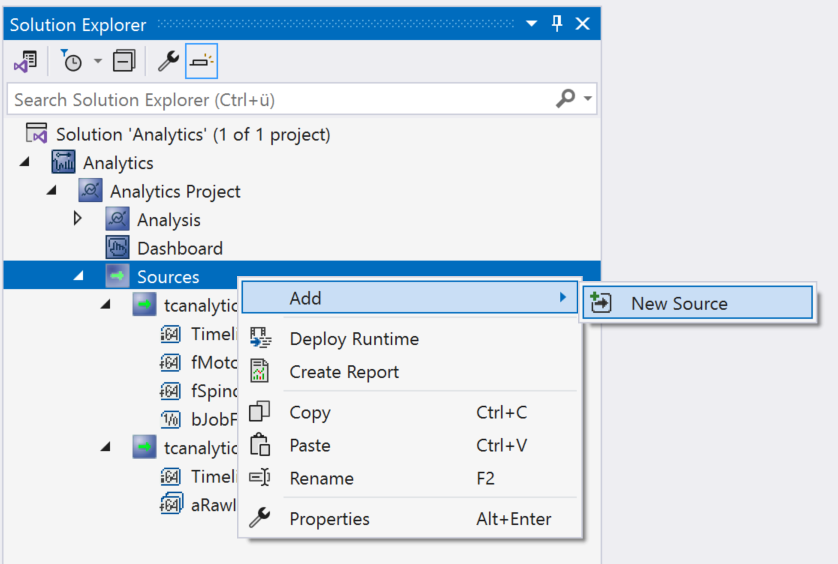
Right-clicking on the Source node in the Solution Explorer opens the context menu. Under Add, select the New Source entry. The Wizard opens. Upon successful completion, the desired source is added to the project.
Source switching
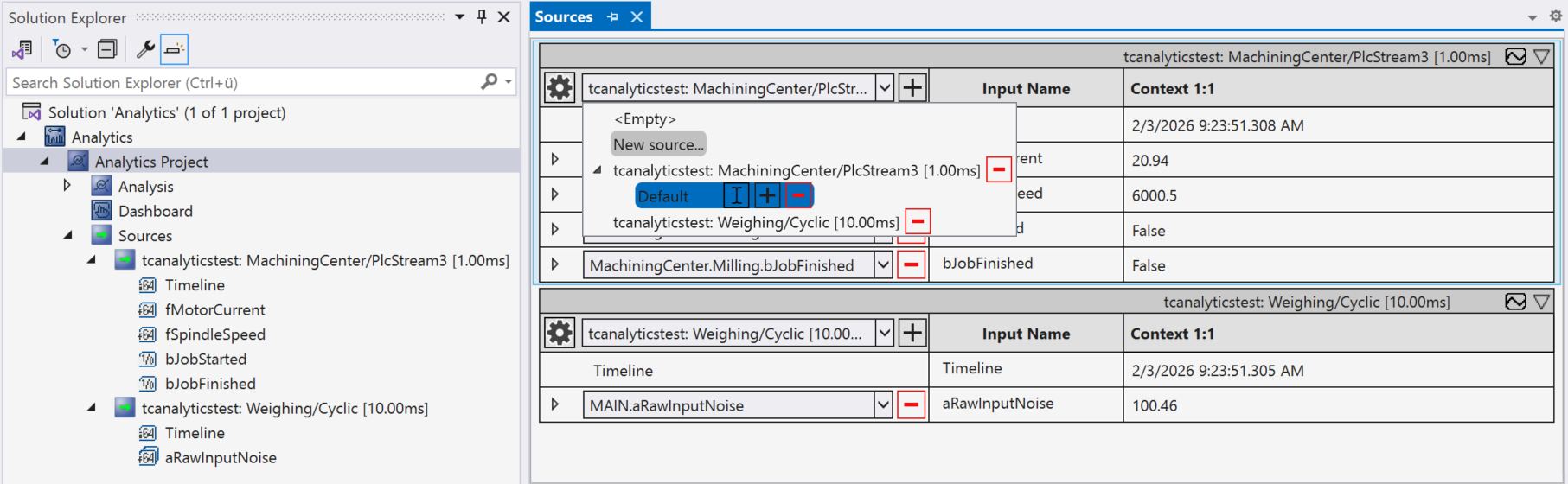
Click on the source node to open the source editor. You will receive an overview of all configured sources. The first line contains a drop-down box that displays the currently selected source. Use New Source to open the wizard already presented to add a completely new source. Alternatively, other sources are already stored and you can select them directly from the drop-down menu. This makes it easy to switch from machine A to machine B, for example, while maintaining the same analysis.
If you want to create a source even though it does not yet exist or is not online, you can drag a source from the toolbox into this editor and define any number of inputs and give them individual names, which you can already link in the analysis. This creates a complete offline configuration. The mapping can be done later with the actual source without having to edit the algorithms.
Static values (constants) can also be created via the inputs. To do this, click on the drop-down of the input and select Static Value.
Query
If a symbol is added to a function by drag and drop and this symbol does not belong to any source in the project, you can choose between two options. A new source can be added or an existing source can be replaced. When replacing, the wizard shown appears again.