Adding a reviewer group
By adding a reviewer group, a user group is designated to check a value change. Several user groups are permitted. This functionality is also available without an Audit Trail. Setting Re-authentication in connection with Reviewer groups opens a dialog for re-authentication.
Adding a reviewer group in Visual Studio / TcXaeShell
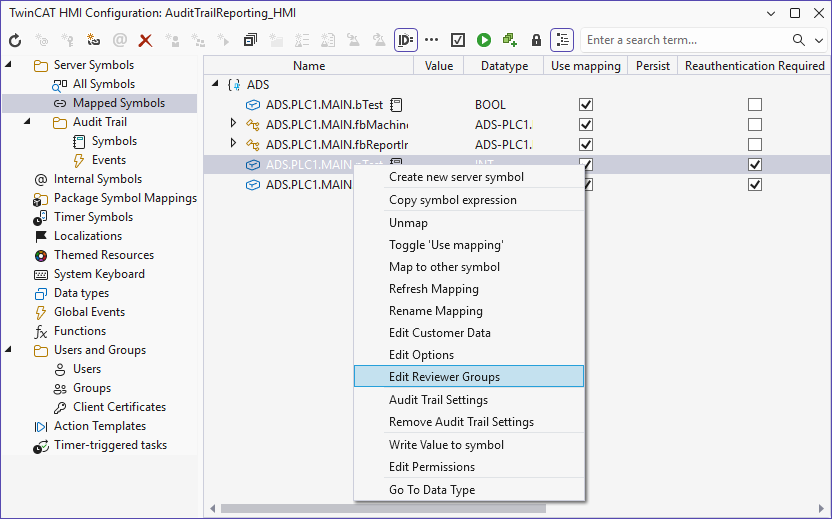
- 1. Open the TwinCAT HMI Configuration window.
- 2. Go to the Server Symbols / Mapped Symbols tab.
- 3. Select the icon that you want to add to a reviewer group.
- 4. Add these to the configuration of the symbol by right-clicking on Edit Reviewer Groups.
- A pop-up opens for further settings.
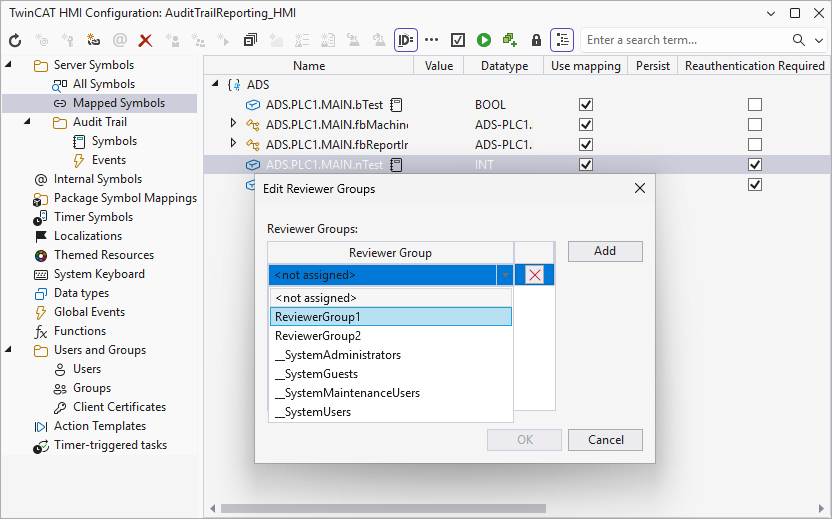
- 5. Add the user groups that are allowed to check the value change.
- 6. Confirm your settings with OK.
- The reviewer groups have been successfully added to the symbol.
Adding reviewer groups via the server configuration page
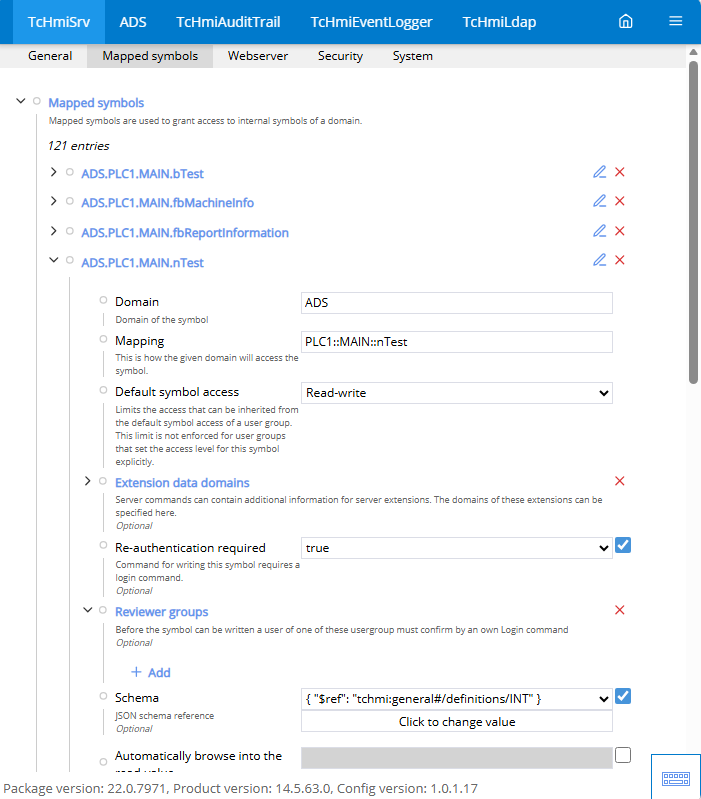
- 1. Open the server configuration page.
- 2. Go to the TcHmiSrv / Symbol mappings tab.
- 3. Go to Symbol mappings.
- 4. Click on the icon that you want to add to a reviewer group.
- You will see an overview of the symbol configuration,
- 5. Click on Reviewer groups.
- 6. Click on Add to add a new reviewer group.
- A pop-up opens for further settings.
- 7. Choose the user group that is allowed to check the value change.
- 8. Confirm the selection with Add.
- 9. The reviewer group has been successfully added to the symbol.
 | Reviewer groups only work in combination with the Re-authentication setting. |