Quick start
To start, create or open a TwinCAT HMI project.
Installation
Install the NuGet package "Beckhoff.TwinCAT.HMI.AuditTrail" via the NuGet Package Manager.
Installation of a required database
Install the database required by Audit Trail.
Configuring the Audit Trail extension
- 1. Open the configuration page of the Audit Trail in the HMI project
- 2. Go to the DB settings tab
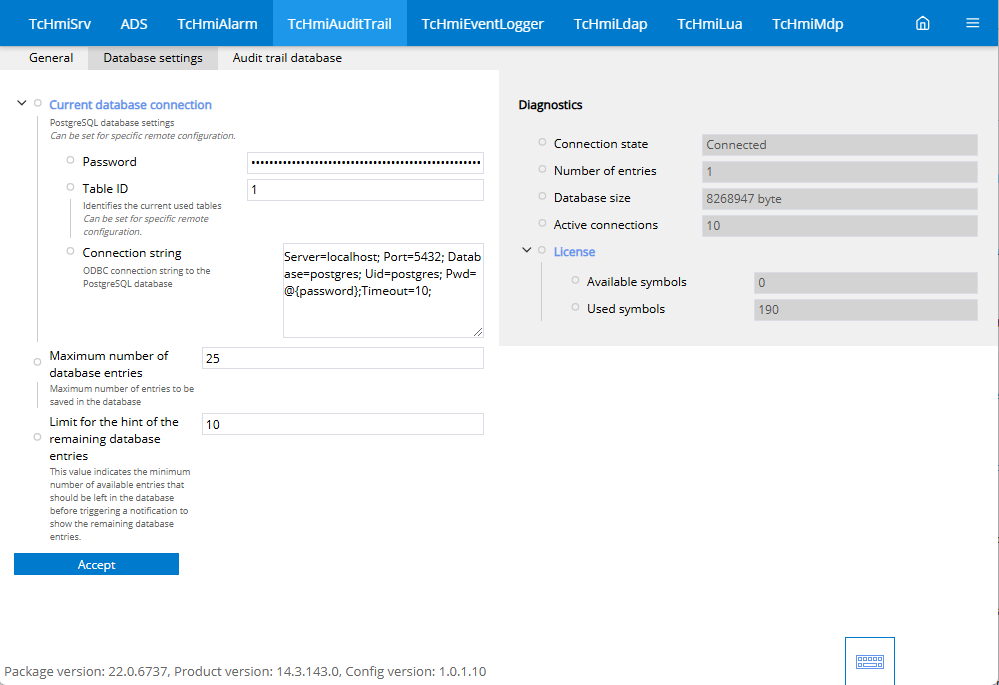
- 3. Establish the connection to the database here.
- The diagnostics window shows whether a connection has been established.
- This completes the basic configuration.
Enable reauthentication on a symbol in Visual Studio / TcXaeShell
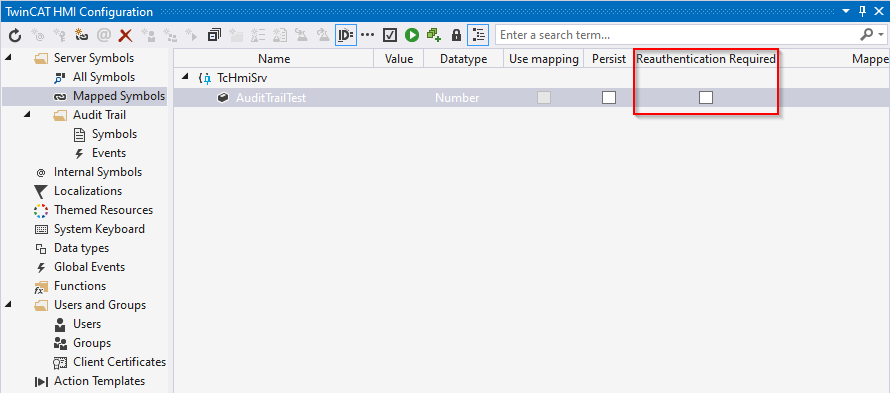
- 1. Open the TwinCAT HMI Configuration window.
- 2. Go to the Server Symbols / Mapped Symbols tab.
- 3. Activate the checkmark under the Reauthentication Required column.
- All symbols with the checkmark set require reauthentication in order to write the value.
You can find more information under Add new authentication.
Adding a symbol in Visual Studio / TcXaeShell
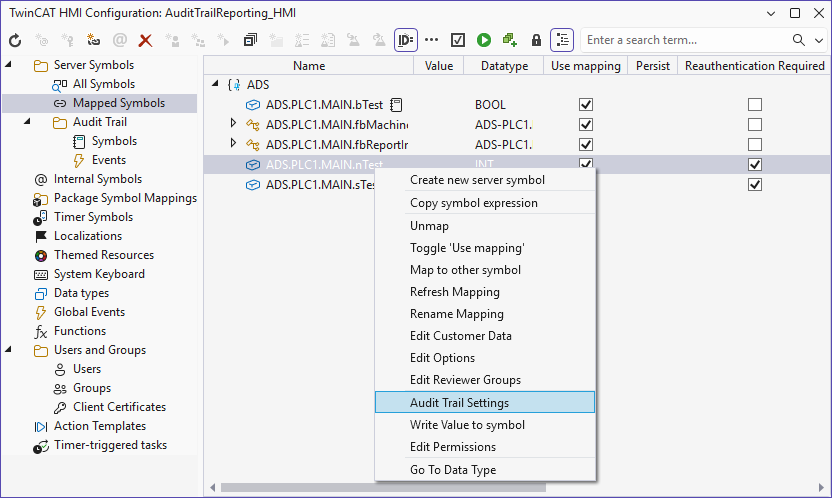
- 1. Open the TwinCAT HMI Configuration window.
- 2. Go to the Server Symbols / Mapped Symbols tab.
- 3. Select the symbols to be added to the Audit Trail.
- 4. Add these to the Audit Trail configuration by right-clicking on Audit Trail Settings.
- A pop-up opens for further settings.
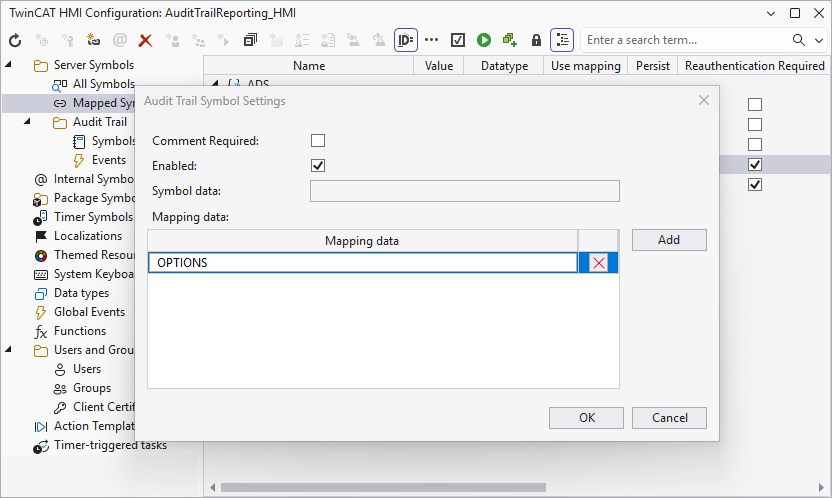
- 5. Set the settings according to your requirements.
Comment Required: Specify whether a comment must be entered when the value is changed.
Enabled: Activate the recording of the symbol in the AuditTrail.
Symbol data: Specify fixed values that should also be saved in the AuditTrail.
Mappingdata: Specify which values from the symbol mapping should also be saved in the audit trail. - 6. Confirm your settings with OK.
- The symbols you have configured are now automatically logged in the Audit Trail during a write operation. If the comment function has been activated, this is also entered.
You can find more information under Add symbols.
Adding an event in Visual Studio / TcXaeShell
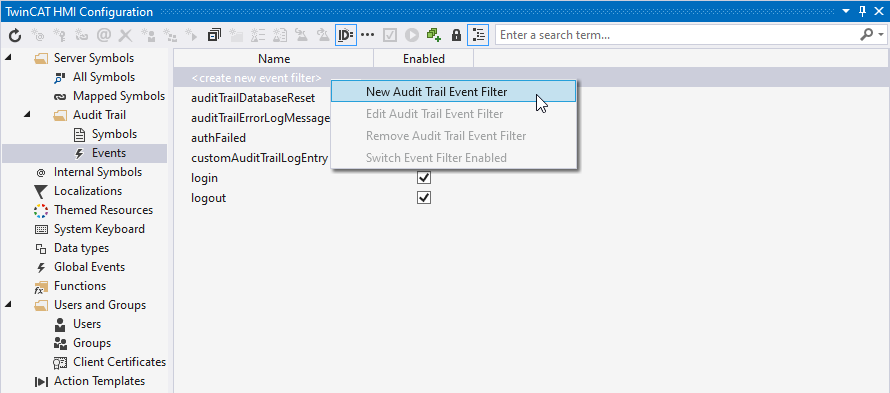
- 1. Open the TwinCAT HMI Configuration window.
- 2. Go to the Server Symbols / Audit Trail / Events tab.
- 3. Add a new filter option by double-clicking on create new event filter or by right-clicking on New Audit Trail Event Filter.
- 4. Define a name for your filter.
- 5. Create an appropriate filter configuration.
- All events that match your filter are also included in the Audit Trail.
You can find more information under Add events.
Adding a JavaScript in Visual Studio / TcXaeShell
- 1. Add a new JavaScript file to the project.
- 2. Open the JavaScript file you have created.
- 3. Call the function TcHmi.Server.AuditTrail.createAuditLogEntryEx.
- This function adds a new entry to the audit trail.
You can find more information under Add JavaScript.