Agents
Agents are specialized configurations that combine a system prompt with a defined set of MCP tools. Each agent is responsible for a specific task scope. The active agent is chosen from the Agent drop-down menu in the header bar. Agents can assign subtasks to other agents (delegation; see below).
PLC agent
The PLC agent supports PLC development in Structured Text (IEC 61131-3). PLC code is read, created, modified, and searched. Function block signatures from referenced libraries are fully taken into account, including input and output parameters, enumeration values, and structure elements. In addition, a direct search function is available within the Beckhoff documentation.
None of the PLC agent’s write operations (creating, modifying, or deleting POUs) are transferred directly to the running TwinCAT project. Instead, the changes are collected in a changeset and submitted to the user for review (see Changeset Workflow).
InfoSys Explorer
The InfoSys Explorer allows you to perform targeted searches within the Beckhoff Information System (InfoSys). All answers are derived exclusively from the documentation and include source references. The agent is designed to answer questions about function blocks, libraries, EtherCAT Terminals, and configuration parameters.
System Manager agent
The System Manager agent allows you to configure TwinCAT projects, I/O devices, and EtherCAT topologies, as well as deploy them to target systems.
Notice | |
Data loss caused by destructive actions of the System Manager agent The System Manager agent can perform destructive actions, including deleting project elements, overwriting device configurations, and activating configurations on the target system. Configured tool permissions can suppress confirmation dialogs.
|
Orchestrator agent
The Orchestrator agent receives requests and assigns subtasks to the appropriate agents, such as modifying or checking PLC code, searching the Beckhoff documentation, or performing I/O configuration. Simple questions are answered right away. If a request is ambiguous, the agent asks for clarification. The Orchestrator agent does not have its own tools. The tools are used by the agents who have been assigned the task. Delegated tasks are displayed in the chat as expandable sections (see the Message display chapter).
Custom agents
You can manage your own agents under Settings > Agents. Select an existing agent or create a new one:
- 1. For a new agent, select either Global or Workspace as the scope. A solution must be open for Workspace.
- 2. Enter a unique name.
- 3. For an existing agent you own, enable Edit mode.
- 4. Under Properties, edit the description, visibility (Visible), and system prompt (Content).
- 5. Under Tools, select the available tools.
- 6. Under Sub-agents, you specify whether other agents are allowed to assign tasks to this agent and to which agents this agent is allowed to delegate (see Delegation).
- 7. Save the modifications.
- 8. Be sure to note validation errors and warnings regarding unavailable tools.
- Any unsaved changes must be saved or discarded before exiting the editor.
- 9. Click + to create a new agent.
- Once an agent is selected, you can use Copy from to copy it as the basis for a new agent. The name and description must be unique. Duplicate names are rejected when saving.
You can delete your own agents after confirmation. Agents from installed add-ons are read-only in this view.
Delegation
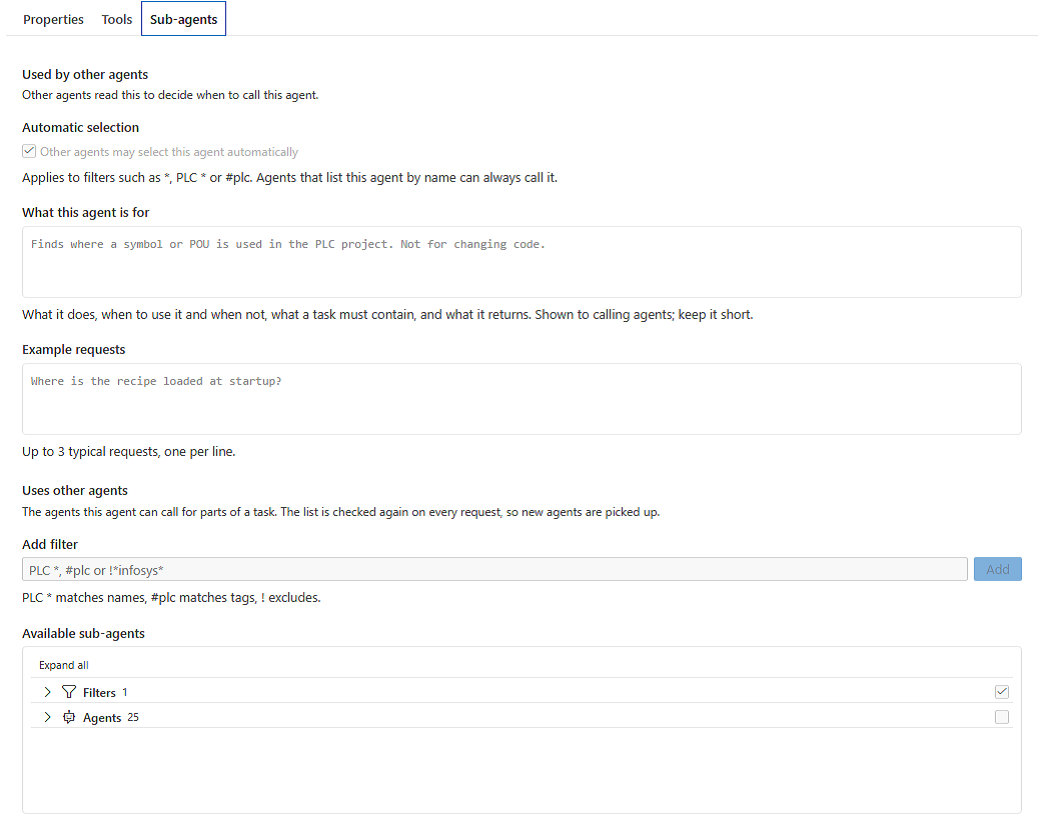
The Sub-agents tab in the Agent Editor is used to specify how an agent interacts with other agents. This tab shows which agents use this agent and which agents are used by it:
Area | Property | Meaning |
|---|---|---|
Used by other agents | Automatic selection | Other agents may automatically select this agent for subtasks. |
Used by other agents | What this agent is used for | A description of what the agent is used for and what it is not used for. The text is passed to the delegating agent with every request. |
Used by other agents | Example requests | Examples of requests to be delegated to this agent (up to three). |
Uses other agents | Available sub-agents | Agents to whom this agent is authorized to delegate subtasks. |
Uses other agents | Filters | Rules for selecting multiple agents, such as |
If an agent delegates a subtask, it is displayed in the chat as a collapsible section (see the Message display chapter).
Agent files
An agent is stored in a Markdown file that begins with a YAML block (frontmatter). Changes are loaded automatically. Valid agents with visible: true are available in the agent selection.
Agent definitions can be stored in two locations:
Location | Path | Validity |
|---|---|---|
Global |
| Available in all projects. |
Project workspace | .coagent\agents\mein-agent\agents.md | Active as long as the respective project is open (see Project workspace). |
Minimal agent example:
---
name: 'MyAgent'
description: 'Agent description'
visible: true
tools: []
---

You are a helper assistant for TwinCAT PLC projects. Explain the code provided and point out any possible errors.
The YAML block contains the configuration, and the text that follows contains the system prompt. In this example, no tools have been assigned yet. Select these under Tools instead of importing tool names from other installations.
Configuration fields:
Property | Type | Meaning |
|---|---|---|
| string | Agent base name (required). |
| string | Short description for the agent drop-down menu. |
| bool |
|
| List | Exact tool identifiers from the available tool catalog. |
usage | string | Description of what this agent is used for, provided to delegating agents. |
examples | List | Example requests to be delegated to this agent (Example requests). |
delegatable | bool |
|
| List | Other agents to whom this agent may delegate: Names, patterns using |
A file defines exactly one agent with the specified name. Section headings do not create additional agents or name suffixes. The description may appear as a label in the selection. Visible removes an agent from the selection. To remove them, use the delete function for your own agents.
The keys for the chat history, for audio information about tool calls, and for a follow-up agent are no longer supported and have no effect. Agents with these keys will continue to be loaded. A warning is displayed under Settings > Agents. Delegation is used to transfer a task to another agent.