Common settings
The settings are divided into four sections. You can access it via Settings → Common and apply changes by clicking Save.
Chat
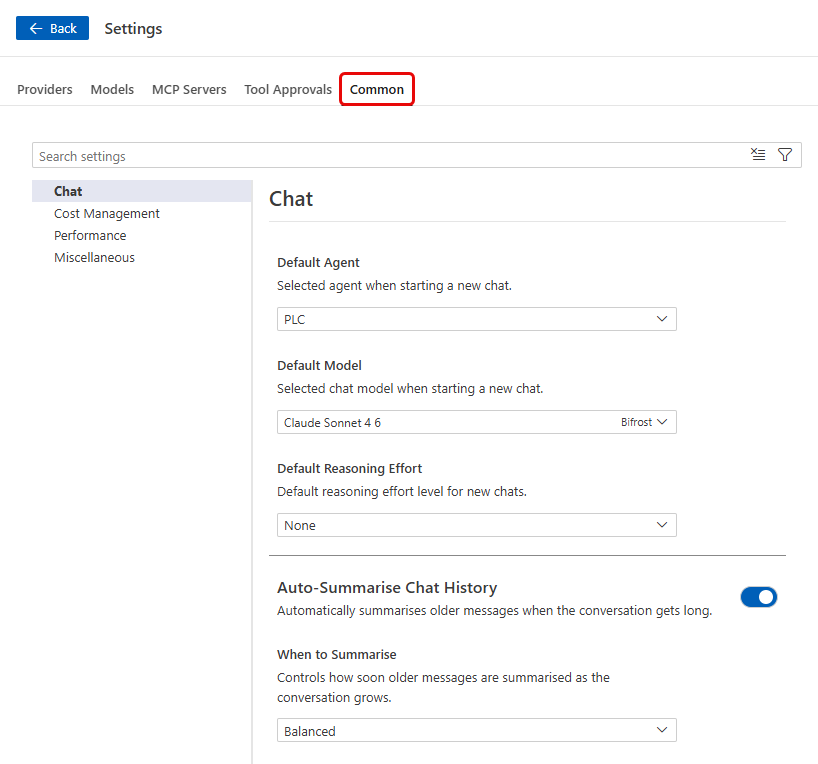
Under Settings → Common → Chat, the following settings are available:
Property | Meaning |
|---|---|
Default Agent | The default agent selected for new chats. |
Default Model | The default LLM model used for new chats. |
Default Reasoning Effort | The default effort level for new chats. Automatic uses the default setting for the respective model. A level that is not supported by the selected model is adjusted to the nearest supported level. You can override a model’s default level under Settings > Models in the Limits (Automatic Effort) section. You can override one active level per message. Available levels: None (no thought process, fastest response), Low (brief thought process for simple tasks), Medium (balanced, suitable for most engineering questions), High (detailed thought process for complex analyses, troubleshooting, or multi-step planning tasks). A higher reasoning effort increases token consumption. |
Auto-Summarise Chat History | Older messages are automatically summarized when the conversation gets long. |
When to Summarise | Controls the conversation length at which older messages are summarized (Balanced is the default value). |
Cost management
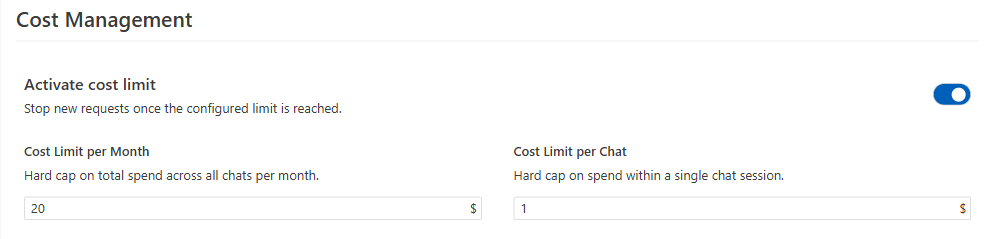
To configure cost limits, go to Settings → Common → Cost Management:
Property | Meaning |
|---|---|
Activate cost limit | Enables cost limits. When a limit is reached, new requests are blocked. |
Cost Limit per Month | Maximum spending per calendar month across all chats. The counter is reset on the first of the month. |
Cost Limit per Chat | Maximum spending per individual chat. Prevents uncontrolled costs during long conversations. |
 | The cost limit in CoAgent is intended for monitoring purposes and does not constitute a binding billing threshold. The cost calculation is based on the token counts reported by the LLM provider and may differ from the provider’s actual billing. Local models without token reporting show $0.00. Binding spending limits must be configured on the LLM provider’s side. |
Performance
Go to Settings → Common → Performance to configure the timeout and retry settings:
Property | Meaning |
|---|---|
Time-to-First-Token Timeout | Maximum wait time, in seconds, before the LLM begins streaming a response. |
Max Retries | Number of retries for temporary LLM errors. |
LLM Timeout | Maximum wait time in seconds for the complete LLM response. |
MCP Tool Call Timeout | Maximum wait time for an MCP tool call (default: 60 seconds), unless the server configuration specifies a different value. |
Max Steps per Turn | The maximum number of tool call iterations the agent is allowed to perform in a single response cycle. |
Sub-agent Max Steps | Maximum number of tool call iterations for a task delegated to a subagent (see the Agents chapter). |
Validation Timeout | Maximum duration of a model test. A higher value for slow or locally hosted models with long load times. |
Validation Concurrency | Specifies how multiple models are validated during provider validation. In Automatic mode, local providers are tested one after another, while cloud providers and proxies are tested in parallel. |
Miscellaneous
Under Settings → Common → Miscellaneous, the following options are available:
Property | Meaning |
|---|---|
Rename new chats | Automatically generates a descriptive chat name from the first message. |
Auto-approve read and search tools | Read and search tools are automatically approved. The configured approvals apply to other tools. |
Write PLC changes directly | Changes made by the agent to the PLC code are immediately written to the project and recorded in a change log. Reject undoes them. Disabled (default): Changes remain in the changeset until they are accepted (see the chapter Writing directly to the PLC project). |
Restore Factory Defaults | Resets all chat settings to their original defaults. Any custom settings will be permanently lost. |