Setting up driver signing
TwinCAT objects generated from MATLAB® or Simulink® are based on a tmx driver (TwinCAT Module Executable), as are TwinCAT C++ objects. These drivers must be signed with an OEM certificate level 2 so that the driver can be loaded on the runtime PC during the TwinCAT runtime.
No driver signing is required for Beckhoff RT Linux®. This is mandatory for all other platforms.
See the following links for detailed documentation on how to create an OEM certificate for driver signing:
The most important facts in brief:
- You can create your own certificate. To do this, in Visual Studio, go to:
Menu bar > TwinCAT > Software Protection -> Create New… - You need an OEM certificate Crypto Version 2 (option: Sign TwinCAT C++ executables (*.tmx)).
- You will be prompted to create a password for your certificate.
- Drivers can also be created without signing and signed afterwards.
- For testing purposes in the development phase, a non-countersigned certificate is sufficient.
- Countersigned certificates can be ordered free of charge from Beckhoff (TC0008).
Setup for use in MATLAB® or Simulink®
The signing of the tmx drivers can be handled by Target for MATLAB® or Simulink®. To do this, you need to follow three steps:
- You have created a certificate (whether or not it has been countersigned).
- 1. The password for the certificate must be stored.
- 2. The certificate must be selected.
- You can then use the Target for Simulink® or MATLAB® to generate signed TcCOM modules.
- 3. On the runtime system, the certificate must be added as trusted.
- You can then run the modules generated and signed with Target for Simulink® or MATLAB® in TwinCAT.
Steps 1 and 2 must be performed on the engineering system, and Step 3 on the runtime system. The three steps are described in more detail in the following sections.
Information about the “Software Protection” dialog
Starting with TwinCAT 3.1 Build 4026.14 (Workload: TwinCAT Standard 4026.14), the “Menu bar > TwinCAT > Software Protection…” dialog is available in Visual Studio. This dialog simplifies the creation of OEM certificates, the setting of a system-wide default certificate, and the storage of the certificate password for the current Windows user. If you can use this interface, it is the recommended and most convenient method.
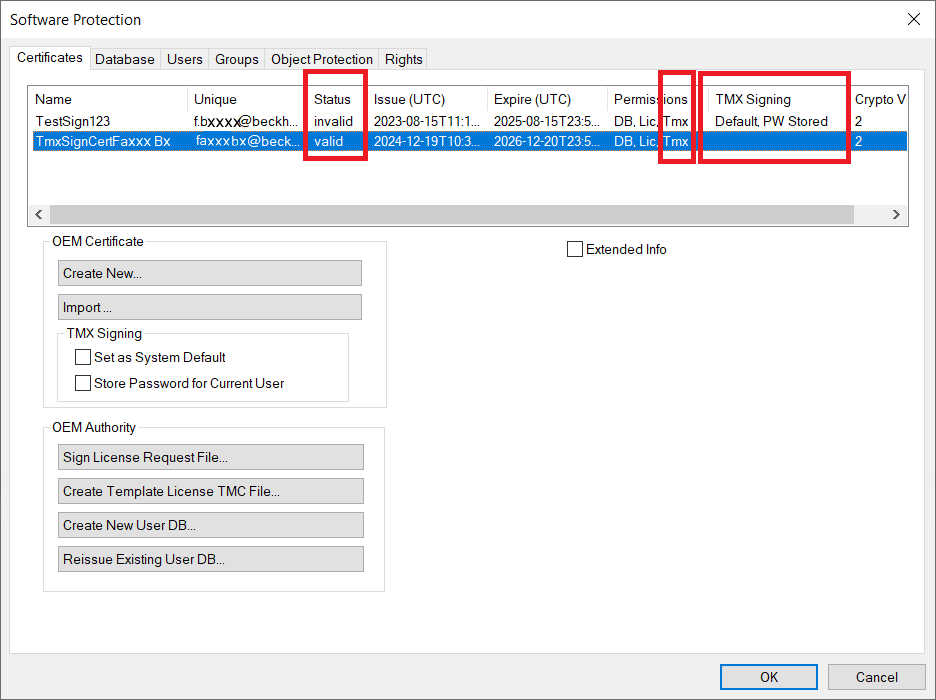
The overview above contains two certificates as examples.
The first certificate “TestSign123” is not countersigned by Beckhoff, therefore it is classified as invalid in the status. Certificates that are not countersigned can still be used for signing. The target system must then be set to the test mode - see section Behavior of the TwinCAT runtime.
The second certificate, “TmxSignCertFaxxxBx”, on the other hand, is countersigned and is therefore classified as valid.
Both certificates are suitable for signing tmx files, as can be seen under Permissions. In the “TMX Signing” column, Default indicates whether a certificate is set as the system-wide default certificate. The note PW Stored indicates that the password of the certificate is available/stored for the Windows user logged in.
 | The “Software Protection” dialog is available only in TwinCAT Build 4026.14 or later If you are using an older TwinCAT version (prior to Build 4026.14) or do not wish to use the GUI, the command-line tool TcSignTool is available as a fully-featured alternative. The program can be found here: Build 4026: C:\Program Files (x86)\Beckhoff\TwinCAT\3.1\SDK\Bin Build 4024: C:\TwinCAT\3.1\SDK\Bin |
Step 1: Store a password for driver signing (required)
For security reasons, the password of a certificate must not be entered in the project or source code in the Simulink® model or in the MATLAB® code. The passwords are stored obfuscated in the registry of the Windows operating system. This means that the password for a specific certificate is known in the operating system (for the Current User) and is used automatically.
In the Software Protection dialog:
- 1. Select the certificate for which you want to store the corresponding password.
- 2. Select the “Store Password for Current User” checkbox.
- A window opens.
- 3. In the window, enter the password you selected when you created the certificate.
- The password has been stored. If it has been successfully checked and entered, the note “PW Stored” appears under “TMX Signing”.
Alternative method without the Software Protection dialog using TcSignTool via the command line:
- The command prompt is open with user rights (not administrator!).
- 1. Navigate to the TcSignTools directory:
Build 4026: C:\Program Files (x86)\Beckhoff\TwinCAT\3.1\SDK\Bin
Build 4024: C:\TwinCAT\3.1\SDK\Bin - 2. Use the following call to store the password for the certificate.
- The password is then stored.
tcsigntool grant /f "C:\TwinCAT\3.1\CustomConfig\Certificates\MyCertificate.tccert" /p MyPasswordThe obfuscated password is stored in the registry under: HKEY_CURRENT_USER\SOFTWARE\Beckhoff\TcSignTool\
You can delete the password using the following call:
tcsigntool grant /f "C:\TwinCAT\3.1\CustomConfig\Certificates\MyCertificate.tccert" /rStep 2: Select a certificate for driver signing
The following variants are available for selecting certificates:
Variant | Description | Advantage | Disadvantage | Recommended for |
System-wide default certificate | By default, a certificate is used for all signing operations (including those in TwinCAT) | Simple | Applies to all projects (can be overridden locally) | Standard |
Default certificate for MATLAB® only | By default, a certificate is used for all signing operations in MATLAB® | Specific to MATLAB® or Simulink® Overrides system-wide certificate | The certificate is not automatically used for TwinCAT C++ | MATLAB® or Simulink® only builds |
Certificate per build | The certificate is specified in the Simulink® model or MATLAB® code and is used only for that build. | Flexible Overwrites default certificates | Must be set every time | Individual projects |
Retroactive signing | Build without a certificate and then sign using TcSignTool | No certificate required during the build | Additional (manual) step | CI/CD |
Variant 1: system-wide default certificate
You can set a default certificate that will always be used for Target for MATLAB® and Target for Simulink® (and TwinCAT C++), unless you explicitly specify a different certificate.
In the Software Protection dialog:
- 1. Select the certificate you want to set as the default.
- 2. Select “Set as System Default”.
- The certificate is stored as the system-wide default certificate. If it was successfully entered, the word “default” will appear in the “TMX Signing” column.
Alternative without Software Protection dialog:
Alternatively, you can also create a Windows environment variable manually for this variant. Create a new environment variable at User > Variables with:
Variable: TcSignTwinCatCertName
Value: full path of the certificate
Variant 2: default certificate for MATLAB®
You can set a default certificate in your MATLAB® environment, which is always used for Target for MATLAB® and Target for Simulink® (not TwinCAT C++), unless you explicitly specify a different certificate.
Open the Common Settings dialog with TwinCAT.ModuleGenerator.Settings.Edit (MATLAB® Command line) and enter the desired default certificate under Build > Certificate name for TwinCAT signing. This certificate is stored in your user directory as default and is used by all MATLAB® versions on your system as default.
Variant 3: one certificate per build
You can explicitly name a certificate for each build operation. For this variant, you do not need to configure any additional settings in advance (though you must still store the password beforehand). Before each build process, you can define a certificate of your choice for precisely this build process.
Target for Simulink®: TC Build > Certificate for TwinCAT signing
Target for MATLAB®: Property SignTwinCatCertName
Variant 4: retroactive signing
You can build without a certificate and sign afterwards with the TcSignTool. In this case, the password does not need to be known during the build process (but it must be known during the subsequent signing process).
The TcSignTool is a command line program. For example, open the command prompt and execute tcsigntool sign /? to display the help. The program can be found here:
Build 4026: C:\Program Files (x86)\Beckhoff\TwinCAT\3.1\SDK\Bin
Build 4024: C:\TwinCAT\3.1\SDK\Bin
| Operating TcSignTool from MATLAB® From MATLAB®, the tool can be started with the command |
Sample call for signing a tmx driver for TwinCAT:
TcSignTool sign /f "C:\TwinCAT\3.1\CustomConfig\Certificates\ MyCertificate.tccert" /p MyPassword "C:\TwinCAT\3.1\Repository\TE140x Module Vendor\ModulName\0.0.0.1\TwinCAT RT (x64)\MyDriver.tmx"Step 3: behavior of the TwinCAT runtime
If a TwinCAT object created from MATLAB® or Simulink® with a signed driver is used in a TwinCAT Solution and loaded onto a target system with Activate Configuration, the following must be observed:
Test mode for non-countersigned certificates
If you use a non-countersigned OEM certificate for signing, you must set your target system into test mode. To do this, run the following command as an administrator on the target system:
bcdedit /set testsigning yesPlease note that test mode disables certificate verification and should only be used in development environments.
If you are using a countersigned OEM certificate, this step is not necessary.
Whitelist for certificates on target systems
Each TwinCAT runtime (XAR) has its own whitelist of trusted certificates.
Behavior with TwinCAT Build 4026
The TwinCAT-XAE checks whether all certificates required to activate the configuration are in the whitelist on the runtime system. If this is not the case, a pop-up window appears. You can set the whitelist entries there.
Behavior with TwinCAT Build 4024
If the certificate used for signing is not included in this whitelist, the driver will not be loaded. A corresponding error message is output in TwinCAT Engineering (XAE).
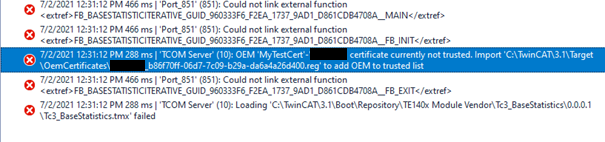
The error message contains the instruction to execute a registry file, which was automatically created on the target system, on the target system as administrator. This process adds the used certificate to the whitelist.
| Registry file is only dependent on the OEM certificate The registry file can also be used on other target systems. It only contains information about the OEM certificate used and is not target system dependent. |