Window Report
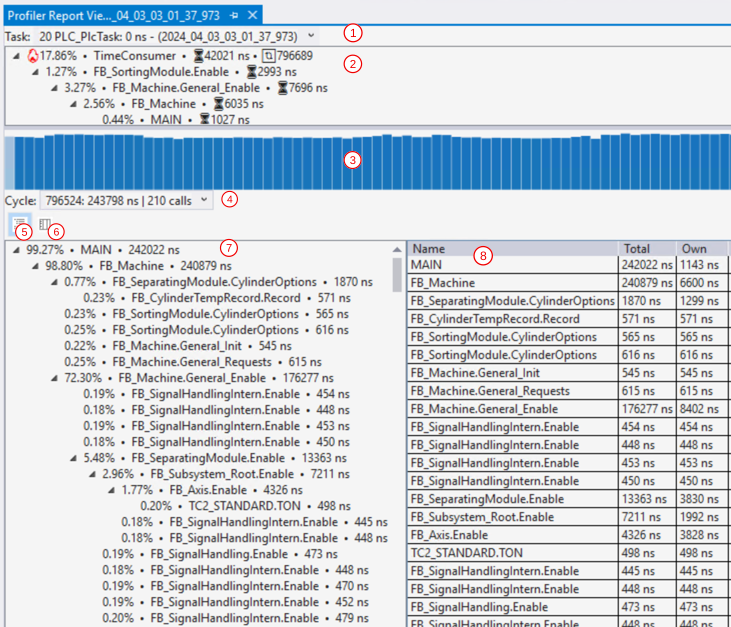
No. | Name | Property |
|---|---|---|
1 | Task selection | Drop-down menu for selecting a task; display of the selected task |
2 | Hotpath analysis | Display of elements with high time consumption and cyclic deviations |
3 | Task execution time | Diagram of the task execution time over all cycles |
4 | Cycle selection | Drop-down menu for the selection of cycle, display of the total task execution time of the selected cycle (reference value for the percentages of the individual elements) |
5 | Call Tree button | Show/hide the Call Tree |
6 | Call Stack/ | Switch between Call Stack and type-based view |
7 | Call Tree | Display of the call hierarchy of the PLC code for the selected cycle |
8 | Call Stack | Display of instance calls with Total Time and Own Time for the selected cycle |
Hotpath analysis (2)
The Hotpath analysis shows elements with high time consumption. Elements from the Hotpath analysis can be dragged and dropped into the Call Stack or the Call Tree. The corresponding cycle is selected automatically and the element is highlighted.
The following symbols are used in the report for marking:
Name | Meaning |
|---|---|
Hotpath (flame) | Indicates elements with high time consumption. The symbol is displayed if the percentage of Own Time of an element in the total task execution time exceeds the threshold value (default: 10%). The threshold value can be adjusted via the Default Calltree Percentage Limit property. |
Cyclic deviation (exclamation mark) | Indicates elements whose Own Time in a particular cycle deviates significantly from the average Own Time over all cycles. The symbol is displayed if the deviation exceeds the threshold value (default: 50%). The threshold value can be adjusted via the Default Cycle Deviation Limit property. |
Task execution time (3)
The diagram shows the execution time of the task over all recorded cycles. Cycles with high time consumption can thus be identified. The currently selected cycle is highlighted in the diagram. When the editor is reduced in size, cycles with lower values are hidden, cycles with higher values remain visible.
Call Tree (7)
The Call Tree shows the call hierarchy of the PLC code for the selected cycle. For each element, the percentage share of Total Time in the total execution time is displayed. You can drag and drop elements into the Call Stack to highlight the associated instance.
Call Stack and type-based view (8)
You can switch between two display formats using the button (6):
Call Stack: Displays the Total Time and Own Time of the individual instance calls for the selected cycle in a flat list.
Type-based view: Groups the elements hierarchically by type:
- First level: Listing of POU types with aggregated statistics
- Second level: All instances of a type
- Third level: All calls of an instance
Measured values are displayed at each level. For a description of the columns, see Interpretation of the measured values.