Forcing variables in the System Manager
In TwinCAT you can change the values of variables on the controller in online mode. This overwrites the originally entered value of the variable. There are two different approaches to this, forcing and writing a previously prepared value.
| |
Damage to property and personal injury due to unexpected behavior of the machine or system Changing variable values in an PLC program running on the controller in an extraordinary manner can result in unexpected behavior of the controlled machine. Depending on the machine being controlled, the machine or workpieces may be damaged or the health and life of people may be endangered.
|

Writing and forcing devices from the I/O area is done via the context menu of the respective channel.
The following options are available:
Online Write 0 | Sets the variable to FALSE. |
Online Write 1 | Sets the variable to TRUE. |
Online Write… | The variable can be set to a defined value via a dialog. |
Online Force… | The variable can be forced to a defined value via a dialog. |
Operating principle of forcing
In the case of forcing, TwinCAT writes the value so that the variable is permanently kept at the forced value. Forcing must be canceled by the user.
See also:
- Forcing and writing variables from a PLC project
Display and monitoring of forced variables
 | Available from TwinCAT 3.1 Build 4026.21 |
Forced variables are visually displayed with a changing symbol and thus increase clarity for the user.
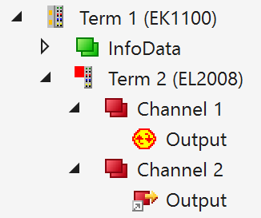
In addition, a general status can be queried via the instance of the 'PlcAppSystemInfo' type in the PLC.
If you want to close Visual Studio® while variables are still forced, a dialog offers the following options:
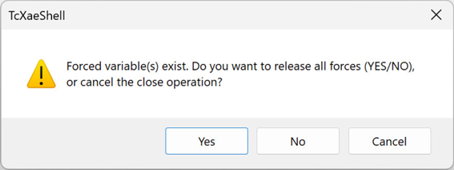
Yes | The forcing of the variable(s) is canceled. |
No | Forced variables remain unchanged. When you open the Visual Studio instance again, they are displayed accordingly. |
Cancel | Closes the dialog. Visual Studio remains open. |
Logging
On the target system, forced variables can be logged via a registry entry.
The following key must be entered under "HKLM/Software/<WOW6432Node/>Beckhoff/TwinCAT3/Io":
ActiveIoForces | DWORD | 0 = None [default] 1 = Logging active |