Installation of the TwinCAT 3 documentation
The TwinCAT 3 Information System is part of the Beckhoff Information System and contains the complete TwinCAT 3 documentation. In order to be able to use the TwinCAT 3 Information System without Internet connection, you can install it locally on your Engineering PC.
TwinCAT 3 uses the Visual Studio help system (Microsoft Help Viewer), with can be used online or offline. You can use a default browser or the Help Viewer to display the help system.
The setup for the TwinCAT 3 Information System supports the help systems of Visual Studio 2010 (Help Viewer 1.0, Help Viewer 1.1), Visual Studio 2012 (Help Viewer 2.0), Visual Studio 2013 (Help Viewer 2.1), Visual Studio 2015 (Help Viewer 2.2) and Visual Studio 2017 (Help Viewer 2.3). It is available in German and English. The setup is updated on a monthly basis.
The TwinCAT 3 Help already installed can be updated. See Updating the TwinCAT 3 documentation.
The installer can be downloaded from the Beckhoff homepage: https://download.beckhoff.com/download/Software/TwinCAT/TwinCAT3/InfoSystem/
System requirements
The following components must be installed for local installation and application of the TwinCAT 3 Information System:
- TwinCAT 3 Engineering (XAE) including Visual Studio Shell or Visual Studio 2010 / 2012 / 2013 / 2015 / 2017 / 2019
(Express versions of Visual Studio are not supported.) - Visual Studio Help System
- Visual Studio 2010: Installation of the help system in Visual Studio with Service Pack 1
- Visual Studio 2012 / 2013 / 2015: Help system as an integral part of Visual Studio
- Visual Studio 2017 / 2019: Installation of the help system as a component during the installation of Visual Studio
Installation of the TwinCAT 3 documentation
- TwinCAT 3 and/or a compatible Visual Studio help system is available.
- All Visual Studio applications are closed.
- You have downloaded the current installation file TC3-InfoSys.exe for the TwinCAT 3 Information System from the Beckhoff website: https://download.beckhoff.com/download/Software/TwinCAT/TwinCAT3/InfoSystem/
- 1. Right-click the installation file and select Run as Admin from the context menu that opens.
- 2. Follow the instructions of the setup procedure:
- Activate the Complete option if the TwinCAT 3 Information System is to be installed for all compatible and available Visual Studio help systems and languages.
Please note that the installation can take up a significant amount of disk space, since the TwinCAT 3 Information System is installed for all help systems when several compatible Visual Studio versions are present.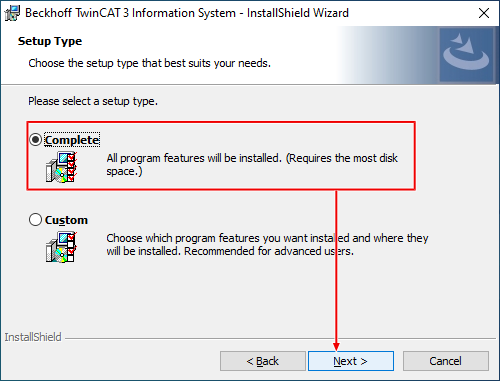
- Select Custom if you only want to install certain languages for selected Visual Studio help systems.
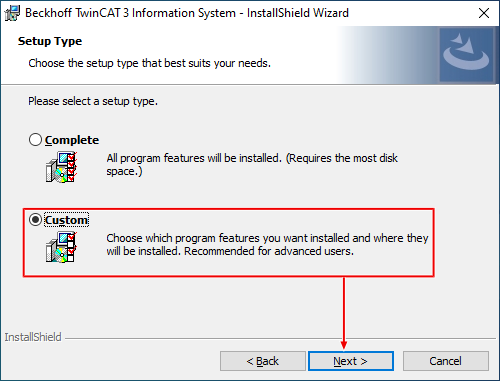
- If you select the Custom option, you then have to select the installation components (Features).
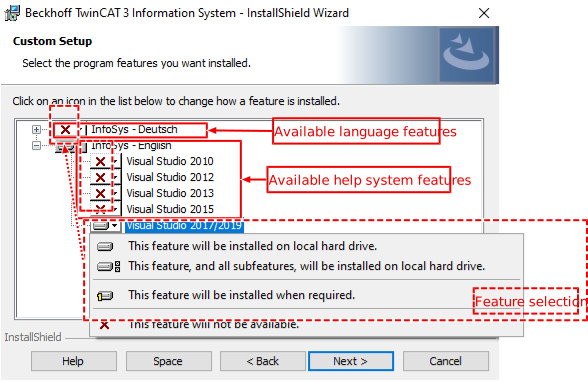
The overview shows the languages available for the TwinCAT 3 Information System. Each language contains the available and supported Visual Studio help systems as a subfeature. The features may vary depending on the system configuration and setup.
You can set the installation for each of the components that are listed. To install the TwinCAT 3 Information System, you have to select at least one language variant from the available languages and one Visual Studio help system from the available help systems. - A selected feature is marked with a hard disk icon.
- An unselected / excluded feature is marked with a red cross.
- Enable the option Automatic updates for TwinCAT 3 documentation to automatically update the installed TwinCAT 3 Information System via the Visual Studio help system (this option is available from Visual Studio 2012).
If you selected a Visual Studio help system that supports automatic updating in the previous dialog, this option is enabled by default, otherwise the option is disabled automatically.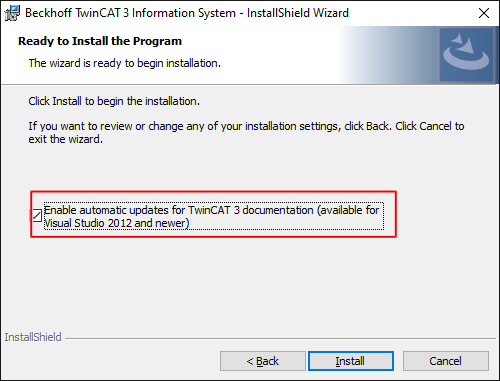
If this option is enabled, the setup creates a scheduled task “TwinCAT_3_documentation_update...”. This task checks weekly (every Friday between 11:00 and 17:00) whether updates are available for the installed TwinCAT 3 Information System.
- 3. Click Install to install the TwinCAT 3 Information System with the selected settings.
- 4. Complete the installation with Finish.
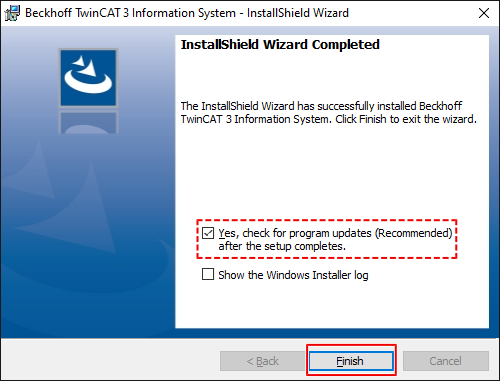
- The TwinCAT 3 Information System is installed locally. With Visual Studio 2012 or later versions, an entry for opening and updating the local TwinCAT 3 Information System is created in the Windows Start menu in the Beckhoff > TwinCAT3 Information System folder.
- The Option “Yes, check for program updates (Recommended) after the setup completes.” searches for updates of the installed TwinCAT 3 documentation if an internet connection is available.
See also: