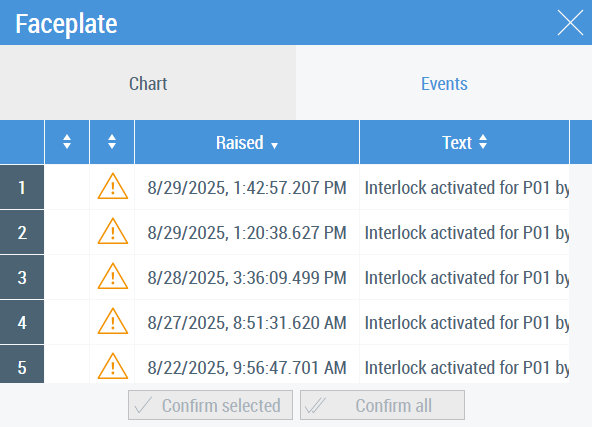
Events tab
The set of events in the Events tab corresponds to the P&ID element which the control presents. Columns marked with an arrow/arrows can be sorted by order. An example of the Events tab with a description of columns and buttons is given below.
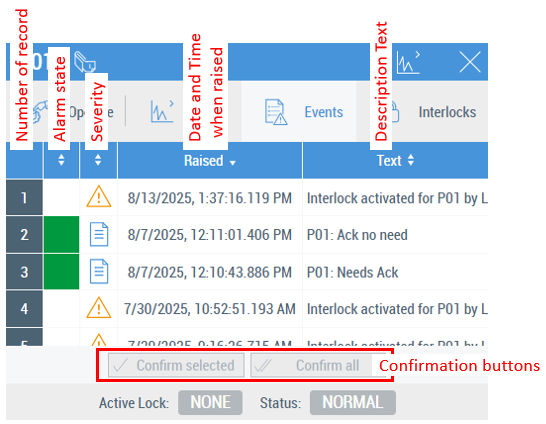
This table explains the meanings of the colors for the Alarm state column:
View | Color name | Event type | Needs acknowledgement | Meaning |
|---|---|---|---|---|
| White | Message | No | Doesn’t have any alarm states. |
| Red | Alarm | Yes | The alarm is active and not yet confirmed. |
No | The alarm is active. | |||
| Orange | Alarm | Yes | The alarm is active and already confirmed. |
| Yellow-green | Alarm | Yes | The alarm is inactive but not yet confirmed. |
| Green | Alarm | Yes | The alarm is inactive and confirmed. |
No | The alarm is inactive. |


Parameters
Faceplate_Events.usercontrol is based on the TwinCAT HMI Event Grid control. There is only one parameter, Filter (Datatype is eventFilter), which can be configured according to the TwinCAT HMI Engineering manual.
Reusing the Events tab with the Tabs property
Faceplate_Events.usercontrol can be used as a customized tab for a faceplate.
 | Generating events Necessary events should be generated in the PLC program (see TC3 EventLogger Manual). |
Faceplates/Faceplate_Events.usercontrol should be chosen for the Target File property in the Tabs configuration window. The Filter parameter should be configured according to the TwinCAT HMI Engineering manual (event grid control).
An example of the configuration is shown below:
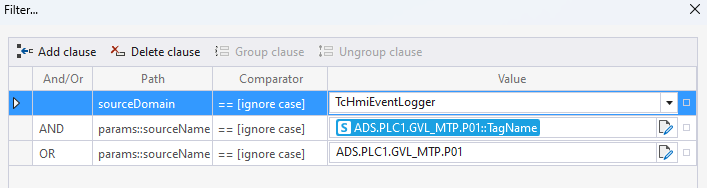
The following are chosen as displayed event sources:
- SymbolExpresson for the TagName value of DataAssembly FB P01 (should be input manually or copied from somewhere)
%s%ADS.PLC1.GVL_MTP.P01::TagName%/s%
This can be any other SymbolExpression which gives a name of the event source. This is a general-purpose method for referring to the event source. - SymbolPath for the DataAssembly FB P01 (should be input manually or copied from somewhere)
ADS.PLC1.GVL_MTP.P01
It can be a SymbolPath for an FB which represents MTP DataAssembly. This is a specific method for referring to events of the DataAssembly for the MTP PLC Library. This method is not currently implemented on the MTP PLC Library side.
The value param::sourceName in the Path column should be input manually.
The result of the configuration is shown below: