4. Manual insertion via Create Device
This part of the documentation describes the manual configuration of the IO-Link devices in TwinCAT.
The manual insertion of the IO-Link device should only be carried out if the IODD from the vendor and the IO-Link device are not available. By saving the project, the settings for the individual ports are saved. The devices created are not stored in the tree structure in the “Local” tab. To manually insert the IO-Link devices via the “Create Device” tab, proceed as follows:
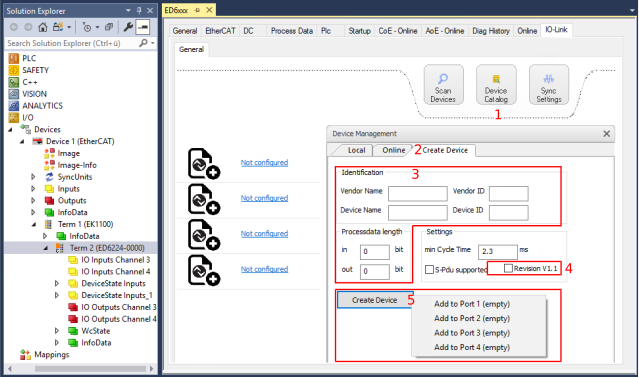 Fig.31: Manual creation of an IO-Link device via the “Create Device” tab (2)
- 1. Click on the “Device Catalog” button to open the “Device Management” dialog.
- 2. Select the “Create Device” tab. This data is not stored in the tree structure on the “Local” tab and must be manually entered for each port.
- 3. Create an IO-Link device with the basic communication parameters in the “Create Device” dialog.
Mandatory fields are: “Vendor ID”, “Device ID” and “Processdata length”, see figure above (3). The “Vendor ID” and “Device ID” values can be entered both as hexadecimal numbers (input format: 0xnnnn) and decimal numbers (nnnn).
The communication parameters to be entered can be found in the information provided by the device vendor. - 4. If the IO-Link device version is 1.1, then the parameter server is activated by the selection of the “Revision 1.1” field (see figure above (4)).
- 5. Press the “Create Device” button and assign the IO-Link device to a port (see figure above (5)).
- 6. Activate the IO-Link configuration for the changes to take effect.
- 7. Further settings can be made in the IO-Link device settings as described in the IO-Link device settings chapter.
 | Reading the IODD Even when manually creating and scanning, the IODD should always be read as well in order to display further sensor-specific information. |