Adding EtherCAT master and drives
You can implement your drive in your TwinCAT project either manually or via an automatic scan. It is advisable to scan, because this will insert the required drive devices directly into the project.
TwinCAT in ConfigMode
To start the scanning process, TwinCAT must be in ConfigMode. ConfigMode is one of several TwinCAT states, which is displayed in the status bar of the System Manager. If the text is highlighted in blue, ConfigMode is activated, and the scan can be started. If the text is highlighted in green or red, follow these steps:

Click the blue gear icon in the toolbar
You will see a query regarding the state change to be carried out.
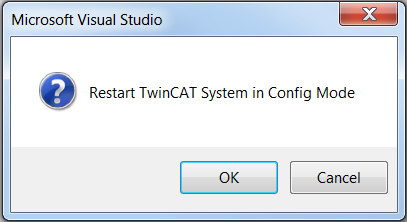
Confirm the state change with OK


TwinCAT switches to ConfigMode, and the text highlighting in the status bar turns blue.
TwinCAT is in ConfigMode.
Start drive scanning
If the right target system and ConfigMode are enabled, the scan can be started.

In the System Manager select I/O - Configuration → I/O Devices
Press the Scan icon in the toolbar or right-click on I/O Devices and select Scan Devices…
In both cases, the following sequence starts:
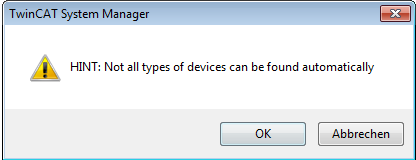
Close the information window with OK
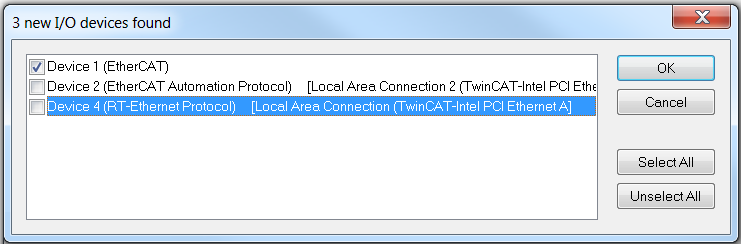
Select the devices to be automatically added to the TwinCAT project.
As a minimum, select the device with the supplement (EtherCAT).
Complete the selection with OK.
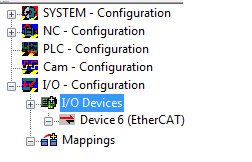
In the System Manager all selected devices are shown below the “I/O Configuration” icon.
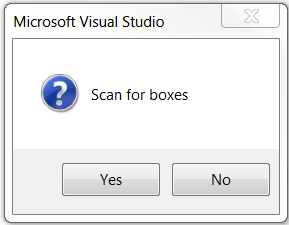
Confirm the subsequent query whether the boxes should be scanned with Yes
If you answer No to the prompt, no boxes/EtherCAT slaves – and therefore no drives – are scanned.
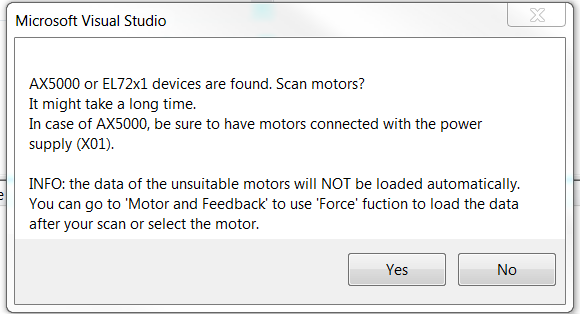
The message regarding a found servo drive or servo terminal can trigger a special scan for motors. Reads the electronic nameplates of the motors and enters the data directly in the TCDriveManager.
Confirm the query with Yes to read the electronic nameplates
If the query is not confirmed, no nameplates are read. In this case, the motor types must be entered manually. See Determining the motor type.
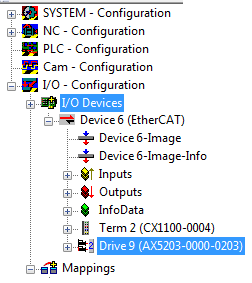
Wait for the scan to complete
The System Manager then shows the servo drives and terminals that were found. To control the motors via the TwinCAT project, an NC or CNC axis configuration has to be created.
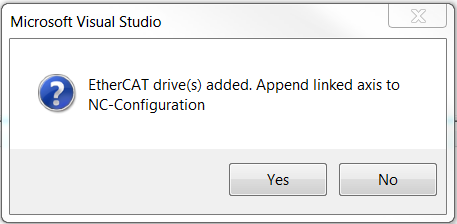
Confirm the query with Yes to create an NC axis configuration
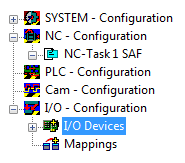
As a result of the automatic axis configuration creation, an axis is added for each motor that was found and linked accordingly.
If you require a CNC axis, close the window with No and create the configuration manually. See Create NC axis configuration.
The created NC axis configuration is shown in the System Manager.
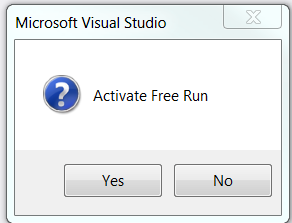
Decline the request to activate Free Run with No
The drive is fully implemented in the TwinCAT project.