Determining the motor type
If a motor has no electronic nameplate or the offer to scan for motors was declined, the motor type has to be entered manually in the TCDriveManager.

Opening the TCDriveManager
In the Solution Explorer, open I/O → Devices → Device 1 → Drive 5 (1)
Open the Configuration tab (2)
→ The TCDriveManager is open.
Motor settings
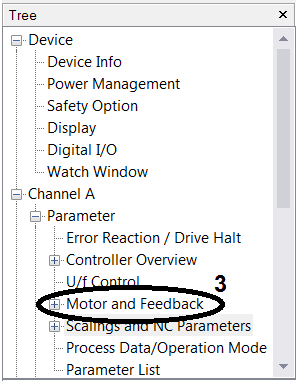
Under the Configuration tab you will see a tree structure on the left-hand side, which can be used for all the required settings.
To check or set the motor type, edit the motor and feedback settings (3).
Open either Channel A or Channel B → Parameter → Motor and Feedback (3)
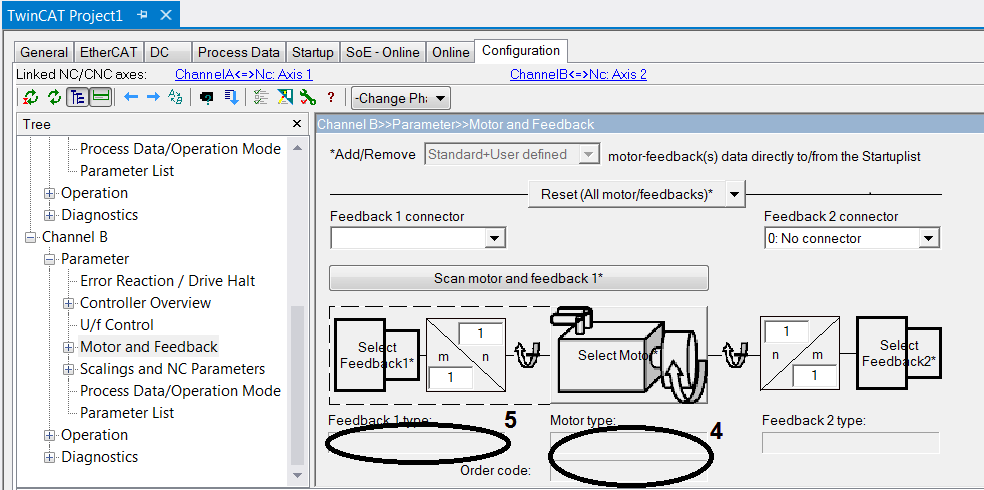
The motor and feedback settings appear to the right of the tree.
If the fields Motor type (4) and Feedback 1 type (5) are empty, this may have two reasons:
The motor does not have an electronic nameplate: Determine the motor type without electronic name plate
The motor has an electronic nameplate that was not read: Determine the motor type with an electronic name plate that was not read