Scanning I/O Devices
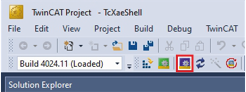
- ►Ensure that TwinCAT is in Config Mode
- ►If required, click on the button Restart TwinCAT (Config Mode) to activate the Config Mode
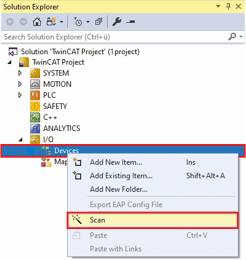
- ►Expand Solution Explorer > TwinCAT Project > I/O
- ►Right-click on Devices to open the context menu
- ►Click Scan in the context menu
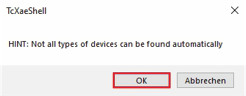
The dialog box TcXaeShell opens.
- ►Confirm with OK
Depending on the components of your XTS system, there are different devices to choose from:
- one RT-Ethernet adapter for each connected CU2508
- one EtherCAT Device for each infeed line of the XTS system
- EtherCat Devices for the bus terminals contained in the control cabinet
Beckhoff recommends naming the devices clearly for a better overview.
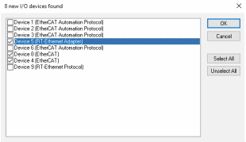
The dialog box 8 new I/O devices found opens.
- ►Activate the checkboxes of the devices that are to be selected for the current configuration
- ►Confirm with OK
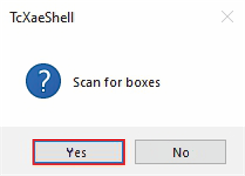
The dialog box TcXaeShell opens.
- ►Confirm with Yes
See also