Show scope
 | Example scope for a mover and a parameter The display of a scope is shown in the diagrams using Mover 1 and the parameter Hardware Position as an example. The procedure is identical for all movers and parameters. |
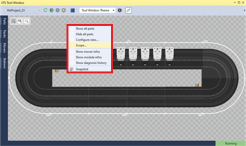
- ►Right-click on the background to open the pop-up menu
- ►Click on Scope... in the pop-up menu
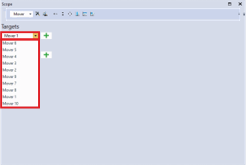
The dialog box Scope opens.
- ►If required, adjust the positioning and opacity of the dialog box
Further information can be found in chapter Positioning and opacity.
- ►Select a mover in the drop-down menu Select target mode
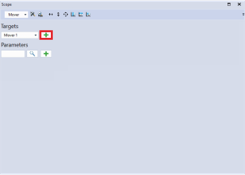
- ►Click on the button + to add the mover to the scope
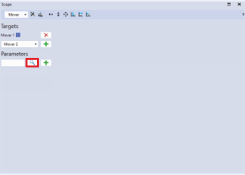
- ►Click the button
You have the possibility to select different parameters from the following categories:
- SoftDrive – Scope Variables
- General
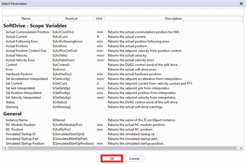
The dialog box Select Parameters opens.
- ►Click on a parameter
- ►Confirm with OK
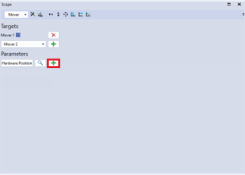
- ►Click on the button + to add the parameter
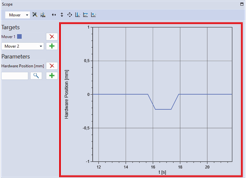
A scope for the selected mover and parameter is displayed.
See also