Text
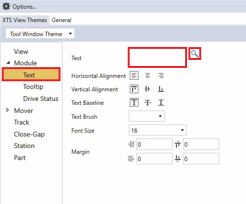
- ►Click on Text
- ►If required, enter a parameter in the input field Text
OR
- ►Click on Browse to open the dialog box Module Components
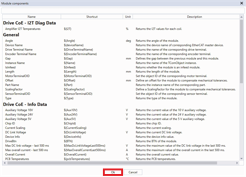
The dialog box Module Components opens.
- ►Click on a parameter
- ►Confirm with OK
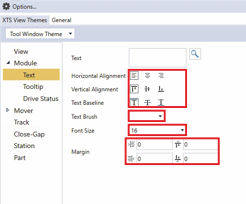
- ►Click on the buttons at Horizontal Alignment, Vertical Alignment and Text Baseline to select the alignment of the text
- ►Choose a color from the drop-down menu Text Brush
Further information can be found in chapter Drop-down menu Brush | Color.
- ►Select the preset value in the drop-down menu Font Size
OR
- ►Enter a value in the input field Font Size
- ►Enter values for the distances between the text and the frame in the input fields Margin
Property | Explanation | Default setting |
|---|---|---|
Text | Input field for a parameter displayed on the modules. | – |
Horizontal Alignment | Horizontal alignment of the text to the module | Left |
| Left aligned | – |
| Centered | – |
| Right aligned | – |
Vertical Alignment | Vertical alignment of the text to the module | Top |
| Top | – |
| Centered | – |
| Bottom | – |
Text Baseline | Text baseline | Top |
| Top | – |
| Middle | – |
| Bottom | – |
Text Brush | Font color | AliceBlue |
Font Size | Font size | 16 |
Margin | Distance of the text to the frame | – |
| Left | 0 |
| Right | 0 |
| Top | 0 |
| Bottom | 0 |
 Left
Left Center
 Right
Right Top
Top Center
 Bottom
 Top
Top Middle
 Bottom
 Left
Left Right
Right Top
Top Bottom