Export Image
You have the option of exporting current views.
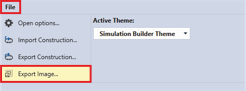
- ►Click on the File tab
- ►Click on Export Image…
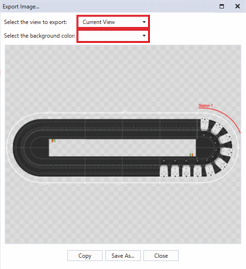
The dialog box Export Image… opens.
- ►Select Current View in the drop-down menu Select the view to export to save only one view of the system without borders
OR
- ►Select Full View in the drop-down menu Select the view to export to save the entire view
- ►If required, select a color for the background in the drop-down menu Select the background color
Further information can be found in chapter Drop-down menu Brush | Color.
- ►Click on Copy to copy the view to the clipboard
OR
- ►Click on Save As... to save the view as a png image and select the storage location
OR
- ►Cancel with Close