Open XTS Simulation Builder
- ►Activate the XTS Tool Window as described in the chapter XTS Tool Window
- ►Click on the button Start the XTS Simulation Builder... in the XTS Tool Window
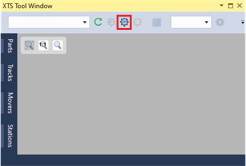
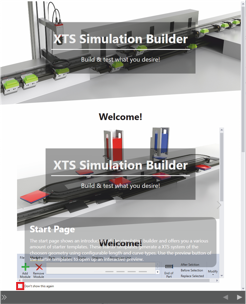
The XTS Simulation Builder opens.
When the XTS Simulation Builder is opened, the start page shows a welcome screen with information on the interactive usage options of the XTS Simulation Builder.
- ►If necessary, enlarge window for better operability
- ►If required, activate the checkbox Don't show this again to hide the welcome screen
You can reactivate the function at any time via the menu item Options....
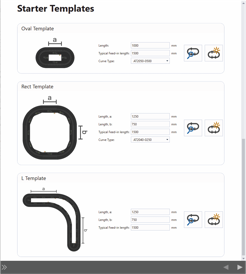
Below the welcome screen is a list of templates from which you can select preconfigured XTS systems. You can easily change the templates with just a few parameters, for example to adjust the length of the system or the type of curve segments.
Further Information