XTS Mover Simulation Parameters
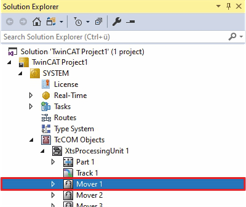
- ►Expand Solution Explorer > TwinCAT Project > SYSTEM > TcCOM Objects > XtsProcessingUnit
- ►Double-click Mover 1
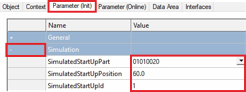
- ►Click the Parameter (Init) tab in the project window
- ►Expand Simulation
- ►In the SimulatedStartUpPart drop-down menu, select the part on which the mover is to start
- ►Enter the value for the start position of the mover in the input field SimulatedStartUpPosition
- ►Enter the value 1 in the input field SimulatedStartUpId so that the mover is detected as Mover 1 at startup
OR
- ►Do not enter a value in the input field SimulatedStartUpId so that the mover is detected as a standard mover
These entries can also be made in the XTS Configurator and in the XTS Simulation Builder on the Movers page. For more information, see the chapters XTS Configurator and XTS Simulation Builder.
Further Information