Mover Layout
The Mover Layout allows you to display personalized tools in the form of images or text on a mover. The Mover Layout is used as an array.
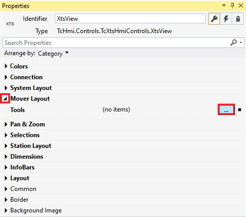
- ►Expand Properties > Mover Layout
- ►Click ... from Tools
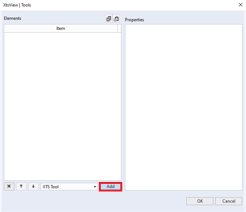
The dialog box XtsView | Tools opens.
- ►Click on Add
An XTS Tool is added. The properties of the XTS Tool can be set in the Properties area.
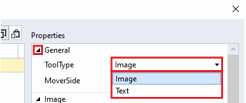
- ►Expand General
- ►Select the appropriate display option in the drop-down menu Tooltype
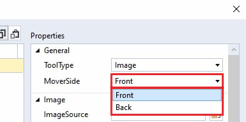
- ►Select the appropriate display option in the drop-down menu MoverSide
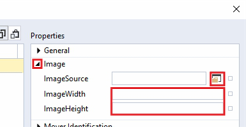
- ►Expand Image
- ►Click on the button ImageSource to select a file path for the graphic
- ►Enter values in the input fields ImageWidth and ImageHeight
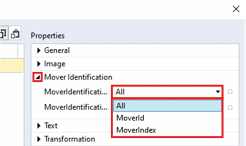
- ►Expand Mover Identification
- ►Select the appropriate display option in the drop-down menu MoverIdentificationMode
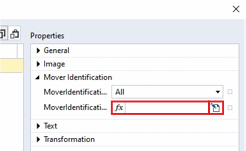
- ►Enter the Mover ID or the MoverIndex in the input field MoverIdentification
OR
- ►Click on the button to open the Multiline editor
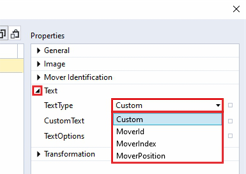
- ►Expand Text
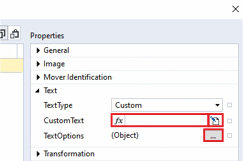
- ►Select the text type in the drop-down menu TextType
- ►Enter a text in the input field CustomText
OR
- ►Click on the button to open the Multiline editor
- ►Click ... from TextOptions
The dialog box TextOptions opens.
Further information can be found in chapter TextOptionsGeneral settings.
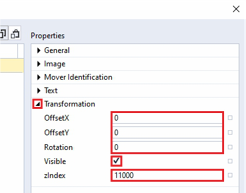
- ►Expand Transformation
- ►Enter values in the input fields Position X, Position Y, Width, Height and Rotation
- ►Activate the checkbox Visible to show the text
OR
- ►Deactivate the checkbox Visible to hide the text
- ►Enter a value in the input field zIndex
Further information can be found in chapter General settings.
- ►Confirm with OK
The dialog box TextOptions closes.
The table shows the default parameter settings for the Mover Layout properties:
Property | Explanation | Default setting |
|---|---|---|
Tools |
| … |
|
|
|
| Type of tool | Image |
• Image | Graphic | – |
• Text | Text | – |
| Side of the mover on which the tool is displayed | Front |
• Front | Front side | – |
• Back | Rear side | – |
|
|
|
| File path of the graphic, if the ToolType Image is selected | – |
| Width of the graphic, if the ToolType Image is selected By default, the width of the graphic is indicated in px. Entering a value changes the width, proportionally the height of the graphic changes. Entering values for Width and Height can cause the graphic to be compressed. Unit: mm, related to the real system size | – |
| Height of the graphic, if the ToolType Image is selected By default, the height of the graphic is indicated in px. Entering a value changes the height, proportionally the width of the graphic changes. Entering values for Width and Height can cause the graphic to be compressed. Unit: mm, related to the real system size | – |
|
|
|
| Determining how a mover or mover group is defined | All |
• All | All movers on the system | – |
• MoverId | Requires an entry of the Mover ID in the input field of MoverIdentification | – |
• MoverIndex | Requires an entry of the Mover Index in the input field of MoverIdentification | – |
| Input field for the MoverId or the MoverIndex, according to the selected property at MoverIdentificationMode | – |
 General
Property | Explanation | Default setting |
|---|---|---|
|
|
|
| Properties of the text, if the ToolType Text is selected Type of text node, if the ToolType Text is selected. | Custom |
• Custom | Custom | – |
• MoverId | Mover ID | – |
• MoverIndex | Mover index | – |
• MoverPosition | Mover position | – |
| Input field for text, if the ToolType Text and the TextType Custom are selected | – |
| Properties for text design | … |
|
|
|
| X offset Unit: mm, related to the real system size | 0 |
| Y offset Unit: mm, related to the real system size | 0 |
| Angle of rotation Unit: degrees | 0 |
| Visibility |
|
• | Checkbox activated | – |
• | Checkbox deactivated | – |
| Z-position of the graphic, information about the update of the graphic. | 11000 |
 True
True  False
False