Server Extension configuration
To view an XTS system in the XTS View, you must configure a connection to the target PC. On the target PC, an XTS project must be in Run Mode. A local connection is preconfigured.
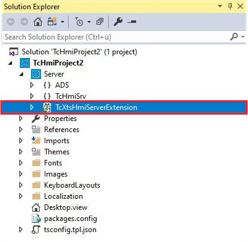
- ►Expand Solution Explorer > TcHmiProject > Server
- ►Double click on TcXtsHmiServerExtension
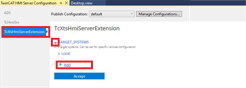
The TwinCAT HMI Server Configuration tab opens in the project window.
- ►Click on TcXtsHmiServerExtension
- ►Expand TARGET_SYSTEMS
- ►Click + Add
 | Assign names for better overview The name for the connection has no function. Beckhoff recommends assigning a name in order to identify the target PC. |
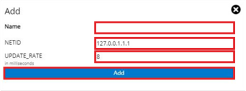
The dialog box Add opens.
- ►Enter a name for the connection in the input field Name
- ►Enter the AMS Net Id of the target PC with which the connection is to be established in the input field NETID
- ►If necessary, adjust the value in the input field UPDATE_RATE
- ►Confirm with Add
- ►Add more connections in the same way
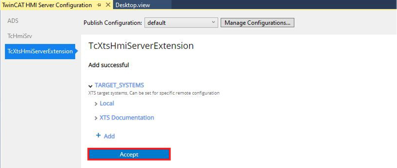
- ►Confirm with Accept to complete the configuration
Further Information