Creating a PLC project
The Plastic Application Templates can be used to create projects in TwinCAT version 4026 via the Visual Studio dialog. The following instructions show an example of how a new TwinCAT project can be created.
- To create a project, the Project templates must already have been installed as workloads and/or packages via the TwinCAT Package Manager.
- 1. Open the TwinCAT XAE Shell (or the Visual Studio version in which you have integrated your TwinCAT installation).

- 2. In the menu under File (1) > New, select the option to create a new project (2).

- 3. In the following dialog, scroll (3) in the list of project variants to the TwinCAT XAE Plastic Application projects.
- 4. Select the preferred variant (4) for your development.

- 5. Press Next (5) to create the project.
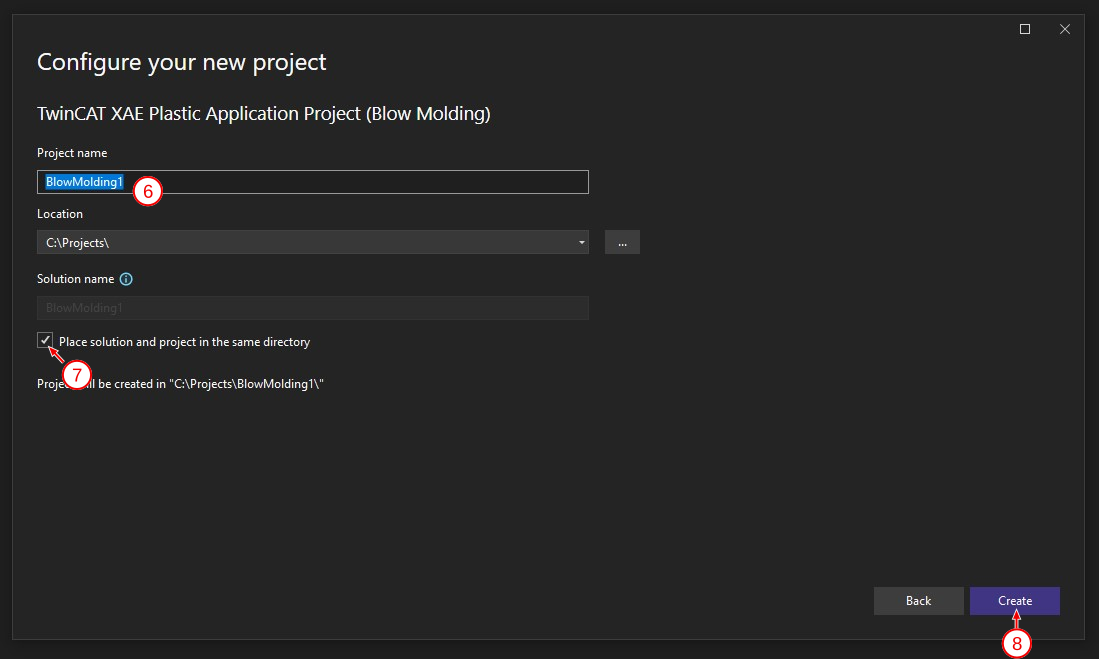
- 6. Assign a project name (6).
- 7. Optional: To ensure that ShotScope integrates smoothly, use the option “Place solution and project in the same directory” (7)
- 8. Confirm the creation of the project by clicking Create (8).
- You have successfully created your TwinCAT project.
