Building Automation Template Repository
The Building Automation Template Repository is an app for managing templates.
Starting the app in the development environment
- The TF8040 setup automatically installs the Template Repository in the TwinCAT development environment (XAE Shell or Visual Studio).
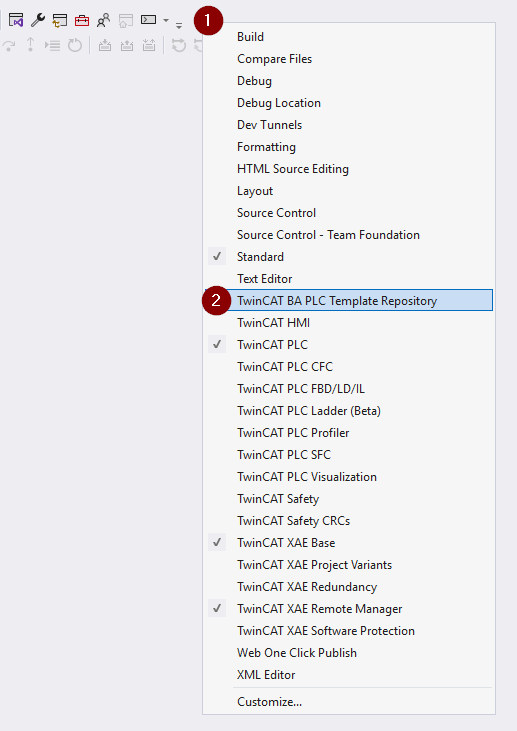
- 1. Right-click on a free field in the toolbar to open a context menu.
- 2. Select the app Template Repository from the context menu.
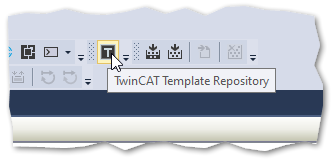
- 3. Start the app by clicking on the icon TwinCAT Template Repository.
- The main window opens.
Main Window
The main window is divided into 6 different areas:
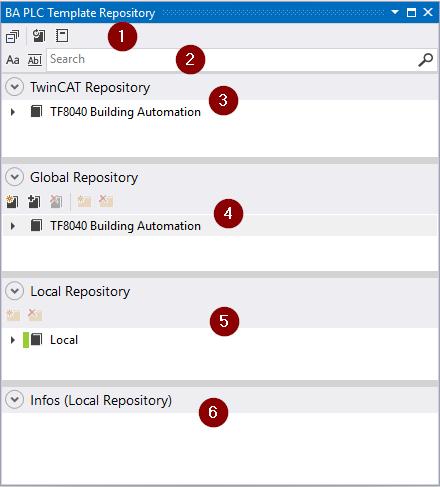
1 Menu bar
The following functions are available in the menu bar:
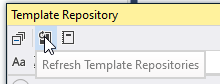
- Refresh Template Repositories updates all repositories
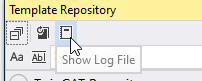
- Show LogFile opens the log file dialog
Detailed log information about the software version used and errors are displayed here.
2 Search bar
The search bar searches the included repositories for keywords (tags) or names within the templates. The search results are displayed in the respective areas.
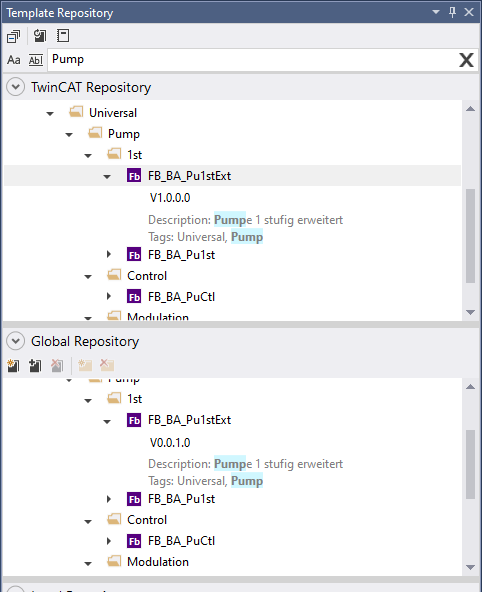
3 TwinCAT Repository area
The TwinCAT repository area contains all templates that are supplied with the TF8040 installation. Templates can be taken from this area but not added.
 | With the TF8040 installation, you receive a repository with templates. In order to use them for your project-specific applications, you must temporarily load the repository into the global area. |
4 Global Repository Area
The Global Repository area serves as a storage location for all customer-specific templates that can used by several developers across projects. Here templates can be taken and added across projects. The storage location can be a network drive in the company network or any location on the local hard disk, for example.
5 Local Repository area
All templates that are used in the local solution are stored in the Local Repository area.
| Templates can be exchanged between the local and global area. |
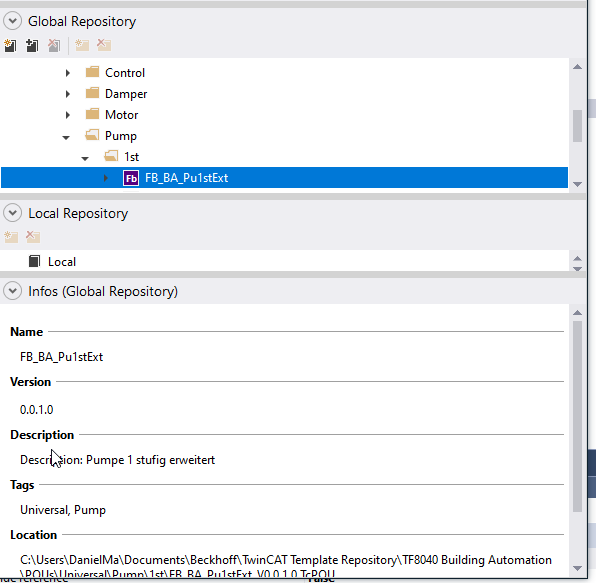
6 Info area
The notification area displays detailed information about the currently selected templates.
Adding templates to a PLC project
Templates can be integrated into the current solution in two ways:
- Double click on the desired template
- Right click on the desired template > Add to > PLC Project
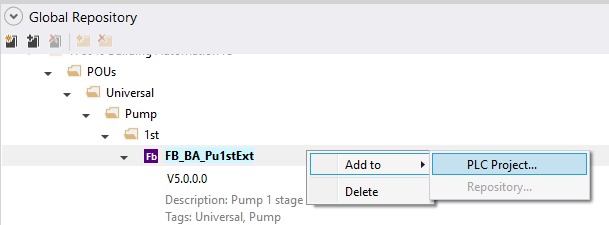
- 1. The dialog window Add Template to PLC Project opens. Select the template and confirm this with OK.
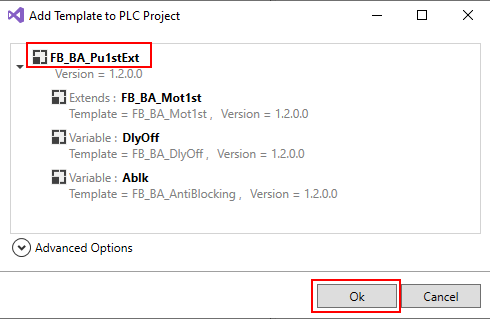
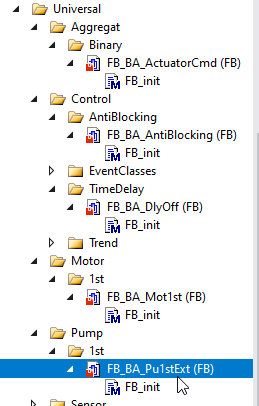
- The desired template including all dependent subtemplates is now in the PLC project.
Call and instantiation of a template
After the desired template has been added to the project from the repository, it can be instantiated and called in the project applications.
Instantiation in the declaration part:

Call in the program part: