Expert Mode
Expert mode gives you complete control over the connection. Unlike in the other two modes, nothing is predetermined here: You decide for yourself whether and how encryption is used, which certificates are used, and how strictly the server certificate is verified. This mode is therefore intended for all cases that cannot be handled using the preconfigured modes – such as a broker with a certificate from its own certificate authority, a login using a client certificate, or an unencrypted connection within a closed test network.
Connections created before the introduction of connection modes remain unchanged and are treated as Expert connections.
Connection setup
- In the connection settings, select Expert Mode.
- Enter the broker details: address, port, client ID, and topic, as well as – if the broker requires them – username and password.
- Select the desired encryption method:
No encryption: The connection set-up is performed without encryption. This mode is the only one that allows that. Use it only on networks where it is appropriate to do so.
Encrypted: The broker's server certificate is being verified. If it does not come from a publicly trusted certificate authority, you must also provide the root CA certificate of the issuing authority. - If the broker requires you to log in using a client certificate, upload it as a PFX file.
- Establish the connection.
The connection details can also be provided via a QR code.
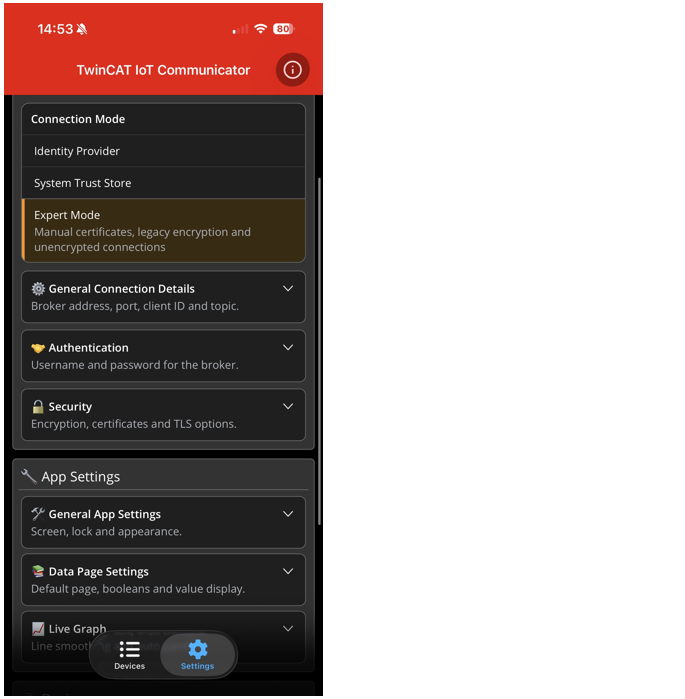
Settings
Setting | Meaning |
|---|---|
Broker Address | IP address or host name of the message broker. |
Port | The port of the message broker. Usually 1883 (MQTT) or 8883 (MQTT TLS). |
Timeout | This setting specifies the time after which the connection to the message broker runs into a timeout. After this time, the connection to the second message broker is attempted if a fallback connection is active. |
Client Id | The client ID of the app with which the connection to the message broker is established. If no user-defined value is entered, the unique device identifier of the mobile device is used. |
Topic | Main topic via which the messages from the associated PLC program are communicated. |
Username | User name for logging into the message broker. |
Password | Password associated with the user. |
Encryption | Selection of the encryption protocol. |
CA certificate | Referencing the CA certificate as a file. On Android, free file access; on iOS, only in the “TwinCAT IoT” folder in the “On My iPhone” file area. Further information under Installation of CA certificates. |
PKCS12 Certificate (PFX) | Referencing the client certificate as a file. On Android, free file access; on iOS, only in the “TwinCAT IoT” folder in the “On My iPhone” file area. The certificate must be available as a PFX file. Information on the conversion can be found in standard technical literature. |
PKCS12 Password | Password for the PFX file. |
Skip Server Certificate Validation | This setting disables the validation of the server certificate. |
Skip Server Certificate Validation
If this option is active, the app accepts the broker's server certificate without any verification. While this allows a connection to be established in virtually any configuration, the connection is no longer protected against an attacker who positions themselves between the app and the broker. Therefore, use this option only for commissioning or troubleshooting, and instead configure the appropriate root CA certificate for production use.