Identity Provider
In Identity Provider mode, you log in to the app using your organizational account, just as you do with other enterprise applications. The app receives a time-limited access token and automatically uses it as a password when communicating with the MQTT broker. This means that a broker password does not need to be entered or saved on the device, and user management remains centralized with the identity provider. The connection is always encrypted; the broker's server certificate is verified against the device's certificate store, so no manual certificate configuration is required.
Requirements
The MQTT broker must accept authentication via a JSON Web Token (JWT) from the identity provider being used and use a server certificate that the end device trusts. In addition, the identity provider must be accessible from the end device's network. The administrator sets up a client for the app once on the identity provider. The app uses the standardized OpenID Connect Authorization Code Flow with PKCE; therefore, the client is created as a public client without a client secret. Enter tciot://auth/Callback as the redirect URL, and openid, profile, and offline_access as the scopes. The offline_access scope ensures that the app can extend the user's session in the background, so the user doesn't have to log in again every time they use the app.
Connection setup
- In the connection settings, select the “Identity Provider” mode.
- Enter the broker details: address, port, client ID, and topic.
- Enter the identity provider's information: the issuer URL, the client ID of the configured client, and an optional profile name of your choice.
- Tap “Sign In”. The app opens the system browser to your identity provider's sign-in page. Once you have successfully logged in, you will automatically be redirected back to the app.
- Establish the connection.
The login information is then stored in the operating system's protected memory and is therefore retained even after the app is restarted. The primary and fallback connections each have their own login. Alternatively, the connection details can be provided via a QR code.
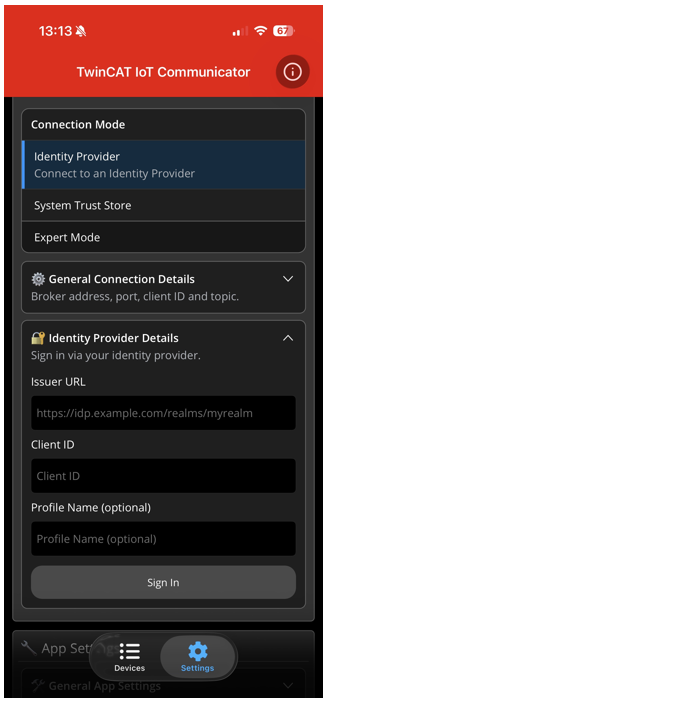
Settings
Setting | Meaning |
|---|---|
Broker Address | IP address or host name of the message broker. |
Port | The port of the message broker. Usually 1883 (MQTT) or 8883 (MQTT TLS). |
Timeout | This setting specifies the time after which the connection to the message broker runs into a timeout. After this time, the connection to the second message broker is attempted if a fallback connection is active. |
Client Id | The client ID of the app with which the connection to the message broker is established. If no user-defined value is entered, the unique device identifier of the mobile device is used. |
Topic | Main topic via which the messages from the associated PLC program are communicated. |
Issuer URL | The endpoint of the identity provider through which a connection can be established. |
Client ID | The client ID assigned to the app in the identity provider. |
Profile name (optional) | Optional profile name. |
Validity of the login
As long as the app is open, it automatically renews the access token in the background. The identity provider alone determines how long the login remains valid; the app does not impose its own time limit. If the session expires there, the app will notify you that you need to sign in again – just tap “Sign In.” If this period needs to be extended or shortened, the administrator adjusts the session duration in the identity provider (in Keycloak, for example, these are Offline Session Idle and Offline Session Max). Selecting “Sign Out” completely removes your saved login information from the device.