Widget Bar
The widget bar is located at the top of the Motion UI. The standard layout already includes some information there, such as the axis name, axis position, and axis status. In addition, the stop button, which stops the axis, is located on the right.

The bar is divided into a left and a right half. When the available width is reached, the left half of the status bar is automatically expanded by one additional line.
Customizing the Widget Bar
You can customize the widget bar. The left half can be arranged as you like. To do this, select Open Widget Catalog from the menu. You can add and remove widgets from the toolbar using drag and drop.
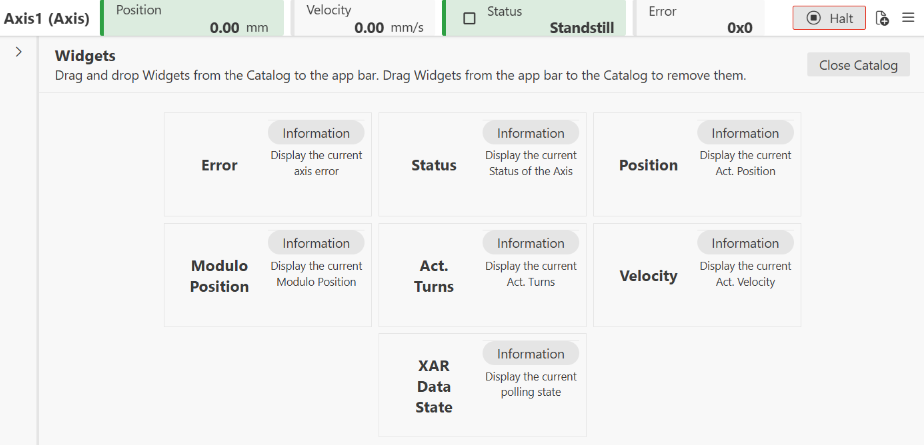
The following widgets are available:
Widget | Description |
|---|---|
Error | Displays the current axis error. |
Status | Displays the current axis status. |
Position | Displays the current axis position (Act Pos). |
Modulo position | Displays the current axis position in the modulo range. |
Act. Turns | Displays the current revolutions (modulo). |
Velocity | Displays the current axis velocity (Act Velo). |
XAR Data State | Displays the current polling state. The polling state indicates whether Motion UI is receiving current values (polling) or whether the connection to the driver has been interrupted. |