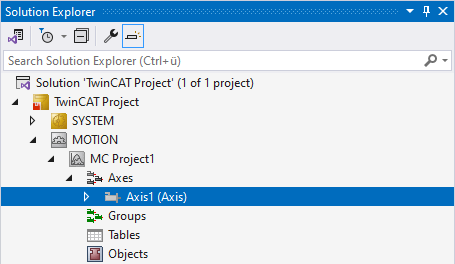
Create an axis object
- A TwinCAT project with an MC project has been created;
see Creating an MC project.
- 1. Right-click the node in the structure tree labeled Axes > Add New Item…
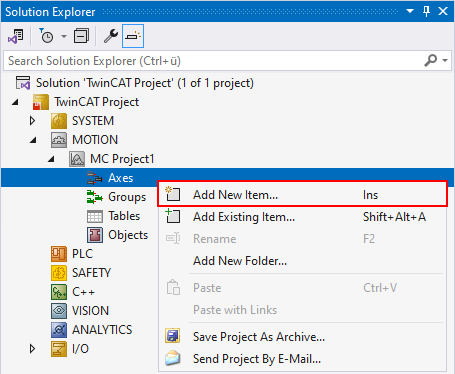
- 2. In the Insert TcCOM Object dialog box, select the axis type from the Type list and specify the desired number of axes under Multiple.
Axis
Standard axis
Encoder Axis
Encoder axis
FluidPower Axis
Special configuration of the standard axis, expanded with additional modules for use with FluidPower.
Planar Mover
For use with the Beckhoff XPlanar Mover
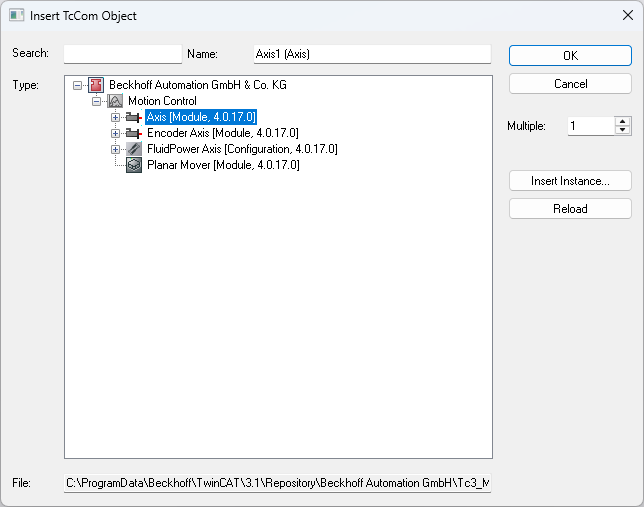
- 3. Confirm both by clicking the OK button.
- The axis/mover has been created and is located below the Axes node. Until the axis type is selected, it is automatically a simulation axis
 , or, until it is linked to hardware, a simulation mover.
The axis type can be configured on the Settings tab of the axis object.