Licensing
The TwinCAT 3 function can be activated as a full version or as a 7-day test version. Both license types can be activated via the TwinCAT 3 development environment (XAE).
Licensing the full version of a TwinCAT 3 Function
A description of the procedure to license a full version can be found in the Beckhoff Information System in the documentation "TwinCAT 3 Licensing".
Licensing the 7-day test version of a TwinCAT 3 Function
 | A 7-day test version cannot be enabled for a TwinCAT 3 license dongle. |
- ►Start the TwinCAT 3 development environment (XAE).
- ►Open an existing TwinCAT 3 project or create a new project.
- ►If you want to activate the license for a remote device, set the desired target system. To do this, select the target system from the Choose Target System drop-down list in the toolbar.
- The licensing settings always refer to the selected target system. When the project is activated on the target system, the corresponding TwinCAT 3 licenses are automatically copied to this system.
- ►In the Solution Explorer, double-click License in the SYSTEM subtree.
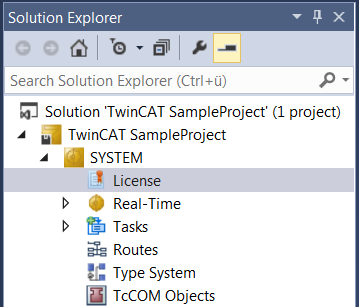
- The TwinCAT 3 license manager opens.
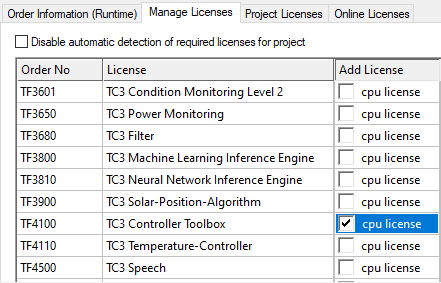
- ►Open the Manage Licenses tab. In the Add License column, check the check box for the license you want to add to your project (e.g. "TF4100 TC3 Controller Toolbox").
- ►Open the Order Information (Runtime) tab.
- In the tabular overview of licenses, the previously selected license is displayed with the status “missing”.
- ►Click 7-Day Trial License... to activate the 7-day trial license.
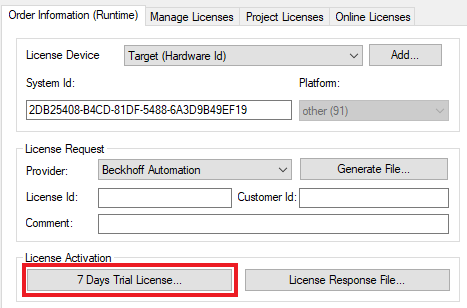
- A dialog box opens, prompting you to enter the security code displayed in the dialog.
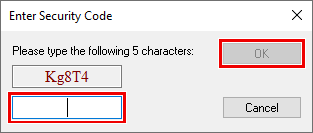
- ►Enter the code exactly as it is displayed and confirm the entry.
- ►Confirm the subsequent dialog, which indicates the successful activation.
- In the tabular overview of licenses, the license status now indicates the expiry date of the license.
- ►Restart the TwinCAT system.
- The 7-day trial version is enabled.