Remote configuration
Overview
Remote configuration enables the commissioning and configuration of a Storage Provider Service on a remote system. To do this, the TF3520 Analytics Storage Provider Configurator, running locally, establishes an SSH connection to the target system and provides the same functions and configuration workflows there as in local operation.
Supported target systems:
- Linux®
- TcBSD
- Windows
Add target
To use the remote functions, you must first create a target (an SSH connection to a remote device). Proceed as follows:
- ►Click the green plus icon next to the target selection (“Selected Target”).

- The Add Remote Target dialog box opens.
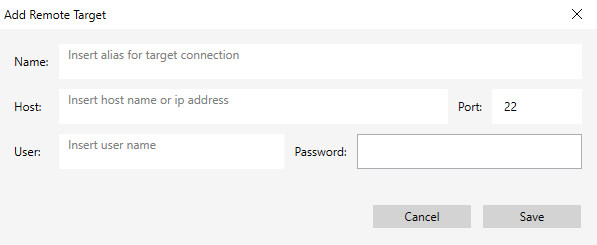
- ►Enter the following connection parameters there:
Parameter | Description |
|---|---|
Name | A freely selectable alias for the target. The name must be unique and cannot be the same as an existing target. |
Host | Host name or IP address of the target system. |
Port | Port of the SSH connection. Default value: 22. |
User | The username of the target system used for the remote connection. |
Password | Password of the designated user. |
- ►Then confirm your entries by clicking Save.
- The newly created target is displayed.

 | Be aware of user rights The user must have the necessary administrator, root, or sudo privileges on the target system to ensure smooth operation. |
Edit target
You can use the edit button (pencil icon) to adjust the parameters of the currently selected target at any time.

| Editing a Target Editing is only possible as long as there is no active connection to the target. |
Initial Connection and System Test
The first time you establish a connection to a target after launching the Configurator, the application checks whether all required tools, paths, and dependencies are present on the target system. If any components are missing, a corresponding warning is displayed, and the affected functions (Storage Check, Data Import) are disabled.
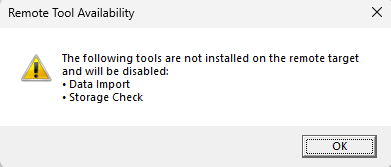
If required paths or necessary access rights are missing, the configurator asks whether the paths should be created or the corresponding rights granted.
Save and Transfer
The Remote Configurator initially saves all changes locally. The changes are not transferred to the target system until you click Start Service or Save.
| Deleting configurations Deleting storage or broker configurations is an exception to this rule: In both cases, the configurations are deleted immediately on both the local and remote systems. |
If changes occur independently during an active session, a dialog box appears, offering the option to apply the changes from the target system or to overwrite them with the local changes.