Historicize data
After the TwinCAT Analytics Storage Provider has been installed, the service running in the background can be configured. You will find the TwinCAT Analytics.StorageProvider.Configurator application in the folder C:\TwinCAT\Functions\TF3520-Analytics-StorageProvider\Tools.
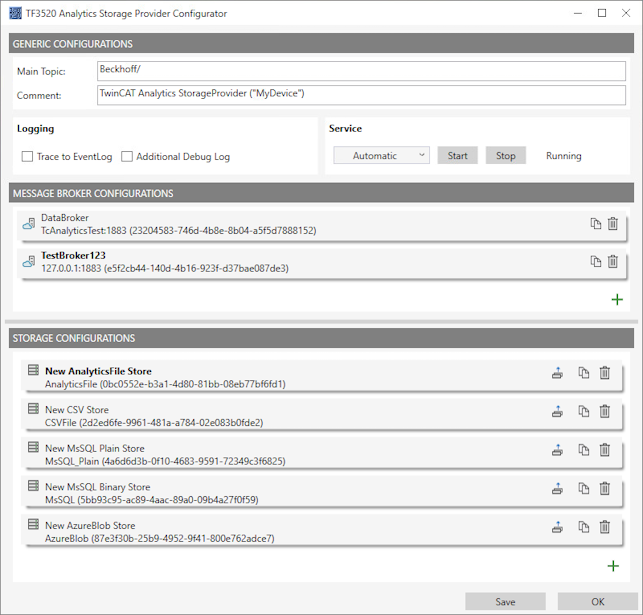
The main part of the topic can be defined in the configuration as well as the comment, which is used for identification if more than one Storage Provider is registered with the message broker.
You can make the message broker settings and decide on a storage type:
- Analytics File (binary file)
- CSV file
- Microsoft SQL (binary / plain text)
- InlfuxDB (plain text)
- Microsoft Azure Blob (Azure Cloud required)
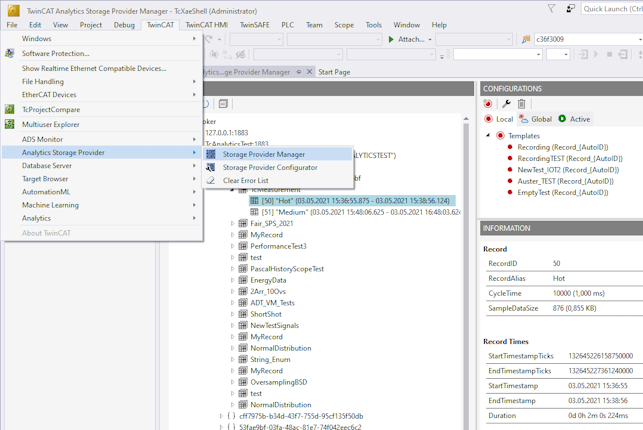
At last you can save the configuration and start the service. The next step is to configure the specific recording. For this you should select the Storage Provider Manager in your development environment.
The Storage Provider Recorder is used to create, start, and manage recording definitions. In addition, it is possible to manage the data memories of individual Analytics Storage Providers. All important properties of the found Analytics Storage Provider, as well as the historical data, are clearly displayed.
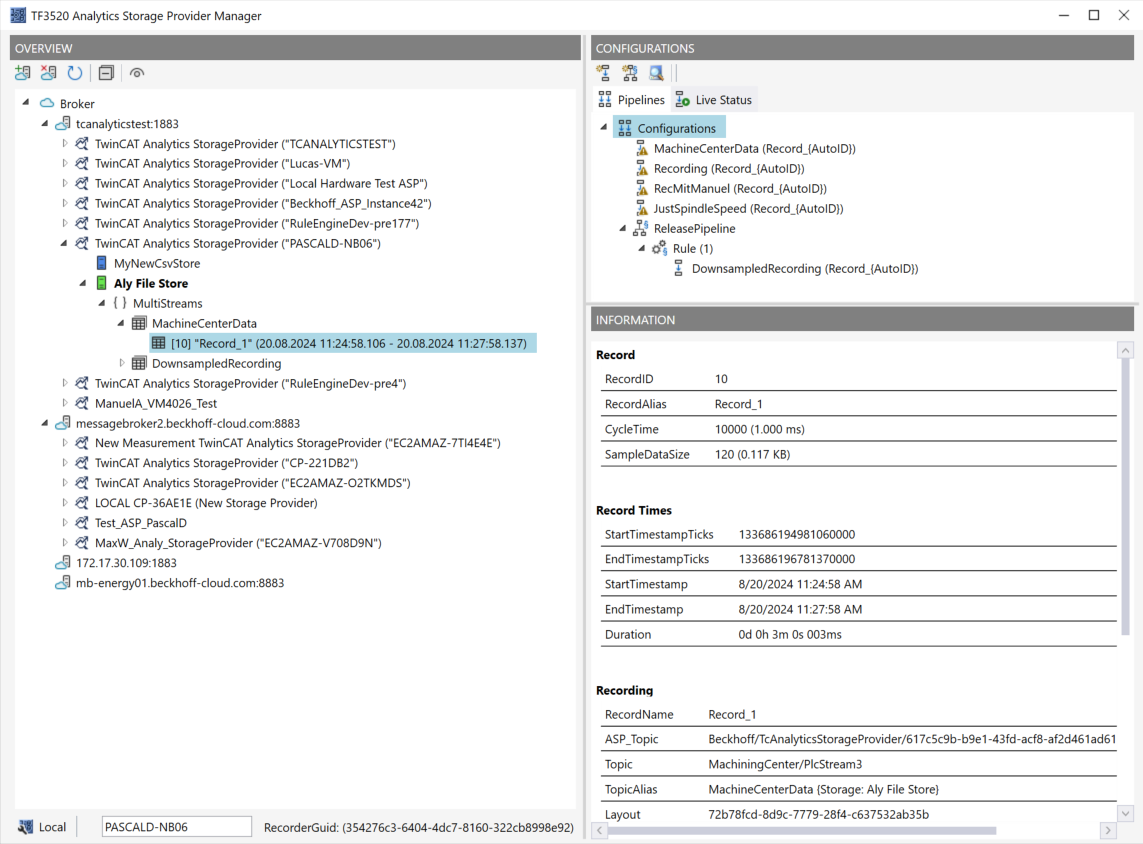
Toolbar Manager window (“OVERVIEW”)
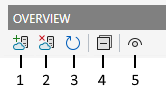
1 | Add new broker |
2 | Remove selected broker |
3 | Refresh display |
4 | Collapse all nodes |
5 | Switch view between dark/light mode |
Function Manager window (“OVERVIEW”)
Assign a “RecorderAlias” first. This helps group started recordings and find self-started ones again.
After that, one or more brokers can be set up. This is accomplished using the familiar input mask for MQTT connection properties.
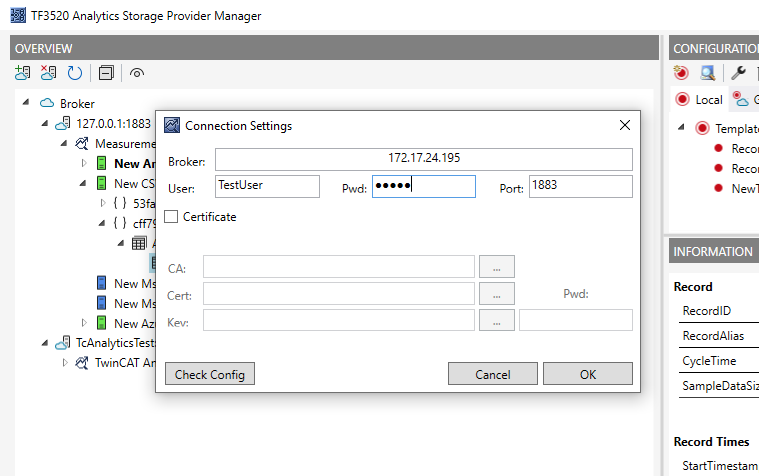
After establishing a connection to the broker, all Analytics Storage Providers connected to it will be listed.
“Storage” status
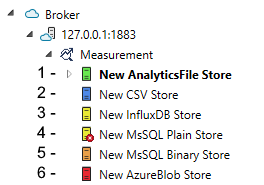
1 | Storage online |
2 | Storage offline |
3 | Storage starting |
4 | Storage started with an error. Still trying to start it. |
5 | Storage is shut down |
6 | Storage is in the error state. |
Toolbar Manager window (“CONFIGURATIONS”)
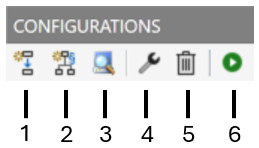
1 | Create a new pipeline. |
2 | Create a new pipeline with Rule Engine. |
3 | Open Target Browser for connecting simple pipelines. |
4 | Edit a selected pipeline. |
5 | Delete a selected pipeline. |
6 | Start a selected pipeline. |
Function Manager window (“CONFIGURATIONS”)
The window is divided into two tabs, Pipelines and Live Status. Under Pipelines, you will find the configurations of your pipelines. From here, you can define new pipelines and edit, delete, or start existing ones.
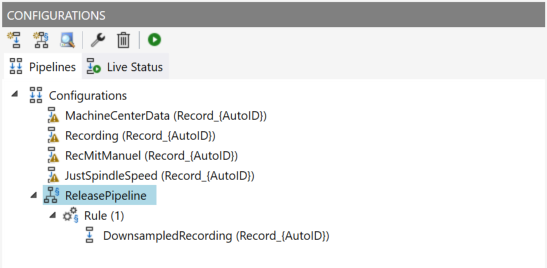
To create a new simple pipeline, click the Create new pipeline button. The following dialog opens.
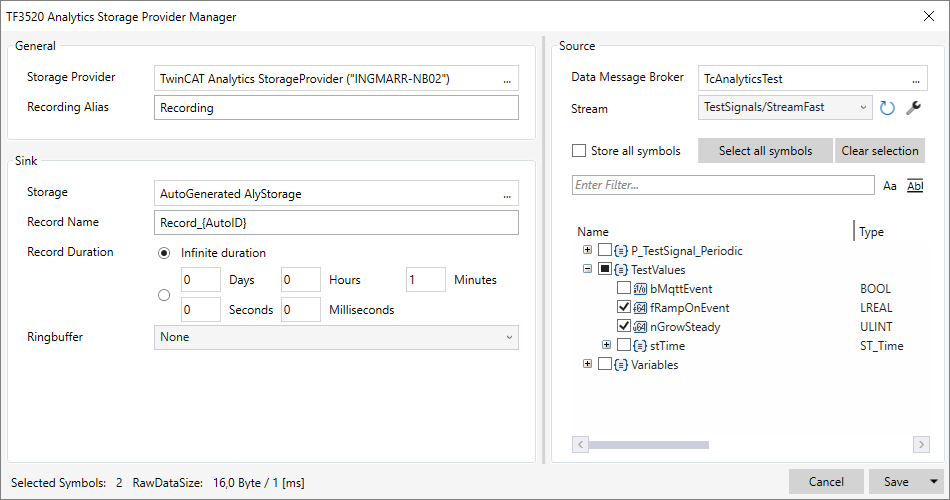
First, select the desired Storage Provider and assign a meaningful recording alias. You can then select the variables to be recorded in the right-hand area under Source. In the Sink area, you have the option of defining settings for data storage. Here you can select the desired Storage and the Record name. Various placeholders are available for the Record name, which you can use as required.
"{AutoID}" |
|
"{Topic}" |
|
"{SystemID}" |
|
"{Layout}" |
|
"{CycleTime}" |
|
"{SampleSize}" |
|
"{RecordStart}" |
|
You can also configure the name and duration of the recording. Otherwise, the recording will run endlessly until it is stopped manually. A ring buffer can be set according to storage space or time.
The entries are confirmed with Save and a new local recording definition is created. If you have already saved the configuration, you can save a copy using the context menu of the Save button (“Save as Copy”).
It is now possible to start this definition directly via the toolbar or the context menu.
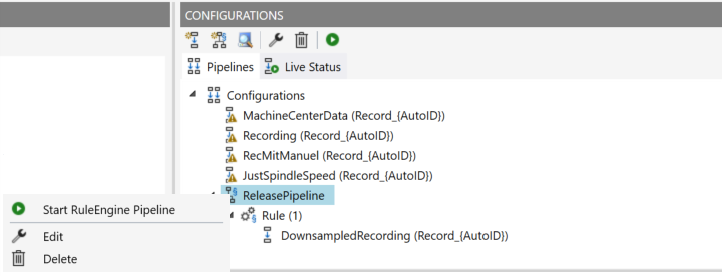
However, it is also possible to make the definition globally accessible. To do so, select Publish Recording from the context menu.
The following dialog will open:
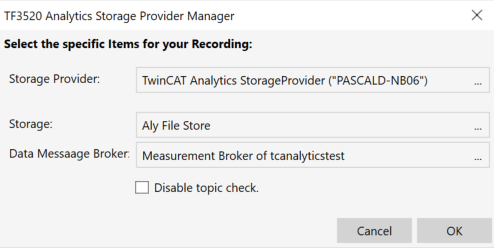
You can now select the desired Analytics Storage Provider through which the definition will be published. In addition, the definition is assigned a Storage and a Data Broker of the selected Analytics Storage Provider. After the selection, the recording definition is confirmed with OK and published to the selected Analytics Storage Provider. This way, any Storage Provider Manager connected to the MQTT Broker can find it.
Once a pipeline has been started, the view automatically switches to the second tab, Live Status.
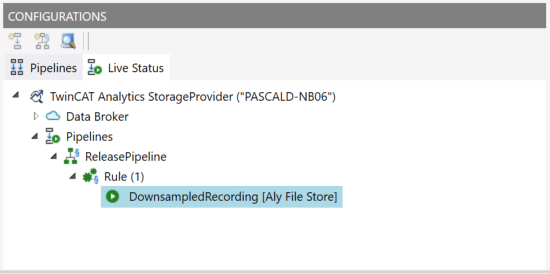
All active recordings from all users are listed here. You can stop the recordings in this tab, and you can also jump to the resulting record.
Use historized data
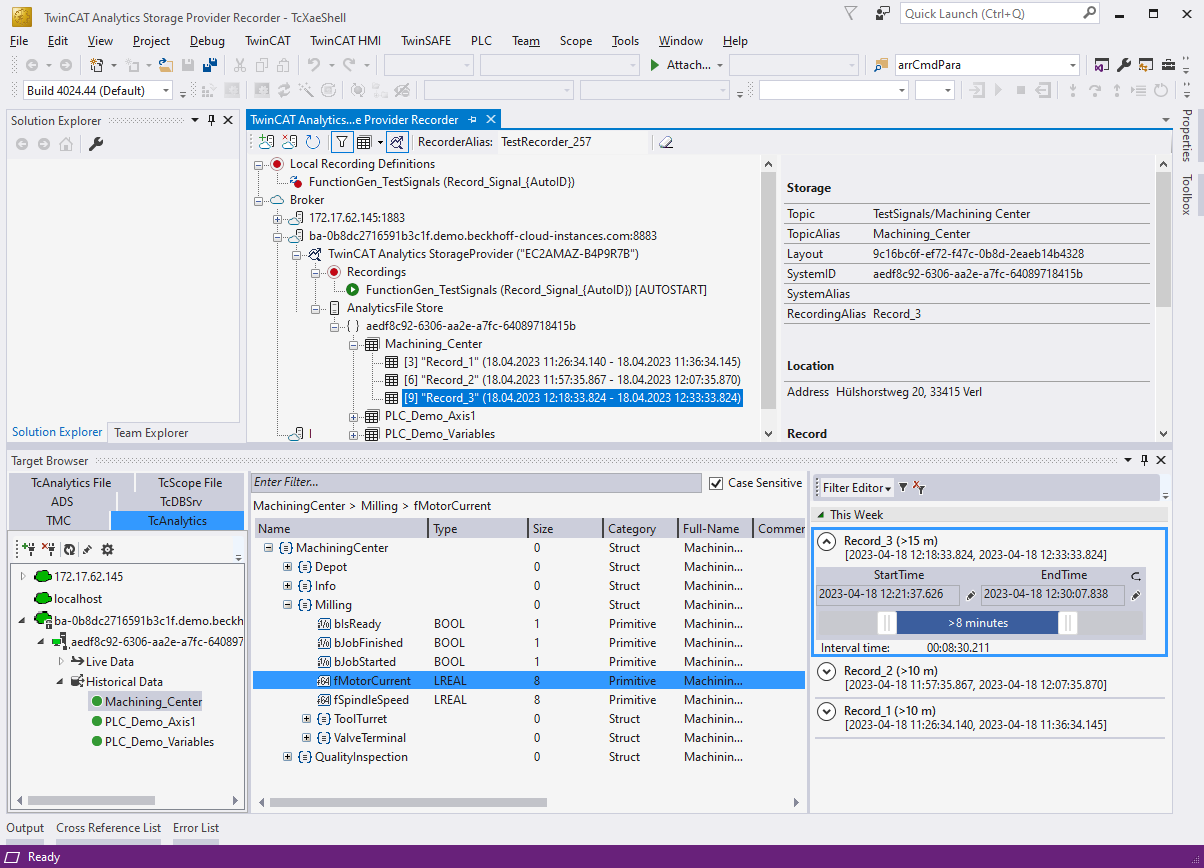
After and also during recording, you can select the historical data as input for your analysis in Target Browser. In the Target Browser, you will find a new control on the right side for the historical data. There you can select the timespan for your data.