Recording data from the machine
The Analytics Logger is the central unit for collecting machine data. It records process data from the I/Os, PLC, NC etc. on demand, cycle-synchronous. The Logger works deeply integrated in the real-time context of TwinCAT. However, it can also communicate specific data, such as IPC diagnostics.
The TwinCAT Analytics Logger is installed exclusively on the engineering system via its workload TF3500.AnalyticsLogger.XAE. This is followed by the configuration, which is downloaded to the target system with an Activate Configuration together with all the necessary drivers. Additional installations on the target system are therefore not necessary. The Logger can act as MQTT Client to communicate the recorded data to a native MQTT message broker or store the data in the same data format in a local binary file. By the usage as MQTT Client the Logger is able to bypass short disconnects from the message broker with a ring buffer functionality. You can configure a ring buffer as well for the local binary file storage. The optional data compression ensures the lowest possible hard disk space requirement.
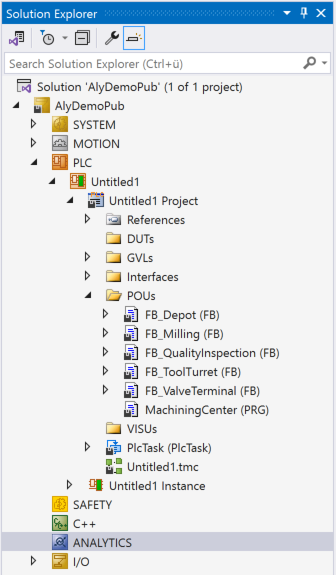
- To configure the Analytics Logger you have to navigate in your existing TwinCAT Project to the Analytics tree node.
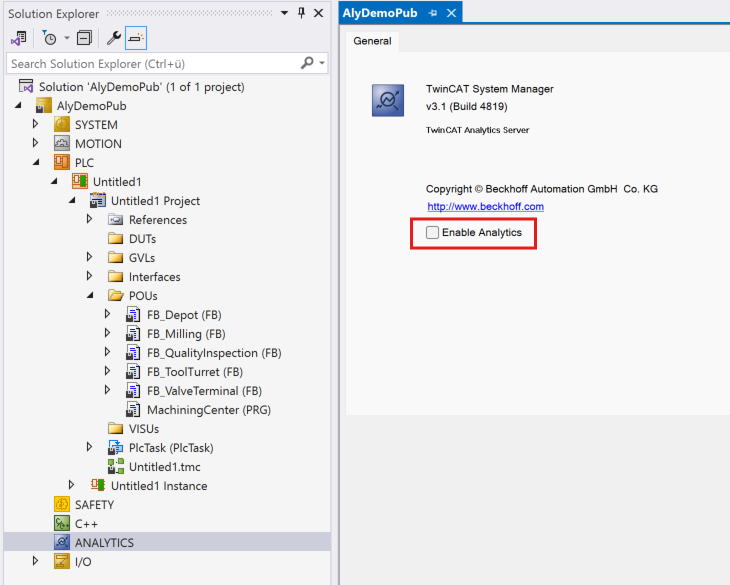
- 1. Double-click to open the General tab and activate the Enable Analytics checkbox.
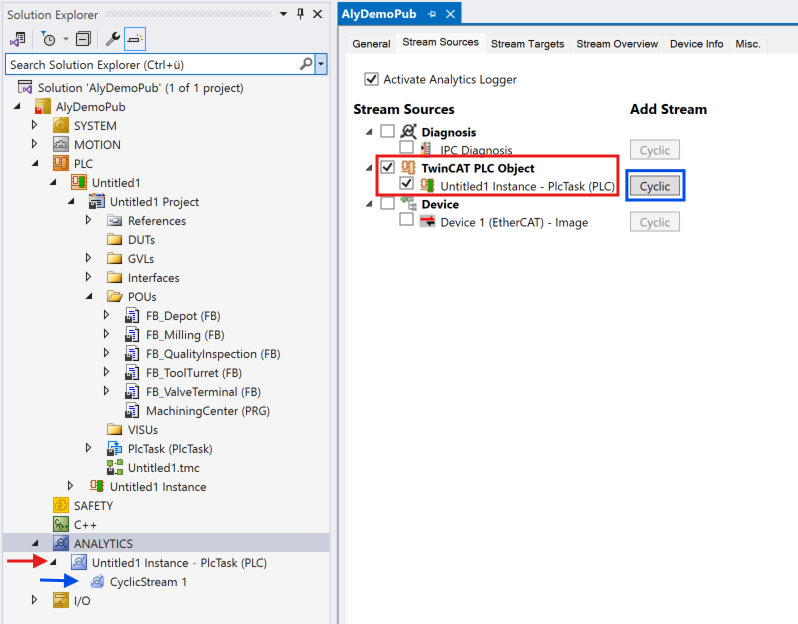
- 2. All necessary configuration tabs of the first level are then automatically activated. On the Stream Sources tab, choose the sources from which you want to record data.
- 3. To do this, activate the corresponding checkboxes (example red: PLC instance). Then add one or more streams for the corresponding source using the button on the right-hand side (blue), which is then enabled.
- The streams are also visible in the Solution Explorer.
- 4. At the same level, switch to the Stream Targets tab to define data targets in the form of analytics files or MQTT message brokers.
- An analytics file target is always set as the default. The binary data format files are stored in the TwinCAT boot directory. You can use this target as it is or customize it. The following settings can be made on the right-hand side of the window:
Name: Name of the target
Type: File
Directory: Path to the Analytics file folder
Time Provider Type: Choice of time provider for possible time synchronization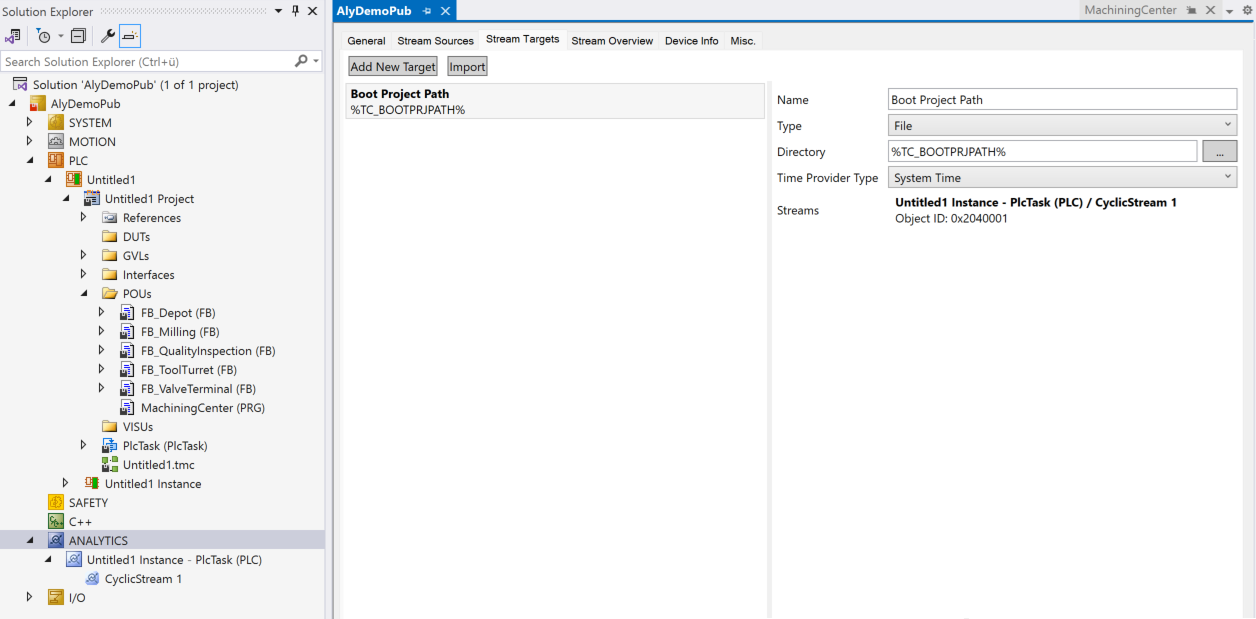
- As an alternative to the previous step, you can change the type to MQTT. This adjusts the setting options:
Name: Name of the target
Type: MQTT
Connection: Connection data to a native MQTT message broker
Time Provider Type: Choice of time provider for a possible time synchronization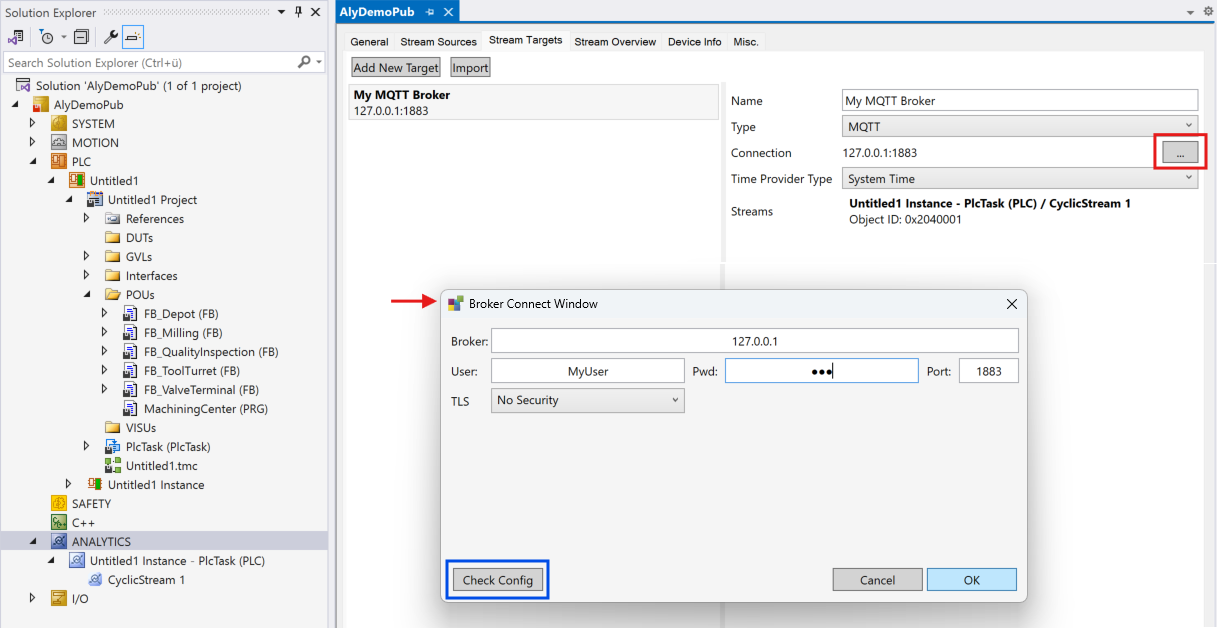
If you click on the button with the three dots (red) in the connection property, an additional Broker Connect Window opens. You can make the following detailed settings here:
Broker: IP address or host name of the broker
User: The user name for logging in to the broker
Pwd: The user's password
Port: The MQTT port can be entered here. The default value is 1883; as soon as you use certificates, the port automatically changes to 8883
TLS: Here you can choose between No Security, Use Certificates and Use Pre-Shared Key (PSK).
Details on the certificate application can be found in the TF3500 Analytics Logger documentation - You can then switch directly to the third level, the stream level.
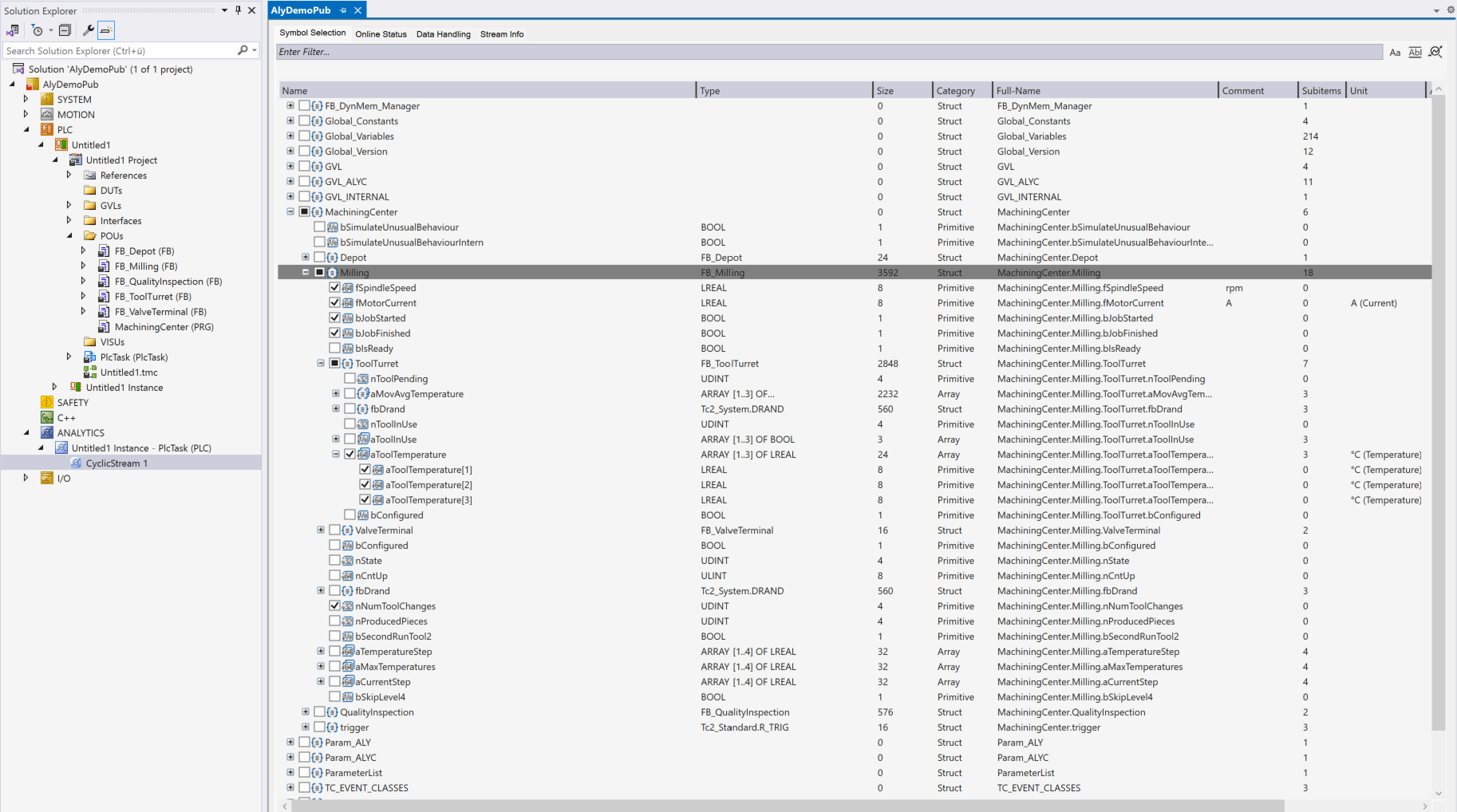
- 5. In the Symbol Selection tab, you will now see all the variables that you can choose for this stream. To do this, set the checkboxes on the variables accordingly. It is also possible to choose entire branches, function blocks or structures with the respective higher-level checkbox.
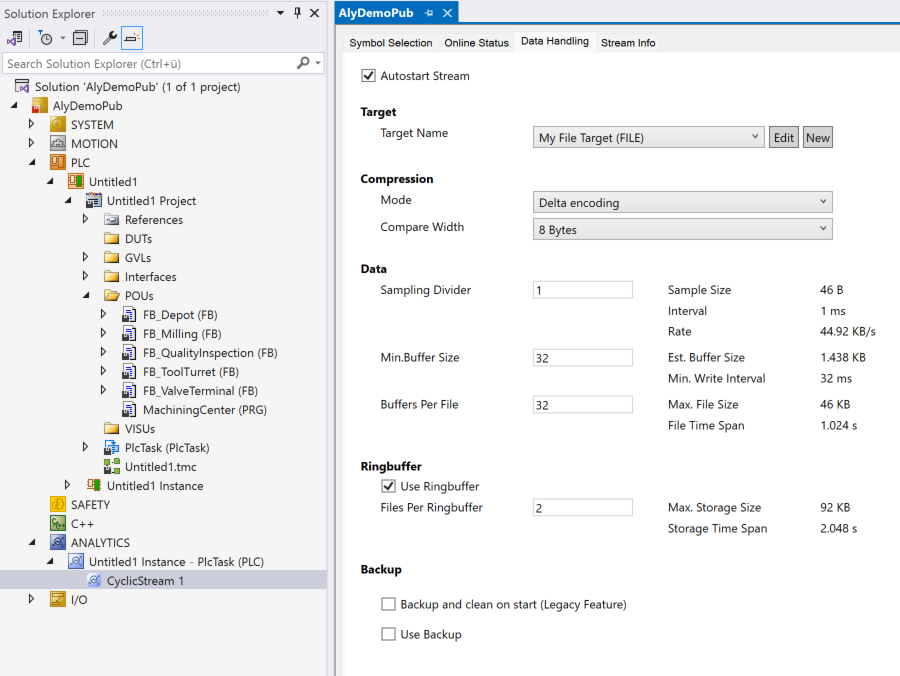
- 6. In the last step, switch to the Data Handling tab. The assignment of the respective stream to one of the created stream targets now takes place here. Here you can define which data is to be recorded and where. The masks of the setting options differ in that you have selected an analytics file or an MQTT broker as the target. Some settings are generally valid and do not depend on the target:
Compression: Here you can switch data compression on and off.
Sampling Divider: Here you can set a factor that ensures that the data is sampled at a rate that is a multiple slower than the task cycle time. - If your target is an analytics file, you also have the option of setting a ring buffer. In addition, the Use Backup option allows data to be saved in a separate analytics file in parallel to the actual recording of an event. A very useful function, especially when troubleshooting. Details can be found in the TF3500 Analytics Logger documentation.
- If your target is an MQTT broker, you also have the option of specifying a topic name for the organization on the message broker. It is also possible to switch on and set the buffering of data when disconnecting from the message broker.
Details can be found in the TF3500 Analytics Logger documentation.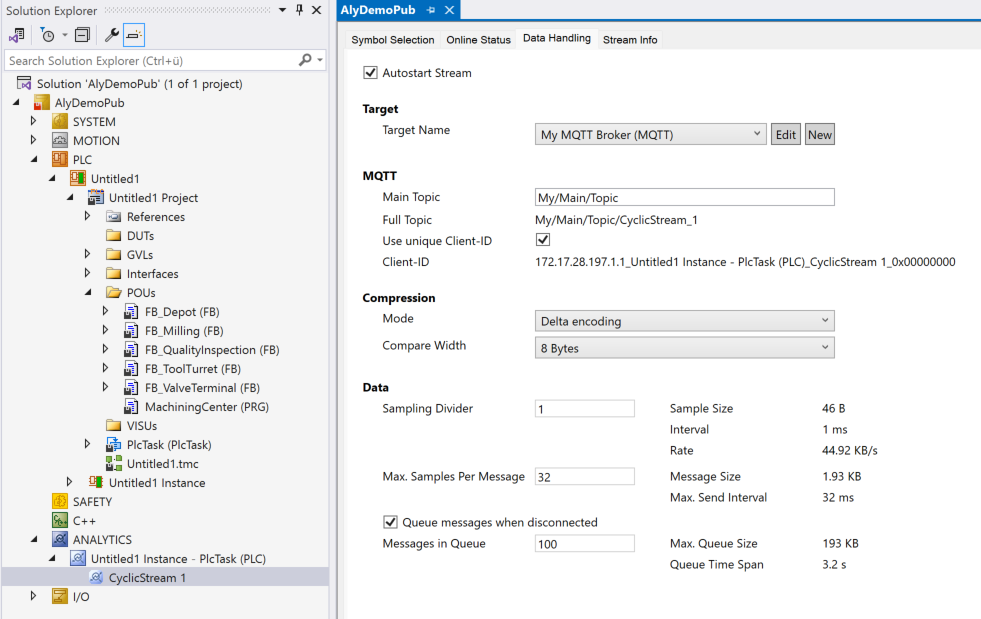
- The Analytics Logger configuration is now complete. As the Autostart Stream option is selected by default in the Data Handling tab, the Analytics Logger starts working directly when the TwinCAT configuration is activated on the corresponding target system.